Teams
Use the Teams report to review saved teams and their lineups across your organization, then download a list for event planning. It includes teams created manually, imported, or created from registration answers, even when their lineups are still empty. It isn't a check that everyone has registered or paid.
Open the report
Go to Reports > Registration > Teams.
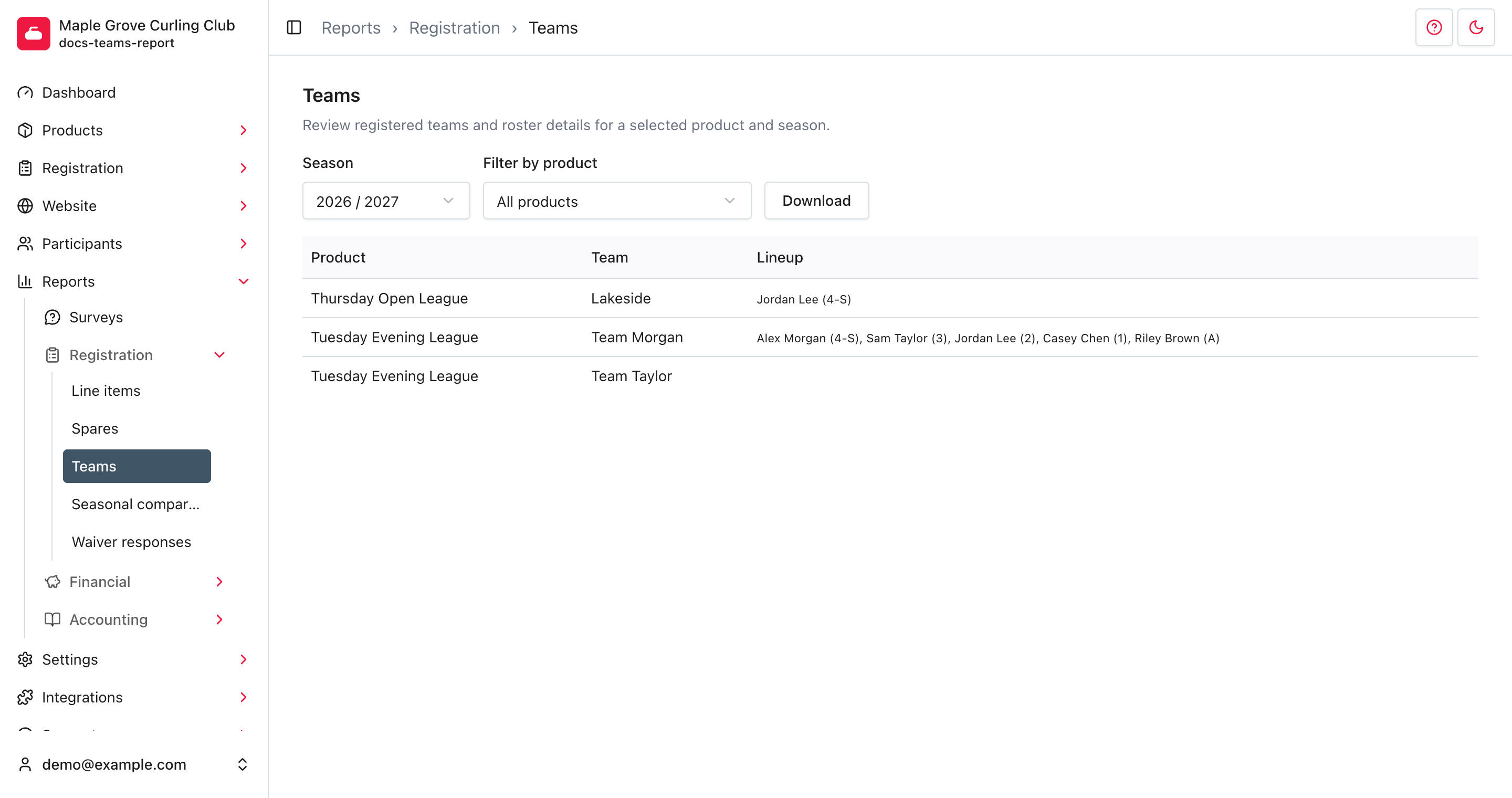
The report opens on the current season. Each row shows a Product, Team, and Lineup. Team and participant names are plain text here, not links to their records.
Find teams for an event
- Choose a Season. The report uses the event's start date, not the date the team was created or a participant registered.
- Choose the event under Filter by product. Only products with saved teams in the selected season appear in this list.
- Review the teams and their assigned participants.
Both filters update the table automatically. Changing Season resets Filter by product to All products. Choose the event again after changing seasons.
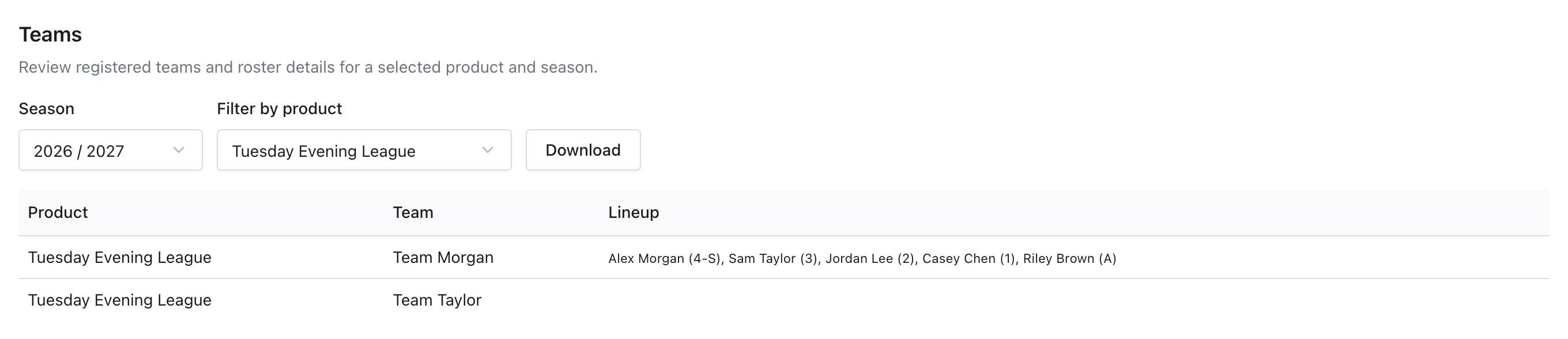
Choose All products to show every matching team for that season. The report shows up to 12 teams per page; use the page links below the table for the remaining teams. There isn't an all-seasons option.
Earlier seasons show the teams and lineups currently saved for those events. They aren't historical snapshots of the lineup on a particular date.
Read the lineup
Names in Lineup are followed by their assigned position:
- (4): fourth.
- (3): third.
- (2): second.
- (1): lead.
- (A): alternate.
- -S marks the skip, so (4-S) means fourth and skip.
A blank Lineup means no participants have been assigned to that team. Creating a team doesn't automatically assign everyone who entered its name on a registration form.
To create teams or correct their lineups, go to Products, open the event, then select Teams. See Create and manage teams for manual assignments, recommendations, and imports. This report doesn't offer editing or deletion actions.
Download the list
Select Download after choosing the season and product filters. The file
is named teams.csv and includes all matching teams, not just the current page.
The CSV contains Product, Team, and Lineup, with the same position abbreviations as the table. Each team occupies one row, with its lineup in a single cell. It doesn't include email addresses, phone numbers, payment status, or separate columns for each player.
Downloading doesn't change teams, assign players, or send messages.
Troubleshooting
My event isn't in the filter
Check its start date and whether it has any saved teams. A product with no teams doesn't appear in the filter. See product information for the event's date settings.
Products without a start date appear under the current season, not earlier seasons.
No teams matching search
No saved teams match the current filters. Choose All products or another Season. Registration answers alone don't create teams; review Recommend under the event's Teams section when you need to turn those answers into saved teams.