Waiver Responses
Use Waiver responses to find a recorded acceptance or decline, review the waiver wording from that response, and download a filtered list. It includes responses to your own waivers and managed association waivers.
This is a response history, not a list of everyone who needs to respond. An empty report doesn't prove that everyone has completed their waivers, and a response doesn't prove that someone completed or paid for a registration.
Open the report
Go to Reports > Registration > Waiver responses.
You can also select the response-report icon beside a waiver in Participants > Waivers. The same icon beside a version in Waiver versions opens the report with that waiver and version selected.
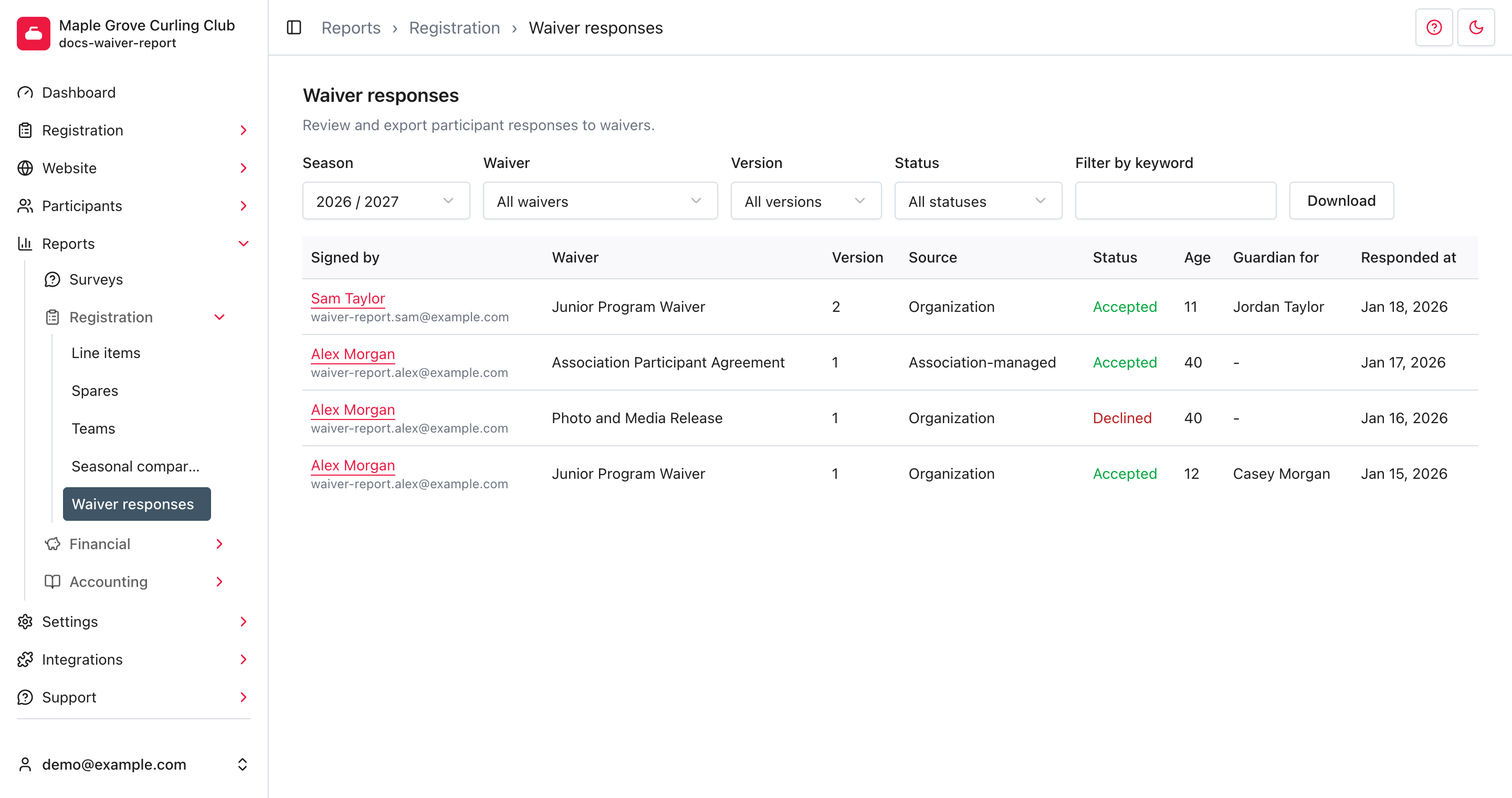
Find a response
The report starts in the current Season. It uses the date the response was recorded, not a product's start date or an order's payment date. Choose an earlier season when you're looking for older responses.
Use the filters together:
- Waiver: choose one waiver or All waivers.
- Version: choose the document version or All versions. Changing the waiver resets this selection. A version can be listed even when nobody has responded to it in the selected season.
- Status: choose Accepted, Declined, or All statuses.
- Filter by keyword: search the account holder's name or sign-in email address, the participant's name, or the saved waiver name in either language. Enter at least one nonblank character for the automatic search, or empty the field to remove it.
The table updates automatically. Results are newest first, with up to 12 responses per page. Use Next and Previous below the table for more results. There isn't an all-seasons option.
The filters narrow responses already recorded. Declined does not include people who haven't answered an optional waiver.
Read the results
Each row is one response:
- Signed by shows the account holder's name and sign-in email address. Select the name to open the response.
- Waiver and Version identify the saved document. Older responses keep their original wording and version after the waiver is edited.
- Source is Organization or Association-managed. A waiver created from a customizable template is still an organization waiver.
- Status is Accepted or Declined. A decline is a recorded answer, not a missing response.
- Age is the participant's age recorded with the response. A dash means it wasn't recorded.
- Guardian for identifies the participant represented by the account holder. A response for themselves shows a dash.
- Responded at shows the response date in your organization's time zone.
The waiver filter uses current waiver names, while the rows show names saved with their responses. Renaming a waiver can make those names differ.
Names and saved wording follow your current interface language. Missing or blank translations fall back to the other language. Downloads use the same language as the report.
Review the saved wording
Select the account holder's name under Signed by.
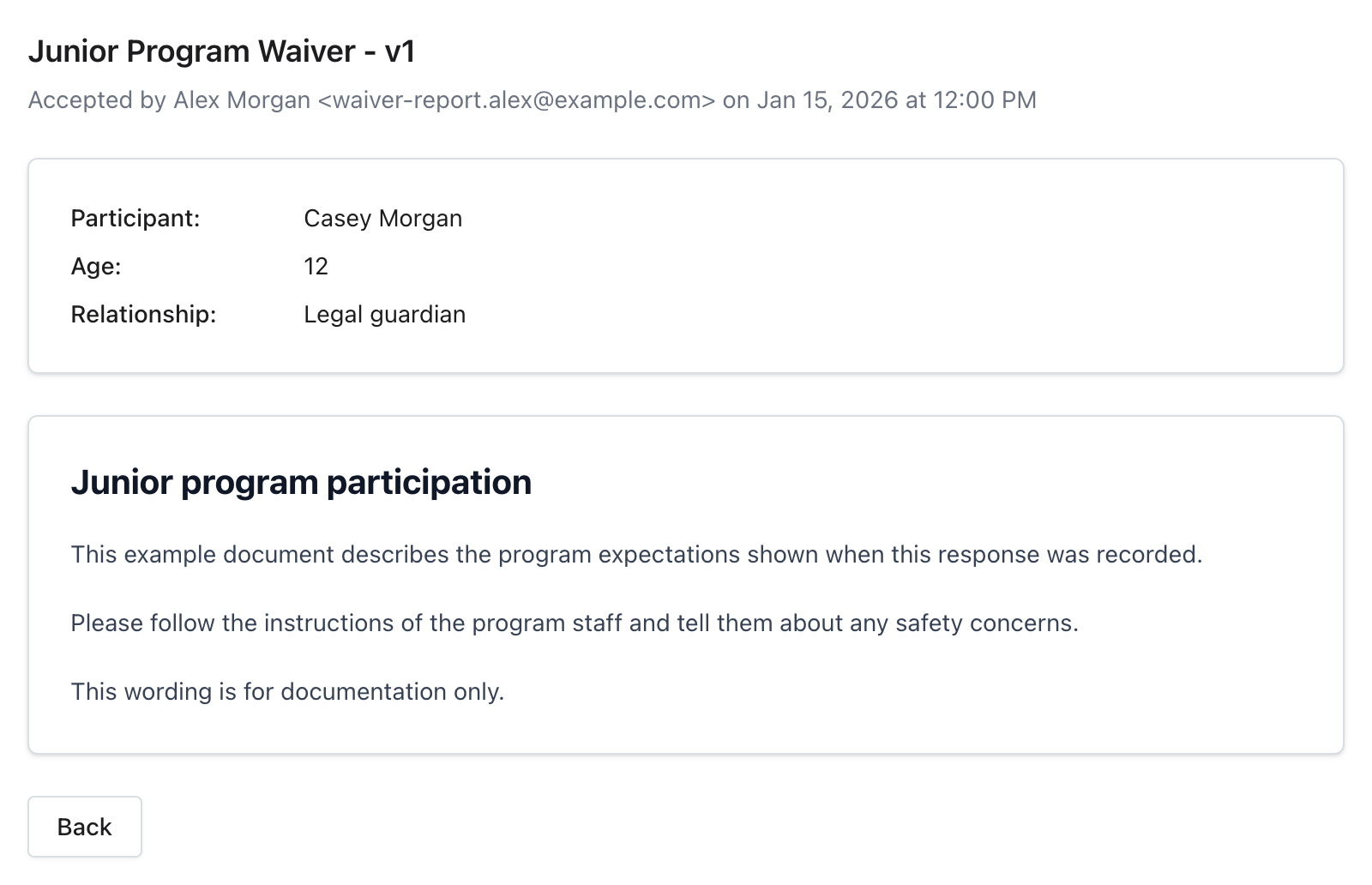
The detail page shows the waiver name and version, who responded, their acceptance or rejection, and the recorded date and time. The participant's name and recorded age appear below. Relationship appears when the account holder responded for someone else.
Read the saved waiver text in the card below those details. Long documents scroll within that card. Editing the waiver or publishing a new association template version doesn't replace this saved wording.
Select Back to return to the report. This opens its default filters; use your browser's back button if you want to return to the filtered URL you came from.
Organization managers cannot edit or delete response records. Contact Curling IO support if a recorded response needs attention. Disabling a waiver does not remove its earlier responses.
Download responses
Choose your filters, then select Download. The file is named
waiver_responses.csv and includes every matching response, not just the
current page.
The columns are Signer, Email, Waiver, Version, Source,
Accepted, Age, Relationship, Participant, and Responded At.
Accepted uses Yes or No. Relationship uses stored values such
as self and legal_guardian; Participant is blank for a self-response.
The CSV contains response details, not the complete waiver wording. Open the individual response to read that wording. Keep exports private because they contain names, sign-in email addresses, and participant details.
Troubleshooting
No results
Check Season first, then remove the keyword or broaden Waiver, Version, and Status. A new version can have no responses even when people answered an earlier version during the same season.
A participant hasn't answered the latest version
An applicable waiver is answered once per participant per season. Updating its wording does not make someone answer again if they already responded during that season. See waivers for how enabled state, age rules, and product-specific waivers affect collection.