Ask your members for feedback
Open Reports > Surveys to prepare a survey for your club's members. Club surveys require Premium. You need organization manager access to create and manage them.
Use a short survey with specific choices when you need feedback about your club. Club results are aggregate totals: you can't inspect an individual member's answers. For surveys of affiliated club managers, use the association guide.
Set the details and dates
- Open Reports > Surveys, then select New Survey.
- Enter Title and Description. Add the French versions if needed.
- Set Opens on to a date after today, and set Closes on to that date or later.
- Select Continue to open the Form builder.
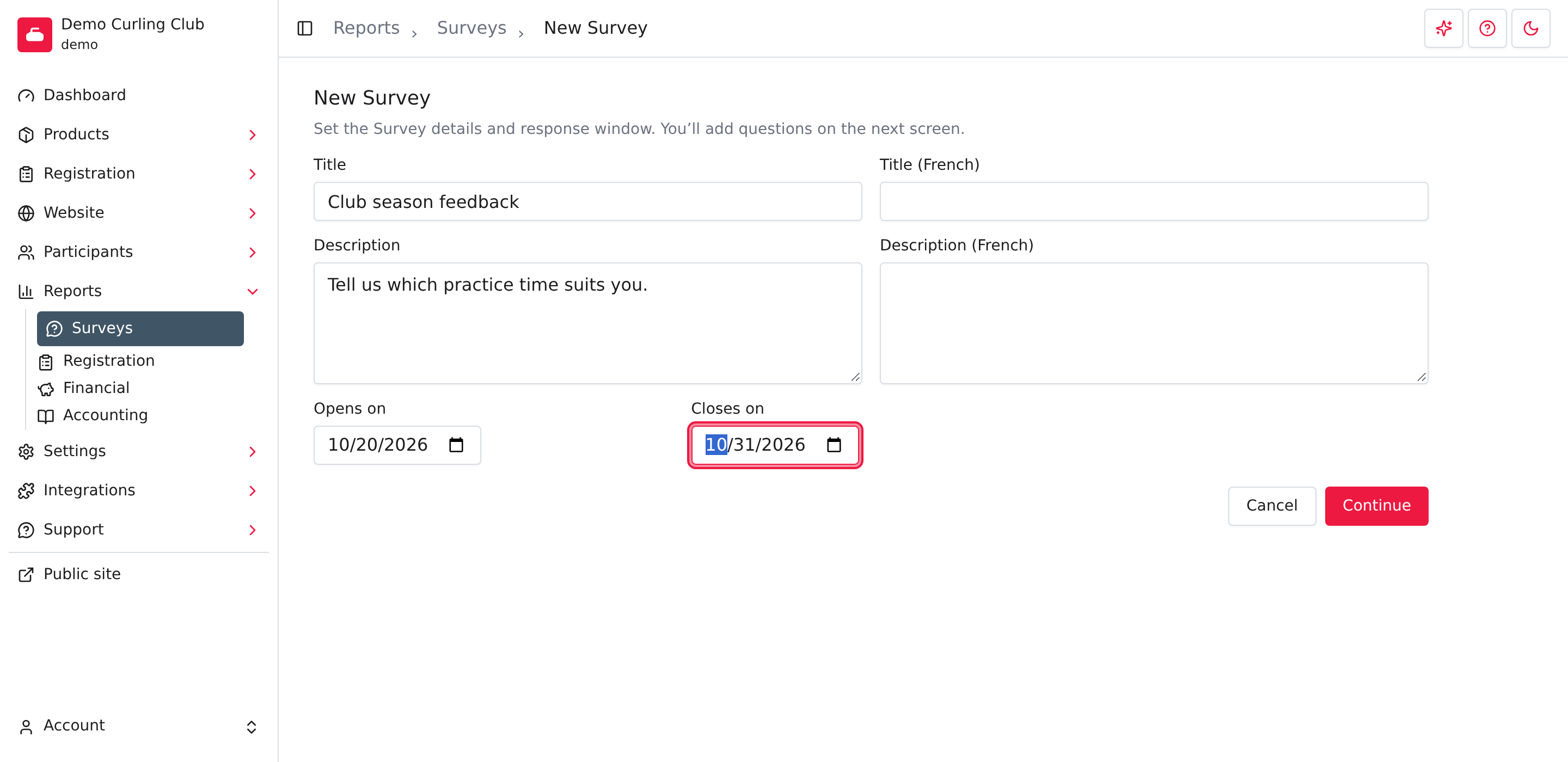
Finish the form before the opening date. Once the survey opens, its details and form are frozen. The response window includes both the opening and closing dates, using your club's time zone.
Add and save questions
- Select New question, or add an existing question from Questions.
- For a new question, enter Name, an optional Hint, and choose Type. Club surveys support Checkbox, Multiple Choice and Multiple Checkboxes. Free-text questions aren't available because their answers can't be combined into aggregate totals.
- For Multiple Choice or Multiple Checkboxes, enter the options. Checkbox uses fixed Yes and No answers. Select Save in the question editor to save the question to the library.
- Arrange the questions on the form. Set Required where an answer is necessary, and use the layout controls to move or remove questions.
- Select the form's Save to prepare the survey, then select Back. Open Preview on the survey overview.
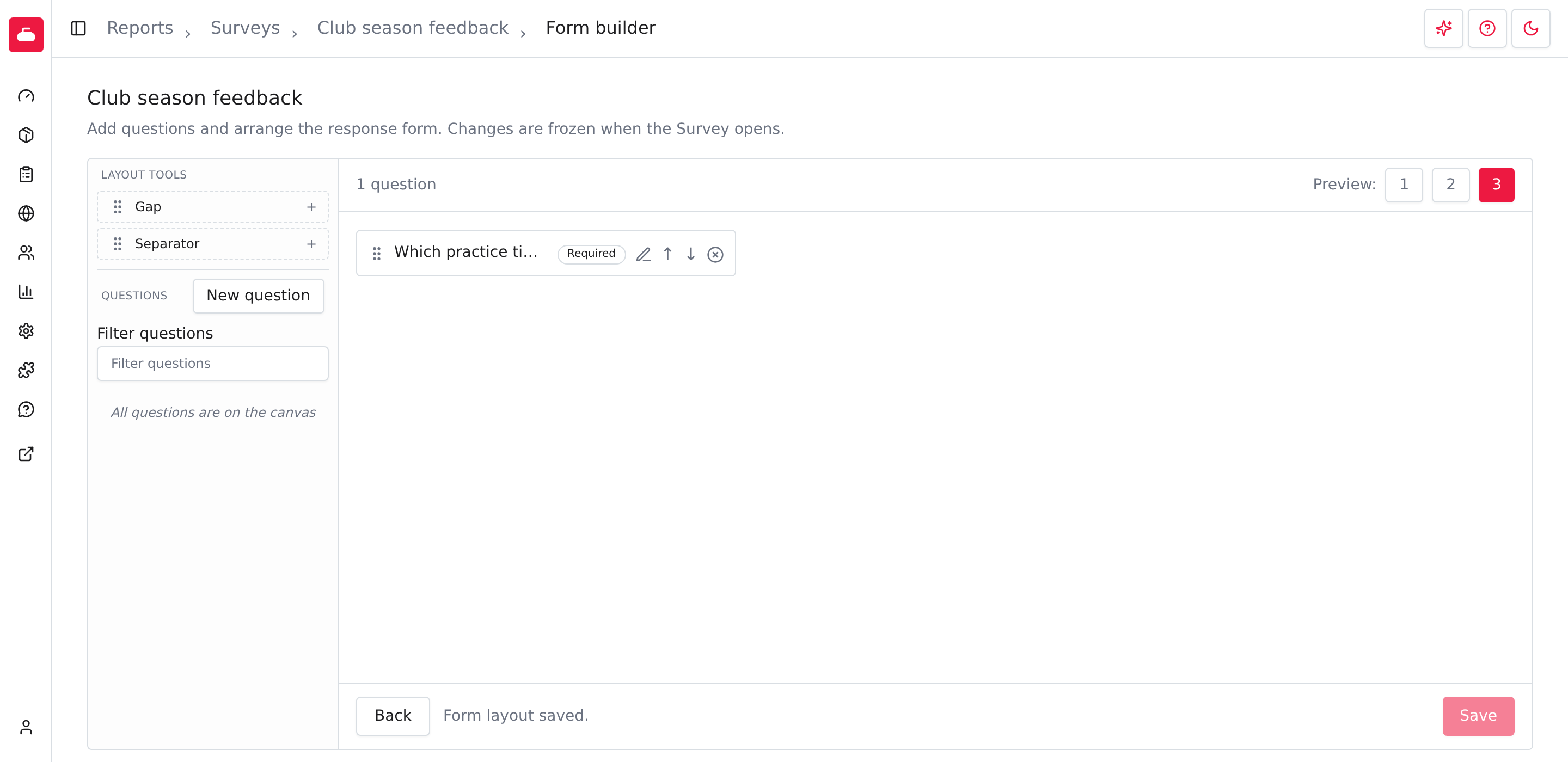
The question editor and form have separate Save actions. Saving a question doesn't update the prepared survey by itself. After editing a question already on the form, save the form too, then check Preview again. Back returns to the survey overview.
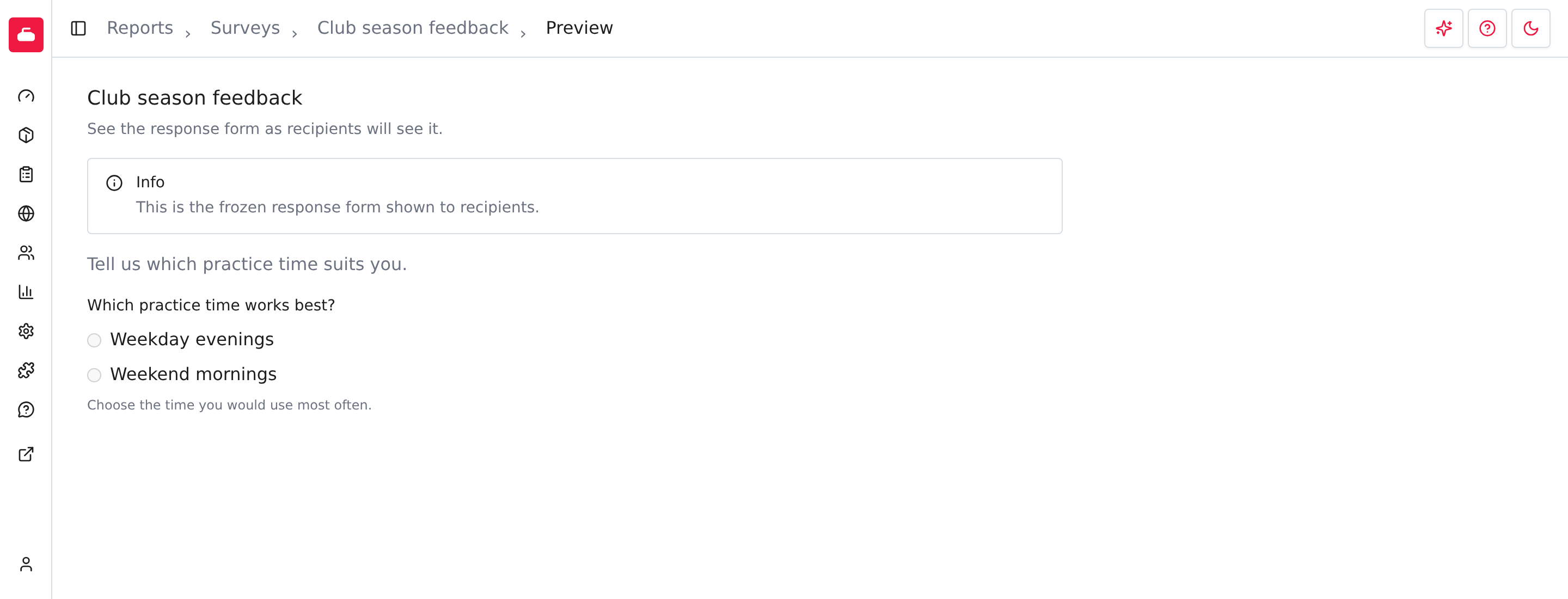
Preview uses the saved form and doesn't submit an answer. Check the question wording, hints, choices and required fields before the opening date. Use Info on the overview to change the details while editing is still allowed.
Review responses
Select Responses on the survey overview. The report shows the response count, the current eligible member count and totals for each question. An optional question can have fewer answers than the survey's response count. Individual respondent names and answer records aren't available in club results.
Members answer through their accounts during the response window. Eligibility uses current-season registrations and club administration access. Share the account instructions if someone needs help finding an available survey. Saving a form doesn't send an email invitation.
On the survey list, Copy starts another survey from an existing one. Check its details, dates and questions before saving. Delete removes a survey with no responses; a survey with responses offers Archive instead.