Payment settings
Use Settings > Payments to choose how members can pay, set your payment plan policies, and add convenience fees. These settings affect new checkouts. They do not change payments or fees already recorded on an order.
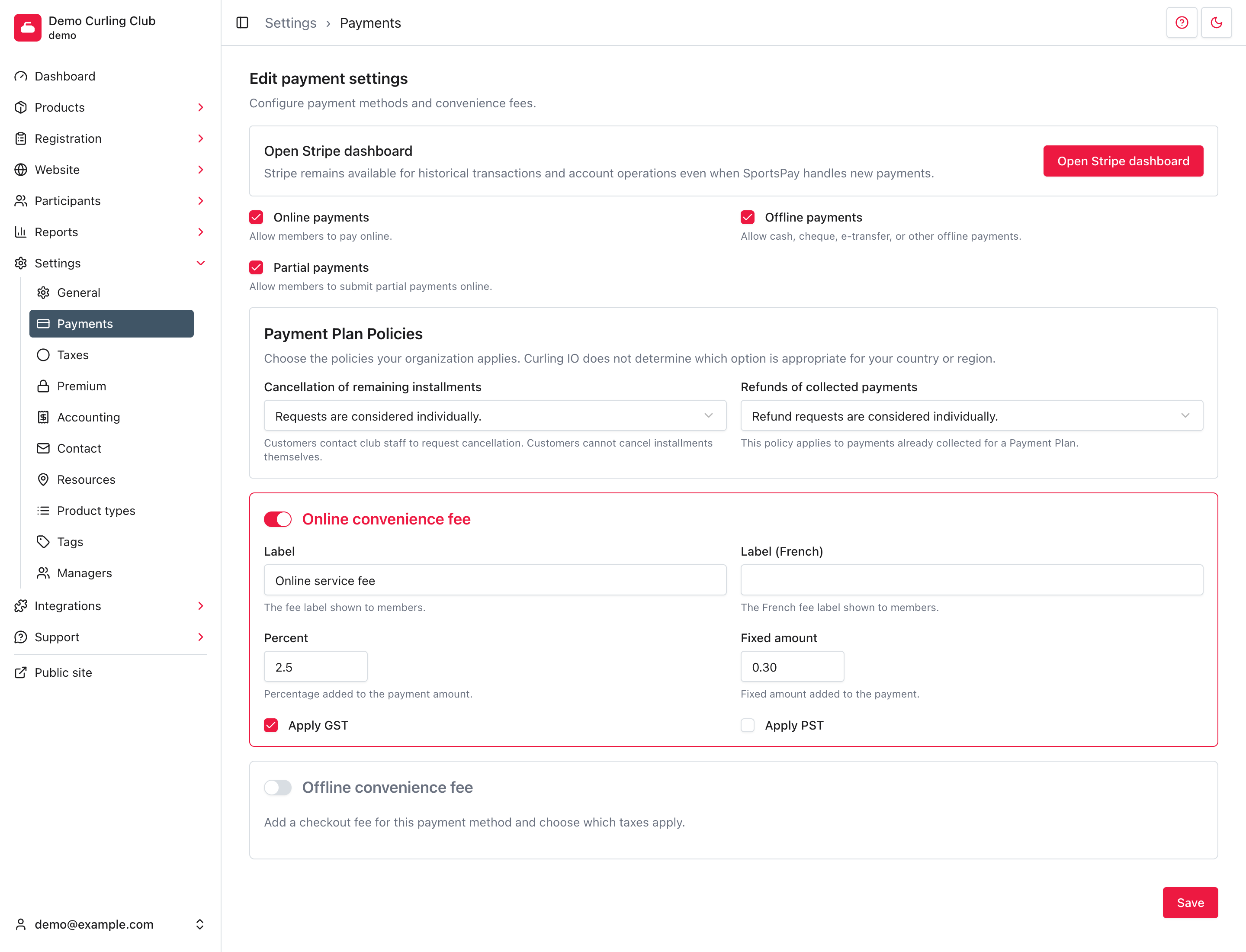
Choose the payment methods you accept
- In the administration area, open Settings > Payments.
- Select the payment methods your organization accepts:
- Online payments lets members pay online through your configured payment processor.
- Offline payments lets members submit an order for payment by cash, cheque, e-transfer, or another method handled by your organization.
- Partial payments lets members choose an amount to pay online instead of paying their entire outstanding balance. This option is available only when Online payments is enabled.
- Review the payment plan policies and convenience fees described below.
- Select Save.
Do not enable Online payments until your payment processor setup is complete. This page controls whether online checkout is available. It does not connect a Stripe or SportsPay account.
If Open Stripe dashboard appears, you can use it for Stripe account work and historical Stripe transactions. It may remain available when SportsPay handles new payments.
Set payment plan policies
Payment plans work with SportsPay, or with Stripe after Curling IO enables them for your club. Stripe clubs can email [email protected] to request enablement. Online payments must be on and your processor must be fully set up. That also includes Premium access, so you don't need to buy Premium separately. Learn about Premium access.
The Payment Plan Policies section records what your organization tells customers about scheduled installments. Customers see your choices at checkout, next to their payment schedule. Choose one option for each policy. Neither has a default, so you must choose both before a product can offer a payment plan.
- Cancellation of remaining installments describes how you handle a customer's request to stop installments that have not been collected. Customers can't cancel installments themselves. They contact your club, and staff decide. Choose Requests are not accepted, except where required by law., Requests are considered individually. or Requests will be honoured.
- Refunds of collected payments describes how you handle money already collected through a payment plan. Choose Refunds are not offered, except where required by law., Refund requests are considered individually. or Refunds are provided on request.
Curling IO does not choose these policies for you. Confirm the wording with the person responsible for your organization's financial and legal policies. If a required policy is missing while online payments are enabled, the attention centre can ask a manager to finish this section.
Changing these choices affects new checkouts only. A plan keeps the policies the customer accepted when they bought it. Changing a choice doesn't cancel an installment or issue a refund. Staff still handle those requests, and can cancel installments or refund payments whatever you chose. See Registration > Payment Plans for the staff steps, and Refunds to review money returned through Curling IO.
Add a convenience fee
Online and offline convenience fees are configured separately. You can enable one, both, or neither.
- Turn on Online convenience fee or Offline convenience fee.
- Enter the Label shown to members. Add an alternative-language label only when your organization uses that language.
- Enter a Percent, a Fixed amount, or both. When both have values, both parts are added to the payment.
- Select each tax that applies to the fee.
- Select Save.
Only use a fee and tax combination your organization is allowed to charge. Rules vary by payment method and jurisdiction. Curling IO calculates the values you configure, but it does not decide whether that fee is permitted.
Turning a convenience fee off stops it from being added to future checkouts. The saved label, amounts, and tax selections are kept in case you enable it again. Finalized orders keep their original fee and tax amounts.
Manage the available tax definitions in Settings > Taxes. Configure the account codes used for payment and fee entries in Settings > Accounting Codes.
Check the result
After saving, reload Settings > Payments and confirm your choices are still selected. For a checkout-facing change, use a test product and confirm that the expected payment methods and fees appear before opening registration to members.
Use Registration > Orders to review submitted orders. Use the financial reports to reconcile payments, refunds, payouts, and disputes.
How payouts affect accounting
With Premium and accounting codes enabled, reconciling a payout records the payments deposited into your bank account and clears Undeposited Funds.
Stripe deposits the payment amount after deducting its processing fee and the application fee. Accounting records the net bank deposit and the actual fees reported with the payout.
SportsPay deposits the full payment amount and bills fees separately. Its estimated fees remain available in reports, but they are not posted as an expense in the deposit journal. Record SportsPay's separate invoice in your accounting software.
The journal uses the deposit date in your organization's time zone. Refunds have their own withdrawal entries. If QuickBooks sending is configured and ready, the deposit uses the same journal and your mapped accounts.