Product Types
Product types define the categories shown under Products and the tools available inside each product. Use them to model categories such as leagues, bonspiels, programs, merchandise, memberships, or another kind of offering.
A product type is shared configuration. Changing one affects every product in that category, so review existing products before removing a capability or disabling the type.
Open product types
Go to Settings > Product types.
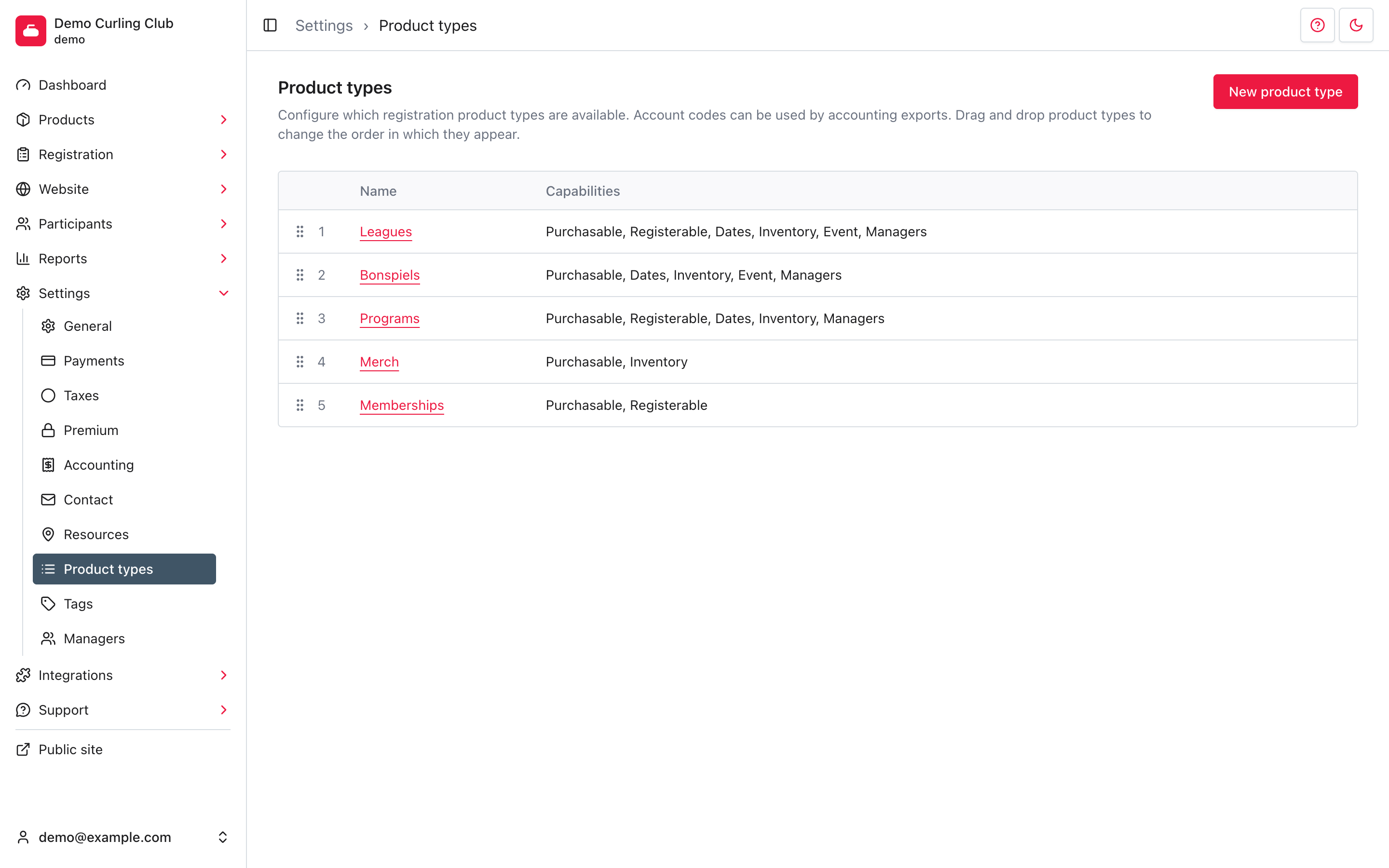
The list shows the current navigation order and a summary of each type's capabilities. Select a name to edit that product type.
Reorder product types
Use the drag handle beside a product type to move it. Curling IO saves the new order as soon as you drop it.
This order controls where product types appear in administration and public product navigation. It does not reorder the individual products inside a type. Use Positioning from that product type's list when you need to reorder its products.
Reuse a type or create one?
Reuse a type when the new product belongs in the same category and needs tools that type already supports. A new league season is another product under Leagues. A new toque can go under Products. Different names, prices, stock limits or registration windows don't require a new type.
Create a type when your club needs a separate category in navigation, with its own shared names, capabilities, summary or accounting default. For example, you might want Courses separate from Programs. Check for a disabled starter type before creating another with the same purpose.
If just one product doesn't need teams, a waitlist or another available tool, leave that product's setting off. Changing the shared type affects every product in the category. See products and settings and the capability reference.
Rentals, association fees and club affiliation have dedicated workflows. Use their existing types and guides for those jobs; creating a custom category with a similar name doesn't recreate the system workflow.
Create or edit a product type
Select New product type, or select an existing product type's name.
Configure these fields:
- Plural name appears in lists and navigation, such as
Leagues. - Singular name is used when the interface refers to one product, such as
League. - Account code supplies a default ledger code for accounting transactions from this product type.
- Enabled controls whether the product type and its products are accessible. Turning it off does not delete anything.
- Summary appears at the top of the public product-type page and can appear on the landing page.
Enter plural and singular names for every language your organization enables. If you use a summary, write it for those languages too. The primary-language plural name also determines the product type's URL segment.
Compare Current web address with Web address before you save. The preview updates as you edit the primary-language plural name, even when you're viewing the form in the other language. Changing only the translated name doesn't change the URL.
For example, changing Leagues to Adult Leagues changes the segment from
leagues to adult-leagues. The form warns you when the generated segment
differs from the current one. Capitalization and punctuation changes can
produce the same segment, with no URL change.
Curling IO redirects recent previous product-type URLs to the current one, but you should still update links in menus, articles, notices, and external websites. The preview doesn't check whether the segment is already in use; that check happens when you save.
Select Save when the names, summary, status, and capabilities are correct.
Choose capabilities
Capabilities control which settings and product sections exist. Choose from the six capabilities Curling IO provides. See the capability reference for fields, dependencies and admin, public and checkout effects.
| Capability | What it enables |
|---|---|
| Purchasable | Pricing, taxes, addons, discounts, late fees, accounting, and checkout |
| Registerable | Participant rules, registration forms, registration records, and eligibility checks |
| Dates | Product start and end dates, plus date-based registration windows |
| Inventory | Capacity limits and waitlists |
| Event | Team and competition settings, stages, schedules, and results |
| Managers | Product-specific manager assignments and permissions |
The Products starter type already supports merchandise and includes all six capabilities. You can leave Participant and Event Settings off on an individual merchandise product. See the merchandise recipe.
A dedicated merchandise type can use Purchasable and Inventory without Dates. When a product has Dates switched on in Info, set Starts, Ends, Opens and Closes. An incomplete registration window makes it unavailable. Review every product using a shared type before removing capabilities.
Some capabilities depend on others:
- Turning on Event also turns on Dates. Turning off Dates turns off Event.
- Inventory requires Purchasable or Registerable. If neither is on, selecting Inventory also selects Registerable.
- Turning off both Purchasable and Registerable turns off Inventory.
These rules are enforced again when you save. Submitting the form cannot bypass them.
Rentals and association fees have dedicated workflows and code-owned behavior. Their available capabilities may be fixed or more limited than an ordinary product type. Use Rentals and Association fees for their specific setup.
Change a live product type carefully
Removing a capability switches off its section and dependent sections for every product of that type. Saved settings and historical data are kept. Restoring the capability makes the sections available to select again; it does not switch them back on. Open each product’s Info page to select the sections you need. For example, removing Event switches off Event, Schedule and Results; removing Managers switches off product-manager access while retaining the assignments. See Remove a capability for warning counts and confirmation.
Before saving a live change:
- Review the products using the type.
- Confirm that no active workflow depends on the capability being removed.
- Save the product type.
- Open a representative product in administration and on the public site.
- Confirm that its navigation and registration action still match your intent.
Prefer disabling an unused type instead of repurposing it when the new category has a different meaning. Historical registrations remain easier to understand when their product type still describes what was sold.
Delete an unused product type
You can delete an ordinary product type only when no products use it. Select Delete beside the type, then select Confirm.
The button is also visible beside types that have products, but Curling IO refuses to delete them. Turn off Enabled to preserve those products while hiding the category.
Troubleshooting
A product section is missing
Open the product type and check its capabilities. Then open the product's Info settings because capability-dependent sections can also require a product-level switch, such as Availability, Event Settings, Schedule, or Results.
A capability changes another checkbox
This is an enforced dependency, not an unsaved browser glitch. Event needs Dates, and Inventory needs Purchasable or Registerable.
A new or renamed type will not save
The generated URL segment may duplicate another product type or conflict with an application route. Long names are shortened automatically, so names with the same beginning can produce the same segment. Choose a distinct primary-language plural name and try again.
Remove a capability
Removing a capability switches off its section and dependent sections on products of that type. Nothing is deleted: saved values, configuration and relationships are kept. Adding the capability again does not switch those sections back on. Open each product’s Info page to select the sections you want to use again.
When you select Save, Curling IO checks which products have affected sections selected:
- If none do, the change saves without a warning.
- If only inactive products are affected, an informational warning shows the count and asks you to confirm.
- If any active products are affected, a danger warning starts with the active count and asks you to confirm. Any affected inactive products are counted too.
A disabled product is inactive. For a type with Dates, a product from a past season is also inactive. Enabled products in the current or a future season count as active. Sections that are switched off stop showing and working for those products. Cancel the warning to keep the capabilities and sections as they are. If the affected products change before you confirm, save again to check the current impact.