Resources
Resources are the spaces or equipment that your organization schedules. They can represent curling sheets, courts, lounges, halls, rooms, or equipment. Resources become columns on the calendar and choices in rental schedules.
A resource does not have a price or bookable schedule by itself. Create a rental when account holders should be able to purchase time on a resource.
Before you start
Decide which distinct spaces or pieces of equipment need their own schedules. Create separate resources when they must be booked, reserved, closed, or shown independently on the calendar.
For example, create one resource for each curling sheet and another for a lounge. Do not create a separate resource for every rental product or available time.
For curling sheets, turn on Curling sheet. This makes the resource available to event draw schedules. The resource's Name is what people see on the calendar.
Create a resource
Go to Settings > Resources.
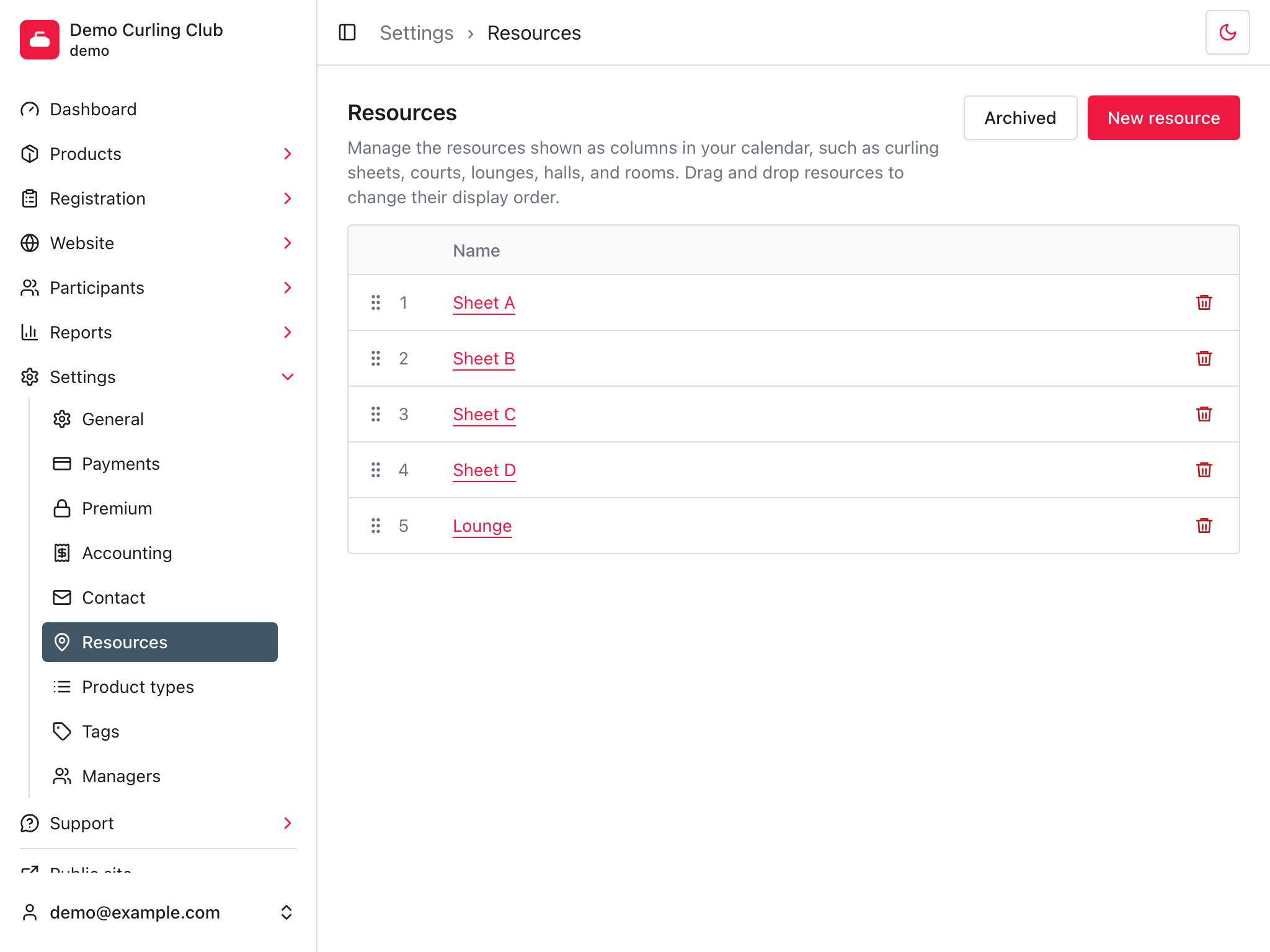
Select New resource, then complete the form:
- Enter the Name for each enabled website language.
- Turn on Curling sheet if games can be scheduled on the resource.
- Leave Show on calendar on if the resource should appear on the calendar and be available to rentals, reservations, and closures.
- Select Save.
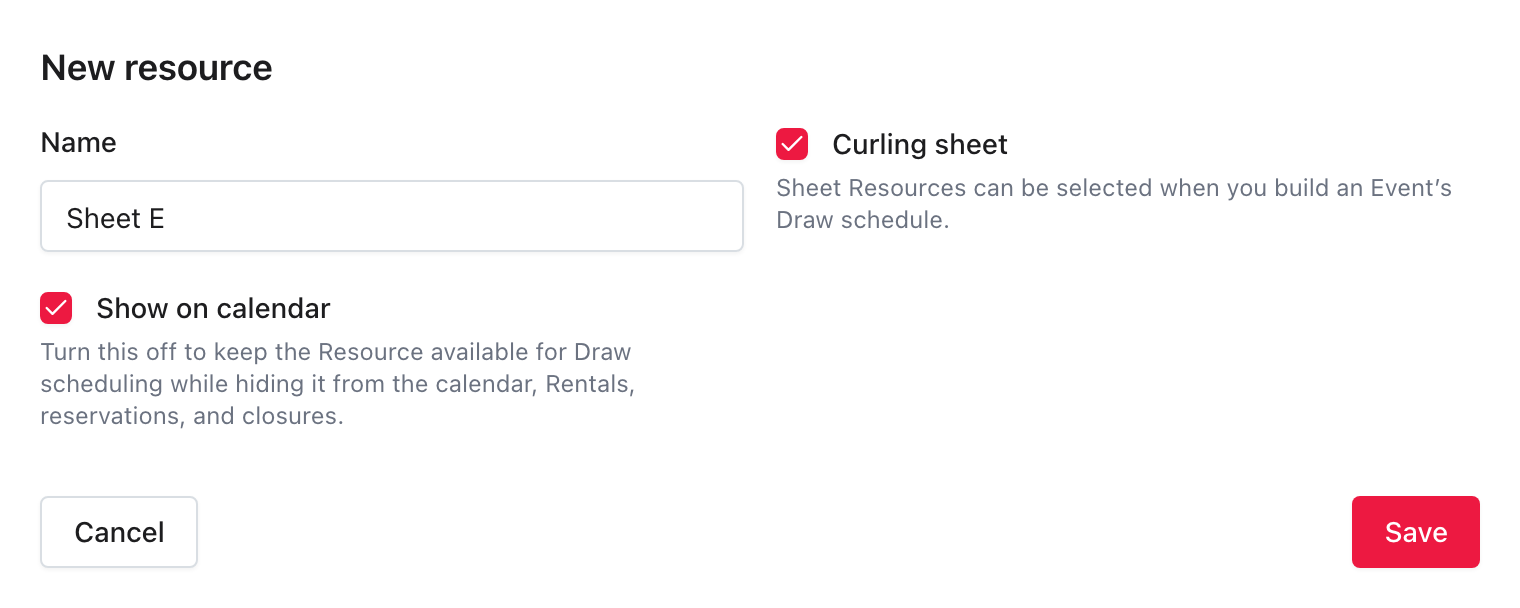
The new resource is added to the bottom of the resources list. When Show on calendar is on, it can appear on the calendar and be selected for new rental schedules.
Understand sheet order
Event draw schedules select the actual curling sheet resources they can use. Each scheduled game is assigned directly to one of those resources. This keeps a game on the same named resource even if you reorder the resources later.
The number beside each row on the resources list is its display position. Drag the handle beside a resource to change that order. Curling IO saves the new order automatically.
Display order controls the order of resource columns on the calendar. It also controls numeric or letter labels when an event uses labels such as Sheet 1 or Sheet A instead of resource names. Moving a resource does not move a scheduled game to another resource.
Edit a resource
Select a resource's name from the list to edit its Name, Curling sheet, or Show on calendar setting.
Changing the name updates how the resource is identified throughout Curling IO.
Hide a resource from the calendar
Edit the resource, turn off Show on calendar, then select Save.
A hidden resource:
- Does not appear as a calendar resource.
- Cannot be selected for a new rental schedule.
- Cannot be selected for a new reservation or closure.
- Can still be used by an event draw schedule when Curling sheet is on.
- Keeps its existing scheduling and order history.
Turn Show on calendar back on when the resource is ready for calendar and rental use again.
Delete a resource
From Settings > Resources, select the trash icon beside the resource. Then select Confirm.
Curling IO removes the resource from event draw schedules, reservations, and closures when that is safe. A closure or reservation with no resources left is also deleted.
A current or future game, booking, or rental schedule blocks removal. Reassign or remove that future use first.
If the resource has historical games, Curling IO archives it so those games keep their resource history. Otherwise, Curling IO permanently deletes it. Archived resources are hidden from the normal list and every scheduling selector.
Select Archived to switch from the current resources list to the archived resources list. This view shows only archived resources. You can restore one to the bottom of the current list, then select Current to return. Restoring a resource does not add it back to old event draw schedules.
Troubleshooting
A future game prevents the change
The resource is assigned to a current or future draw. Reassign that game before removing the resource.
The resource does not appear on the calendar
Edit the resource and make sure Show on calendar is on.
The resource is not available in a rental schedule
Make sure Show on calendar is on. Only calendar resources can be added to a new rental schedule. See rentals for complete rental setup.
The calendar columns are in the wrong order
Return to Settings > Resources and drag the resources into the intended display order.