Tags
Tags describe products with labels such as Beginner, Doubles, or Evening.
They help people filter public product lists and appear as badges.
Use Settings > Tags to manage the tags available to your organization. Use each product's Info page to choose which tags apply to that product.
Review available tags
Go to Settings > Tags.
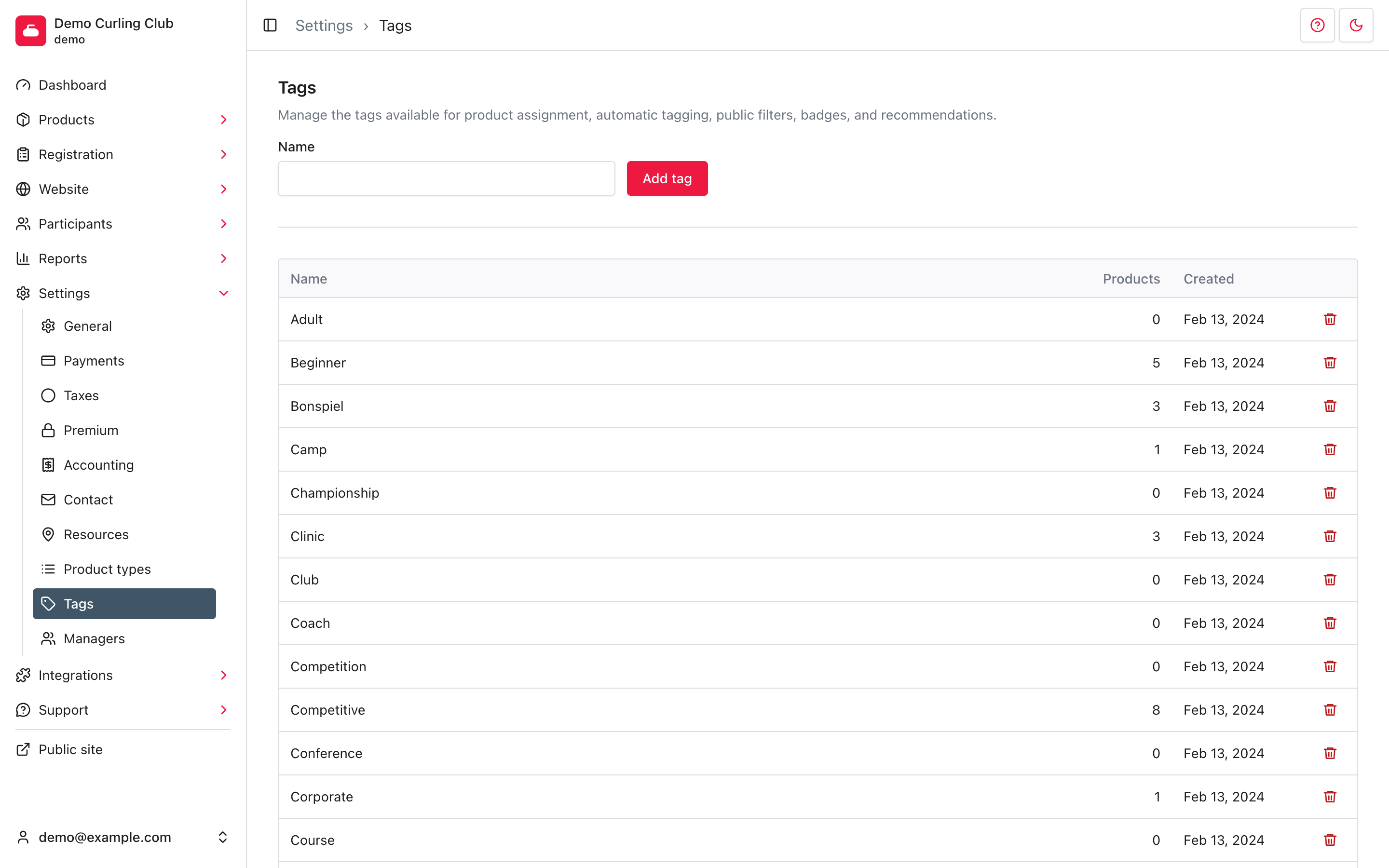
The Products column counts the products currently assigned to each tag. A zero means the tag is available but not assigned to any products. The count can include products that are not currently public. It is not a registration or sales count.
Your catalog can include tags supplied when the organization was created and tags you add yourself. Both are available for product assignment. Changes here affect your organization, not another organization's catalog.
Add a tag
- Enter a short, recognizable label in Name, such as
Adult Beginner. - If the form shows a second language field, enter that translation too.
- Select Add tag.
The tag appears in the list after saving. Adding it does not immediately tag existing products. Open the relevant products and save their assignments.
Choose names that help someone find a suitable offering. Avoid creating several
labels for the same thing, such as Beginner and Beginners.
There is currently no rename action on this screen. Check the wording before adding a tag, especially before assigning it to several products.
Assign tags to a product
Open the product's Info page. In Basics, use Manual tags for labels you want to choose yourself, then select Save.
Check Automatically add matching tags if you also want Curling IO to match
tags from the product's type, names, and summaries when you save. Matching uses
only tags in your organization's catalog. Some supplied tags also recognize
related wording, such as learn to curl for Beginner.
Manual selections and automatic matches are combined. A manual selection stays assigned even if the product's text no longer matches it. To control all tags yourself, uncheck Automatically add matching tags, select the manual tags you want to keep, and save.
There is no organization-wide automatic-tagging switch on Settings > Tags. That choice belongs to each product.
Check the public result
Open the product type on your public site. Assigned tags appear on product cards, and tag filters let people narrow the list.
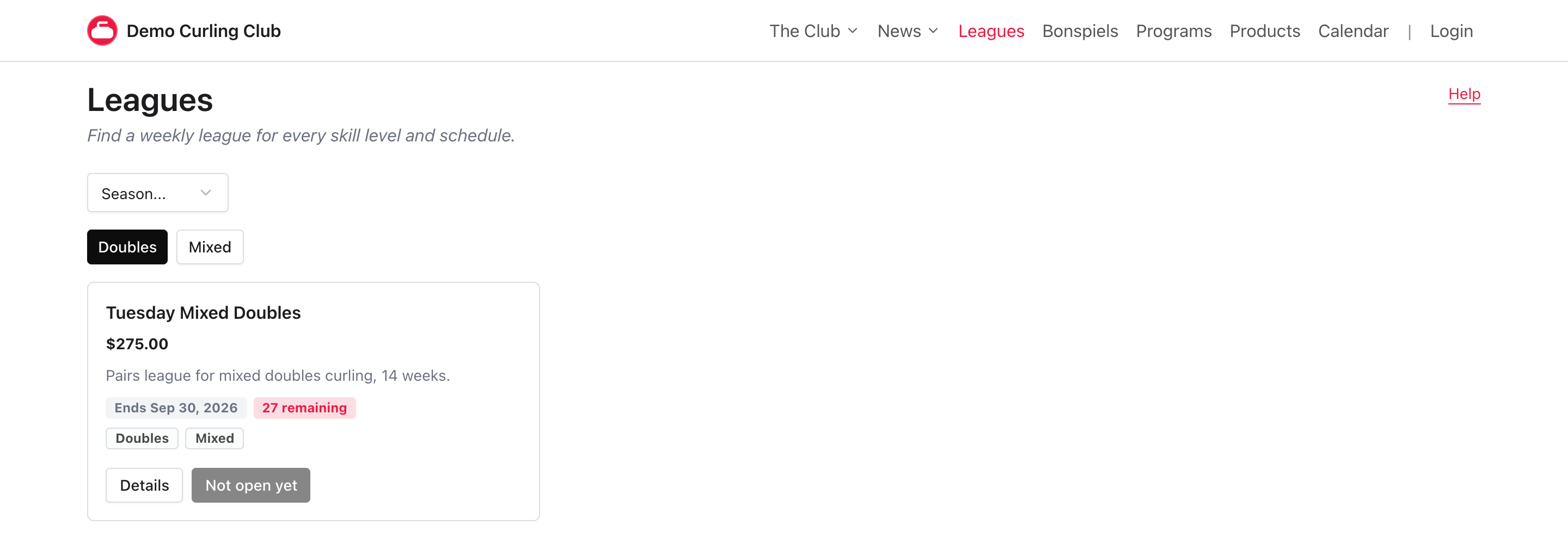
For example, selecting Doubles shows leagues with that tag. Selecting another tag narrows the list further: a product must match every selected tag. Select a tag again to remove that filter.
Tag filters normally appear when the list has at least seven products. They also remain visible when a tag filter is already active. A smaller unfiltered list can still show tag badges without showing tag filters.
Available is a separate availability filter, not a tag you manage in the catalog. Tags do not change pricing, eligibility, or whether registration is open.
Delete a tag
Deletion affects every assigned product. Deleting a tag removes it from your catalog and from all products using it. It does not delete the products.
- Check the tag's Products count.
- Select the delete icon on that row.
- Select Confirm, or Cancel to keep the tag.
To remove a tag from only one product, change that product's Info settings instead. An automatic match can return when you save unless you also change the matching text or turn off automatic tagging for that product.
Deleting and recreating a tag is not a rename. Recreating it does not restore its previous product assignments.
Troubleshooting
A tag with that name or key already exists
Curling IO checks the names and an internal key generated from the name. Changing capitalization or replacing spaces with hyphens may still produce the same key. Use the existing tag or choose a genuinely different name.
A new tag does not appear on the public site
Check that it is assigned to a visible product. Creating the catalog entry alone is not enough. If you rely on automatic matching, save the product after adding the tag. Also check the current product type, season, and other filters.