Tax settings
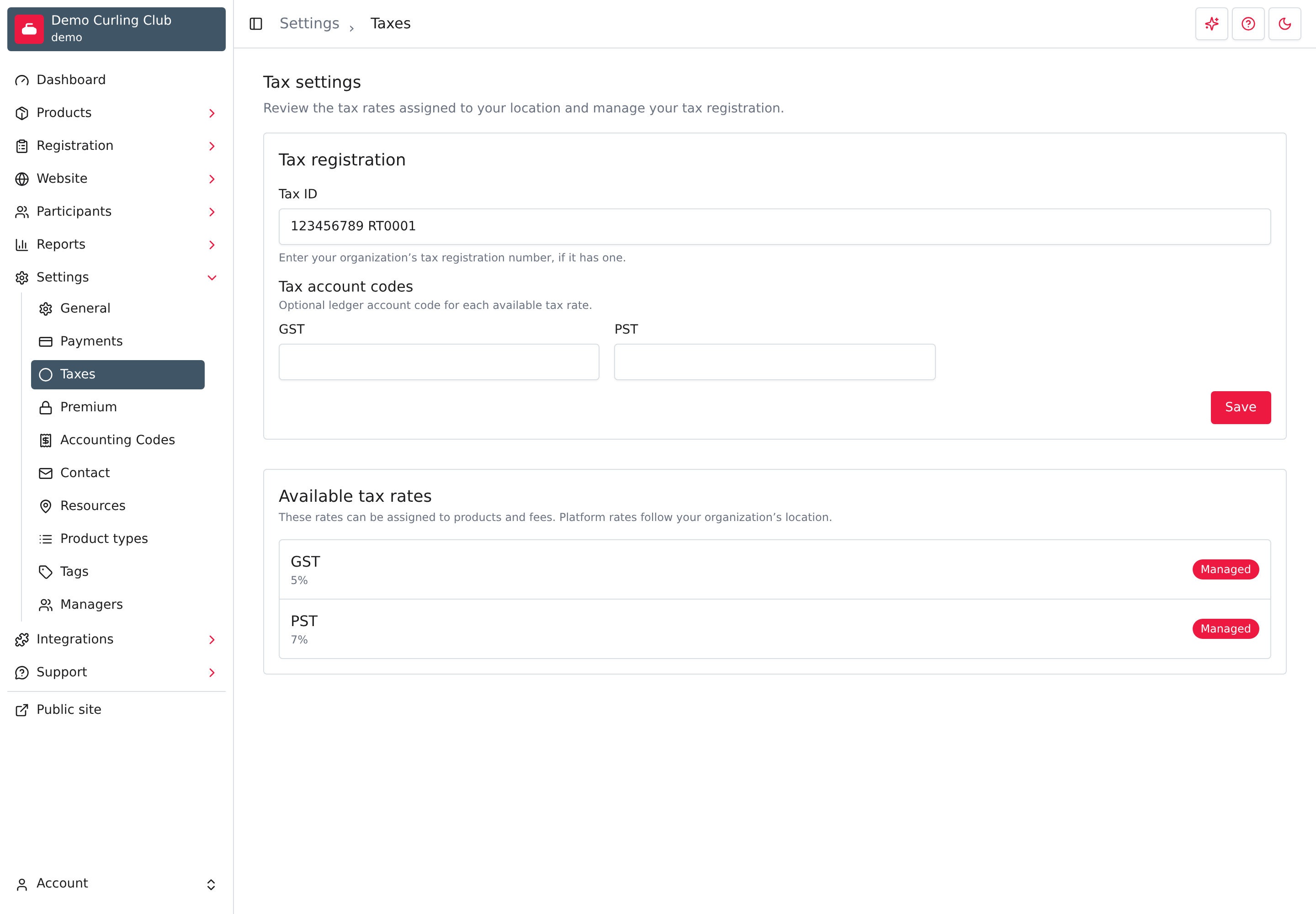
Taxes control what gets added on top of your prices at checkout. You choose which taxes apply to each product and fee, and Curling IO adds them to the cart, the order, and your reports. Use Settings > Taxes to see the tax rates available to your organization, record your tax registration number, and match each tax to an accounting code.
This page does not tell you which of your products are taxable. That depends on where you are and what you sell, so confirm the rates and which items to tax with your accountant before you open registration.
How taxes work in Curling IO
- Curling IO supplies the rates. The page lists the rates for your country and province or state, such as GST and PST for a club in British Columbia. Each one is marked Managed. You can't edit or delete it.
- You choose where each tax applies. A tax does nothing until you select it on a product, a convenience fee, or a payment request.
- Prices don't include tax. A tax is added on top of the price you enter. Taxes are chosen product by product, so an order only shows a tax line, such as GST or PST, when at least one item in it was taxed.
- Curling IO doesn't handle tax built into a price. If you set a price that already includes tax and select no taxes, members pay exactly that price, and Curling IO records no tax for it. It doesn't work out the tax inside the price, so that tax won't appear on orders, reports, or the ledger. If you price this way, you're responsible for accounting for that tax yourself. Check with your accountant before you do.
- Each tax is its own line. GST and PST are calculated and recorded separately, so your orders show each one by name.
The rates come from your organization's location, which you can see under Location in Settings > Contact. You can't change it there. If your location, or a rate for your area, is missing or wrong, contact support.
Choose which taxes apply to a product
- Go to Products and open the product.
- Open Info.
- In Pricing, enter the Price.
- Under Taxes, check each tax that applies.
- Select Save.
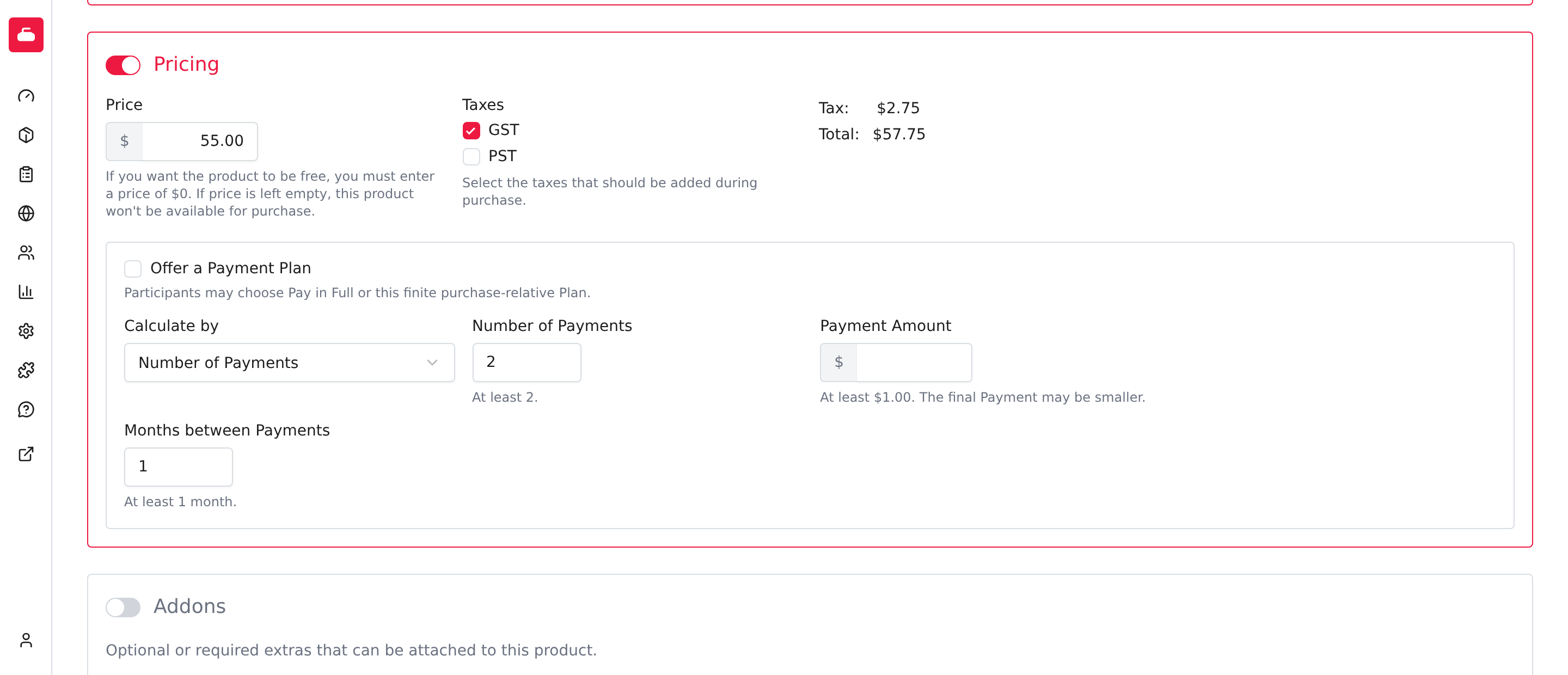
The Tax and Total preview beside the checkboxes shows what a member will pay. Check it against what you expect before you save.
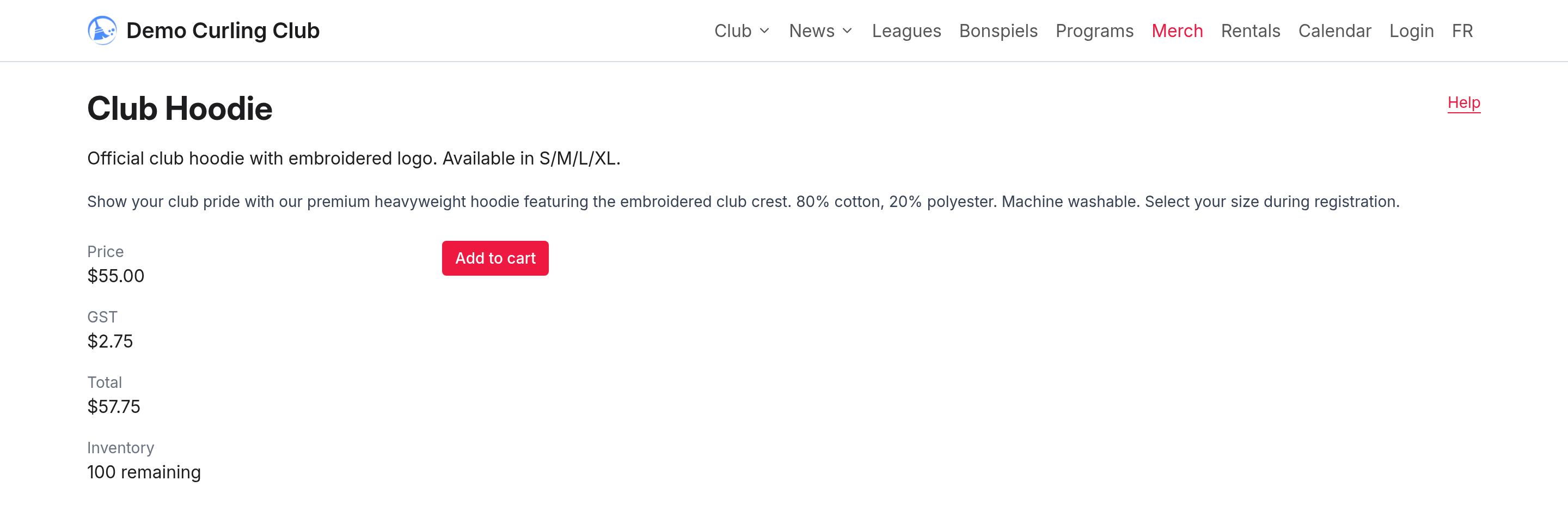
Members see the result on the product page and in their cart. Each tax you selected shows by name on the product page, with the total below it.
Each product has its own selection. Open each product that should be taxed, and check the taxes on every one. Changing a product's taxes doesn't change what other products charge.
See Products > Info for the rest of the pricing options.
Tax a convenience fee
A convenience fee can carry its own taxes. Open Settings > Payments, turn on the fee, and check the taxes under Tax rates. Online and offline fees have separate selections.
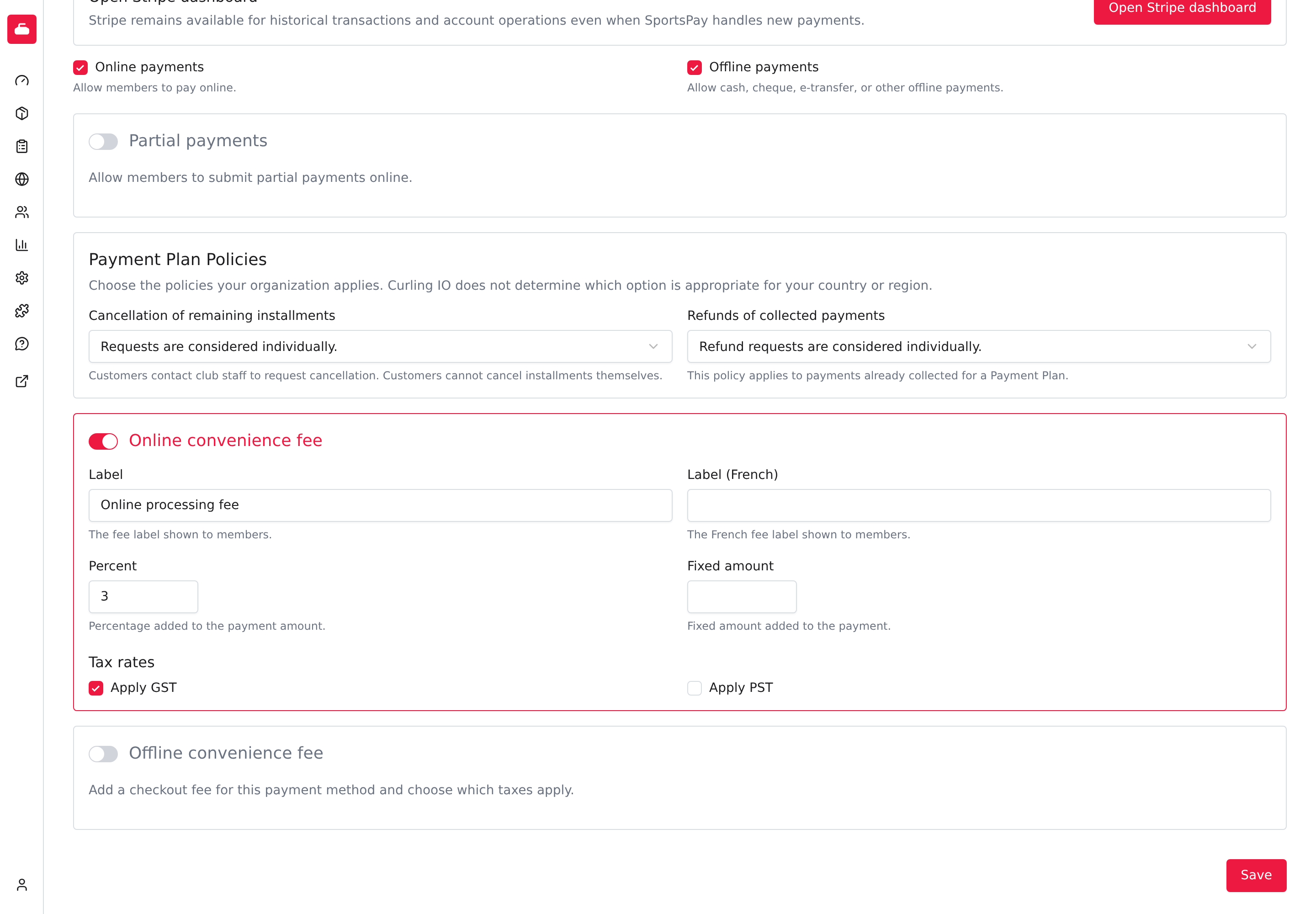
A fee can be a percentage, a fixed amount, or both added together. The percentage is taken from what the member is paying, including tax and after any club credit is applied. The taxes you check are then calculated on the fee itself.
Tax a payment request
When you create a payment request under Registration > Payment Requests, the amount you enter is Amount before tax. Check the taxes to add under Taxes. The tax is added when the recipient adds the request to their cart.
A payment request keeps the taxes you chose when you created it. You can't change them afterwards. If a request still hasn't been accepted and its taxes are wrong, select Archive request and create a new one. An archived request still keeps its original taxes on record.
Enter your tax registration number
- In Tax registration, enter your number in Tax ID.
- Select Save.
Use the number your tax authority issued, such as a GST/HST account number or an EIN. Curling IO confirms with Tax settings saved.
Your Tax ID appears on the order detail and printable order when you save it.
It also appears in the default receipt and invoice emails. If you customize
those templates, keep {{line_items}} in the body to include your Tax ID and
the item details.
Members can also find it by opening the order in their account. Leave the field
empty if your organization doesn't have a tax registration number.
Add accounting codes for taxes
If you use Settings > Accounting Codes, enter a code for each tax under Tax account codes and select Save. The code tells your bookkeeper which account the collected tax belongs to in the ledger and in your accounting exports. The field is optional. Leave it blank if you don't need a separate account for that tax. Ask your bookkeeper which codes to use.
Add a custom tax rate (United States)
Organizations in the United States can add their own rates for local taxes that Curling IO doesn't supply, such as a city or district tax. Organizations outside the United States use the managed rates only, so the Custom tax rates section doesn't appear for them.
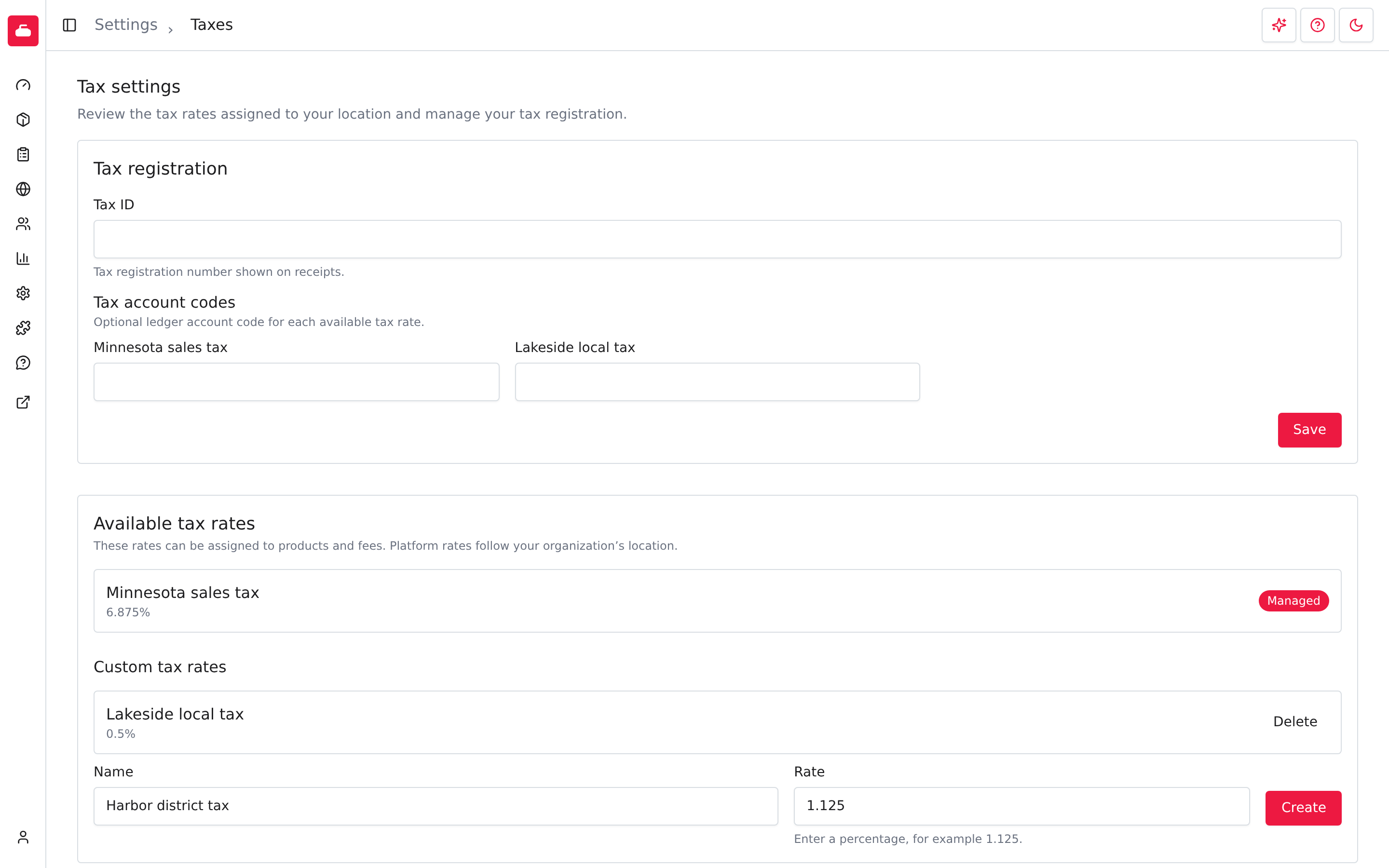
- Under Custom tax rates, enter a Name that members will recognize, such
as
Lakeside local tax. - Enter the Rate as a percentage, for example
1.125. Use up to three decimal places. - Select Create.
The new rate is available right away on products, convenience fees, payment requests, and in Tax account codes. You can have up to four custom rates. Enter the right percentage, because Curling IO doesn't check it against your local rate.
A custom rate can't be edited. If the percentage changes, create a new rate and switch your products and fees over to it. Payment requests already created keep the old rate.
Delete a custom rate
Select Delete beside the rate, then Confirm. Curling IO refuses if the rate is still selected on a product or a convenience fee, and tells you to remove those selections first. It also refuses if the rate was ever used on a payment request, including one that was archived, because the request keeps that rate on record. Deleting a rate doesn't change past orders. Managed rates can't be deleted.
How tax appears on orders and reports
-
Cart and checkout. The cart shows a Tax column. If nothing in the cart is taxable, the column doesn't appear.
-
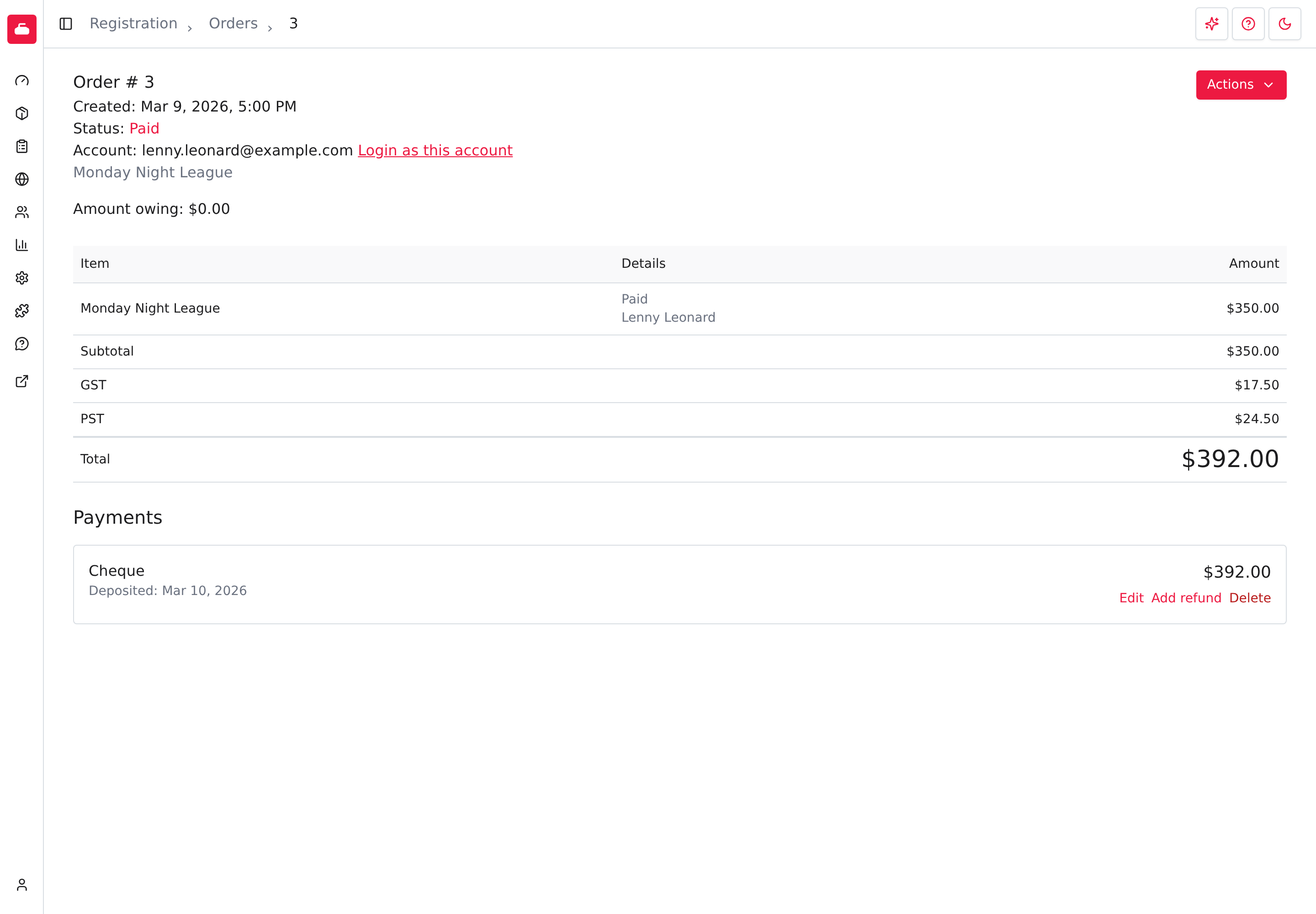
Orders. The receipt shows each item's amount before tax. Discounts, reductions, and cancellations appear beneath the item they apply to. The table ends with Subtotal, each tax by name, and Total. Tax totals include any reductions or cancellations.
-
Discounts. Tax is calculated after a discount, so a discounted item is taxed on the lower price.
-
Rounding. Each tax is rounded to the cent separately for each item, then added up. If you calculate tax once on a whole order's total, your figure can differ from the order by a few cents, especially on orders with many low-priced items.
-
Refunds. A refund returns a matching share of the tax along with the price. Use Add refund on the order, and see Refunds to review them.
-
Line items report. Reports > Registration > Line items shows one Tax amount per row and a Taxes total at the top. It doesn't split GST from PST. To total each tax separately, use the order page or the ledger, which records each tax on its own entry.
What happens when something changes
- Orders already placed keep their tax. If you uncheck a tax on a product or a rate changes later, existing orders still show the tax charged at the time. Reports and refunds use those original amounts.
- Carts update. An item that is still in a member's cart is priced again with your current selections the next time the cart is viewed. If you take a tax off a product, it disappears from carts that already hold it.
- Taxes can't be turned off for the whole organization. To stop charging a tax, uncheck it on each product and fee that uses it. Payment requests keep the taxes they were created with.
Before you open registration
- Confirm the rates with your accountant.
- Check Taxes on every product and fee that should be taxed.
- Look at the product page and cart as a member to confirm the totals.
- Enter your Tax ID and any tax account codes.