Contact us
Use Contact us to ask Curling IO for help with your organization, report a problem, or explain a feature you need. Your message goes to support, not to the shared roadmap or your public website.
For an existing feature request, check Support > Roadmap first. You can vote and add non-sensitive context there.
Before you send
Make sure you're working in the right organization. The request includes that organization's name and contact email automatically.
Replies use your organization's contact email, not necessarily your sign-in email. Check Email under Settings > Contact and make sure someone monitors that inbox. Changing it also changes the email on your public contact page.
Collect the page address, exact error message, and steps that led to the problem. Include the order number or participant name when they're relevant. Don't send passwords, sign-in codes, API keys, or full card details.
Send a message
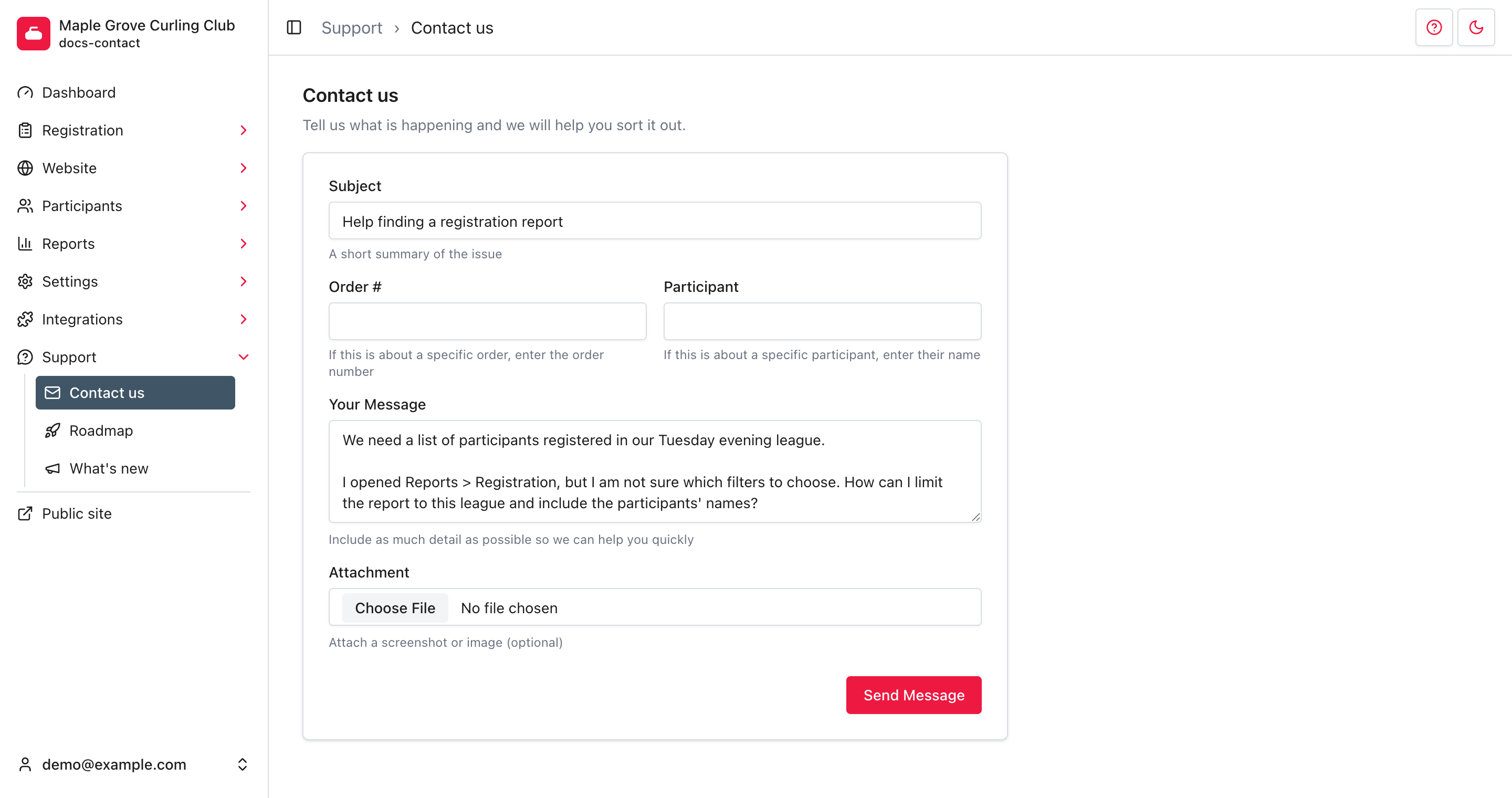
- Go to Support > Contact us.
- Enter a short Subject, such as
Help finding a registration report. - If the question concerns one order, enter its number in Order #. Leave it blank for a general question.
- If the question concerns one participant, enter their name in Participant.
- In Your Message, explain what you were trying to do, what you expected, and what happened instead. Include the steps needed to reproduce a problem.
- If a screenshot would help, choose it under Attachment. You can attach one JPEG, PNG, GIF, or WebP image. Remove unrelated personal information from it first.
- Review the message, then select Send Message.
Only Subject and Your Message are required. An attachment doesn't replace the message text. Copy your message before sending if you need it for your own records.
Attachments are private support files, not public image links. Don't use this form to publish an image on your website.
After sending
The form is replaced by Message Sent. You don't need to send it again.

Watch your organization's contact inbox for a reply. This page doesn't show a ticket history or an ongoing conversation, and it doesn't promise a response time.
Troubleshooting
The form asks for a subject or message
Enter text in both required fields. Spaces alone don't count. If the server returns a validation error, correct it and select Send Message again.
The attachment could not be processed
Use a supported image format, not a PDF or document. If the page shows that your selected file is retained, you don't need to choose it again. Check Remove to discard a retained file, or choose a replacement before retrying. If the file is no longer available, select it again.
I haven't received a reply
Check the organization's contact inbox and its spam folder, not just your personal inbox. Confirm the address in Settings > Contact is correct. If you follow up, include the original subject and when you sent the request.