Articles
Articles are dated posts for news, announcements, event recaps, and other updates. Each article appears in the News section of your public website and is ordered by its Published on date, newest first. Use a page instead for long-lived information such as club rules, policies, or contact details.
Walkthrough video
The following video shows you how to create and publish an article, use the Markdown editor, add media and downloads, choose who can read it, and confirm the result on your public website.
Articles Section
Go to Website > Articles to create and manage articles.
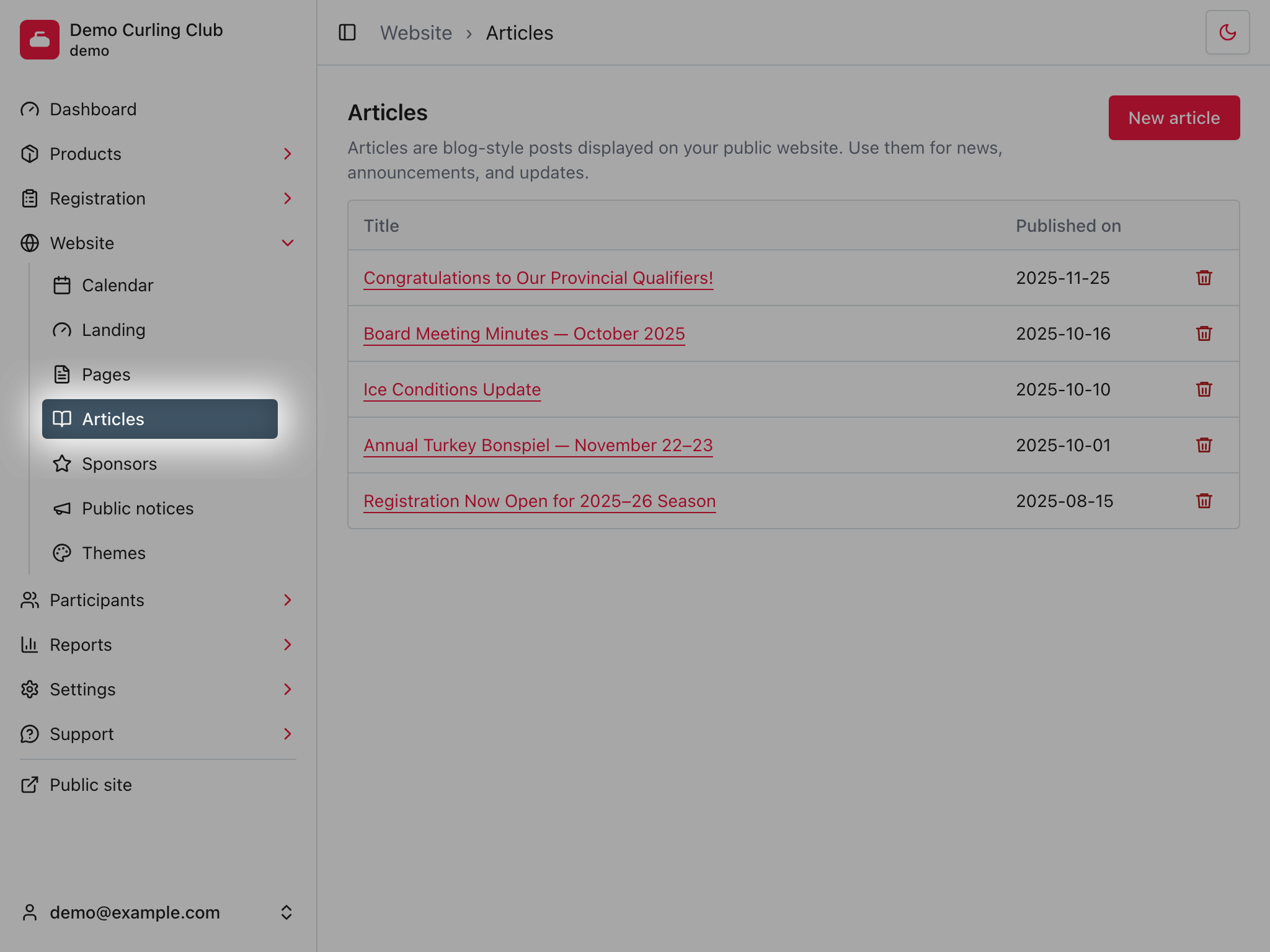
The list shows each article's title and published date. Articles do not have a manual position. Their public order is controlled by Published on.
Create an article
- Select New article.
- Enter the Title.
- Set Published on based on when the article should become public.
- Select a Sponsor only when the article should display an associated sponsor.
- Add an optional article image.
- Select Body to write the article content.
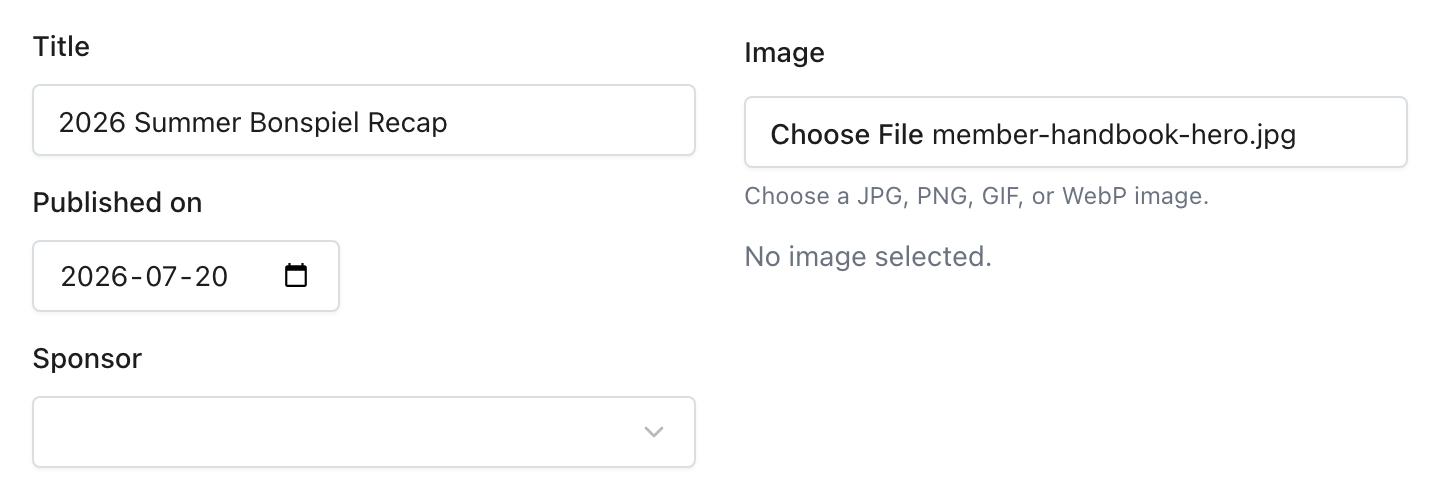
The Published on date controls both publication and ordering:
- Leave it blank to save the article as a draft. It will not appear on your public website.
- Use today's date or an earlier date to publish the article immediately.
- Use a future date to schedule the article. It becomes public on that date.
When several articles have been published, the newest Published on date appears first.
Write the article content
Select Body to open the Markdown editor in a popup. Write and preview the content there, then select Apply to return it to the article form.
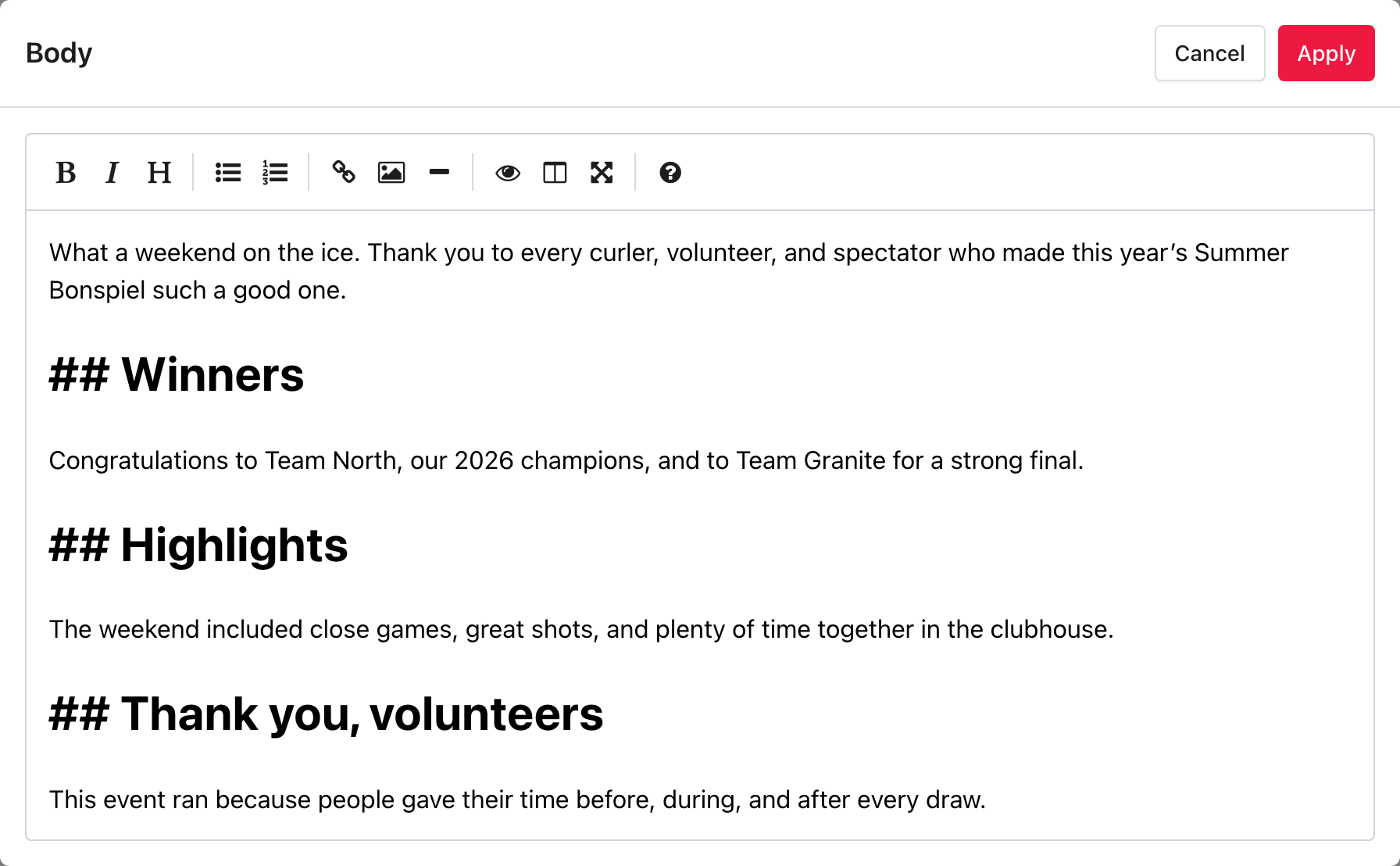
The toolbar can add bold and italic text, headings, bulleted and numbered lists, links, inline images, and horizontal rules. These controls insert Markdown for you. You can also type Markdown directly when that is faster.
Use the view controls on the right side of the toolbar to change how you work:
- Toggle Preview shows the formatted result.
- Toggle Side by Side keeps the Markdown and formatted preview visible together.
- Toggle Fullscreen gives you more room for a longer article. Select it again to return to the popup.
Select Apply when the body looks right. Apply returns the Markdown to the article form, but it does not save the article. Your changes are saved when you select Save on the article form.
Use headings to divide longer articles into sections. Keep the article title out of the body because it is already displayed above the content.
Add an article image
The article image appears with the article content and does not require Premium.
Use a 2:1 image, such as 1600 by 800 pixels. This shape fits the current public article layout without relying on a crop and stays sharp on high-density displays. Choose a JPG, PNG, GIF, or WebP file.
After choosing the file, confirm its filename before saving. The processed image appears below the published date on the public website. A useful image should support the article without repeating its title as embedded text. Visitors can select the image to open a larger version in a lightbox, then select the larger image to close it.
Add a gallery
Adding or publishing an article gallery requires Premium. Learn about Premium access.
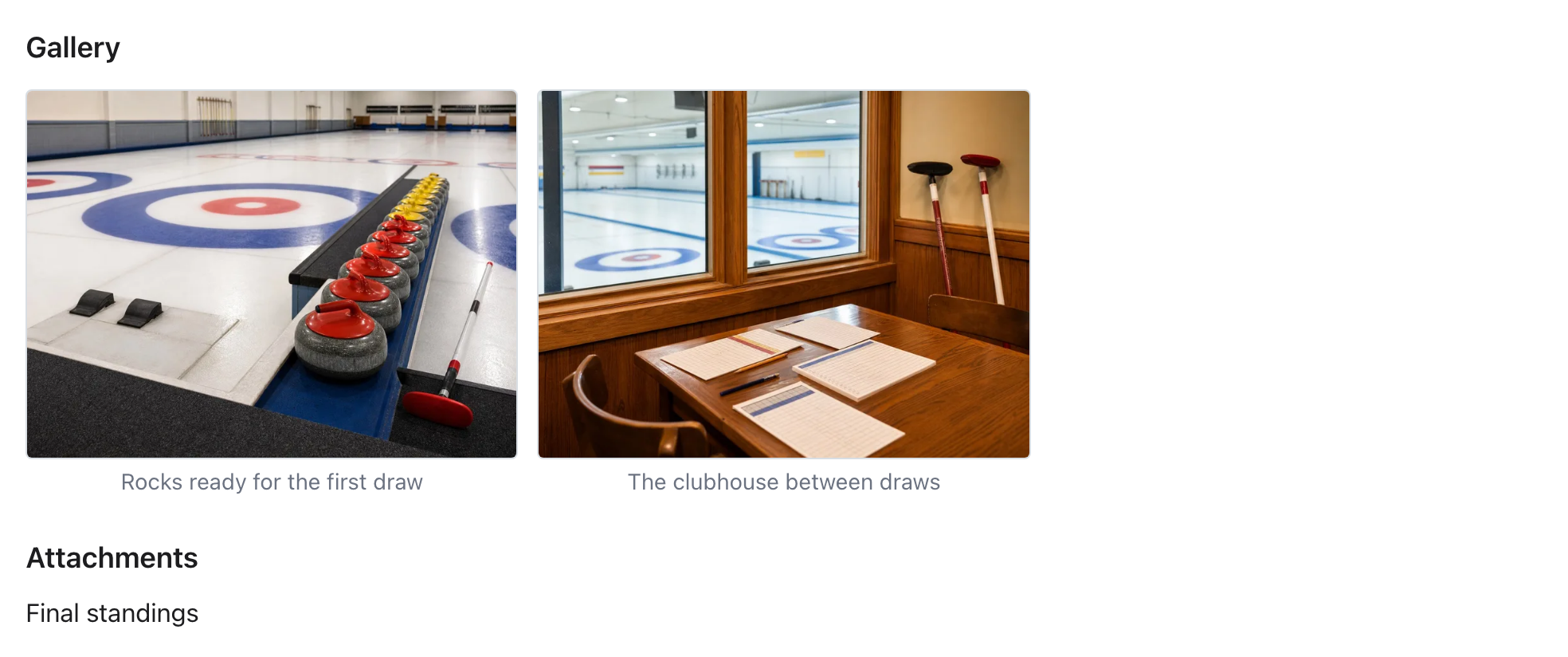
The gallery is separate from the main article image. Gallery images appear after the article body in a responsive layout. Selecting an image zooms it in, and visitors can page through the gallery. Selecting the enlarged image moves to the next image and wraps from the last image back to the first.
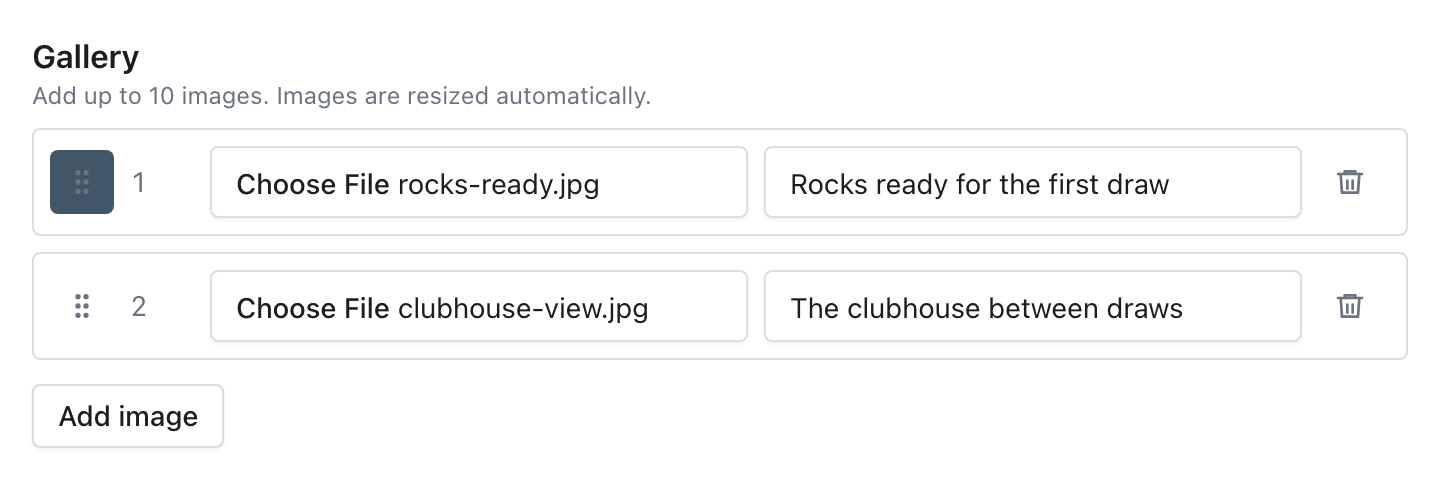
- Select Add image.
- Choose one JPEG, PNG, or WebP image.
- Add an optional caption.
- Repeat for each image you need.
- Drag the rows into the order they should appear.
An article can contain up to 10 gallery images. Each source image can be up to 25 MB. Curling IO preserves its aspect ratio, removes unnecessary metadata, does not enlarge a smaller image, and limits the saved image to 1536 pixels on its longest edge.
Gallery ordering is saved with the article. Removing a row takes it out of the editor immediately, but the saved gallery does not change until you save the article.
Add attachments
Adding or publishing article attachments requires Premium. Learn about Premium access.
Use attachments for supporting files that visitors should download, such as results, schedules, announcements, or printable forms.
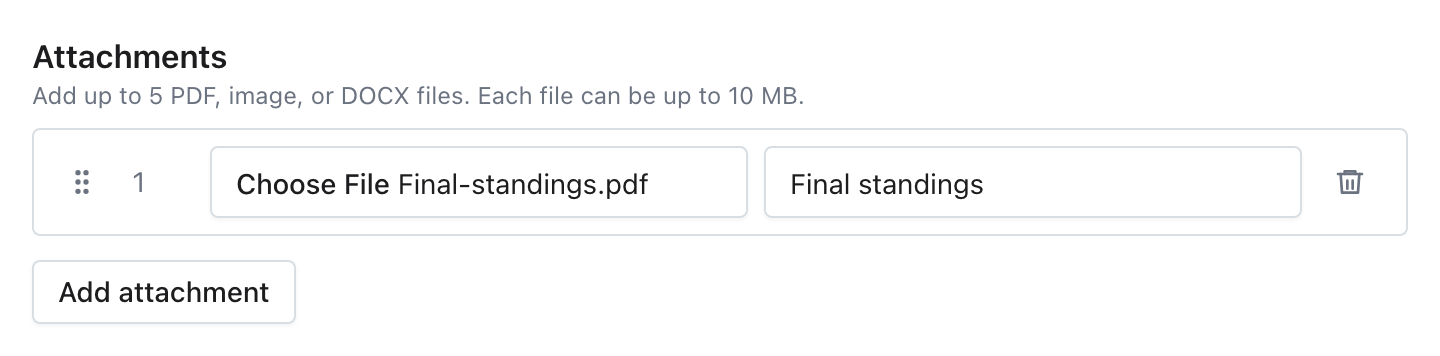
- Select Add attachment.
- Choose one PDF, image, or DOCX file.
- Enter optional link text. Use a short name that tells the visitor what they will download.
- Repeat for each file you need.
- Drag and drop rows into the order they should appear.
An article can contain up to five attachments. Each file can be up to 10 MB. Each row accepts one file so its link text and position stay attached to the right download.
Attachment ordering is saved with the article. Removing a row takes it out of the editor immediately, but saved files are not deleted until you save the article.
Control who can see the article
Leave Members only unchecked when anyone should be able to view the article.
A member is an account holder whose account has a participant registered for a product during the current season. When Members only is selected, only members can view the article content. Someone without access can still open its URL, but Curling IO shows a Members only message instead of the article.
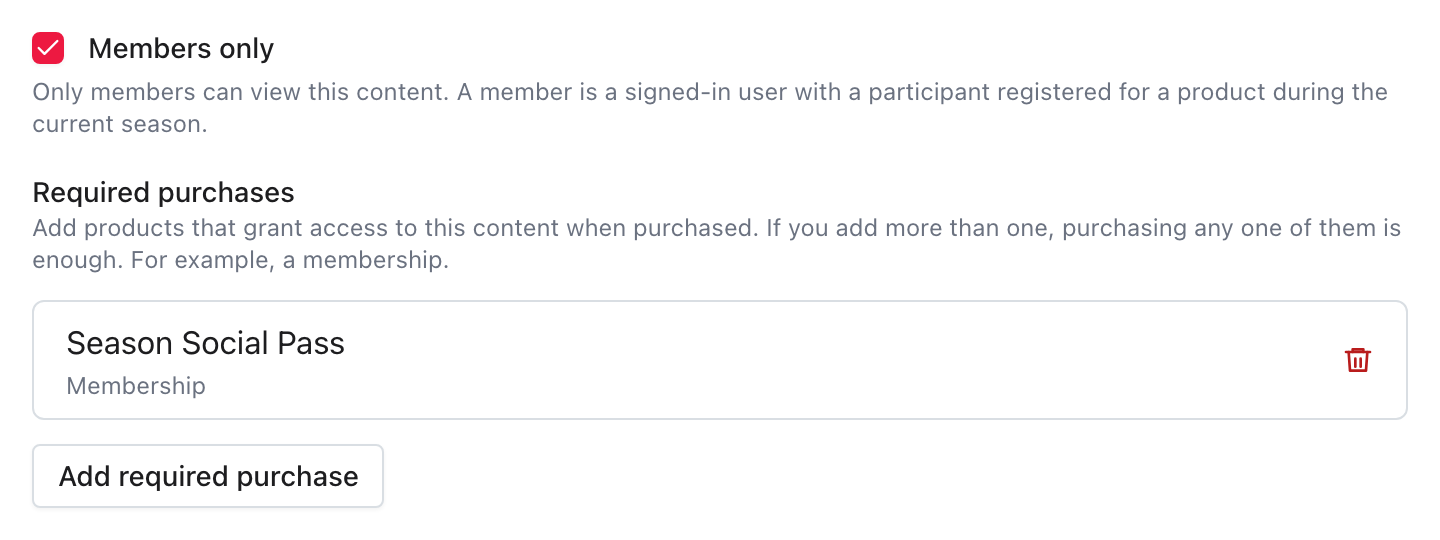
Use Required purchases when access should depend on a specific purchase:
- Select Add required purchase.
- Choose the product the visitor must have purchased.
- Repeat when another product should also grant access.
The qualifying purchase must belong to the account holder or one of their participants during the current season. If you add more than one product, purchasing any one of them grants access.
The same access checks protect the article body, gallery images, and attachment downloads. Sharing a direct image or download link does not bypass the article restrictions.
Save the article
Select Save after checking the content, publication date, media, downloads, and visibility settings. Curling returns you to the Articles list and shows a Success alert.
You can select the article title from the list to edit it later. Deleting an article removes it from your public website along with its associated gallery and attachments.
What visitors see
Visitors select News on your public website to browse published articles.
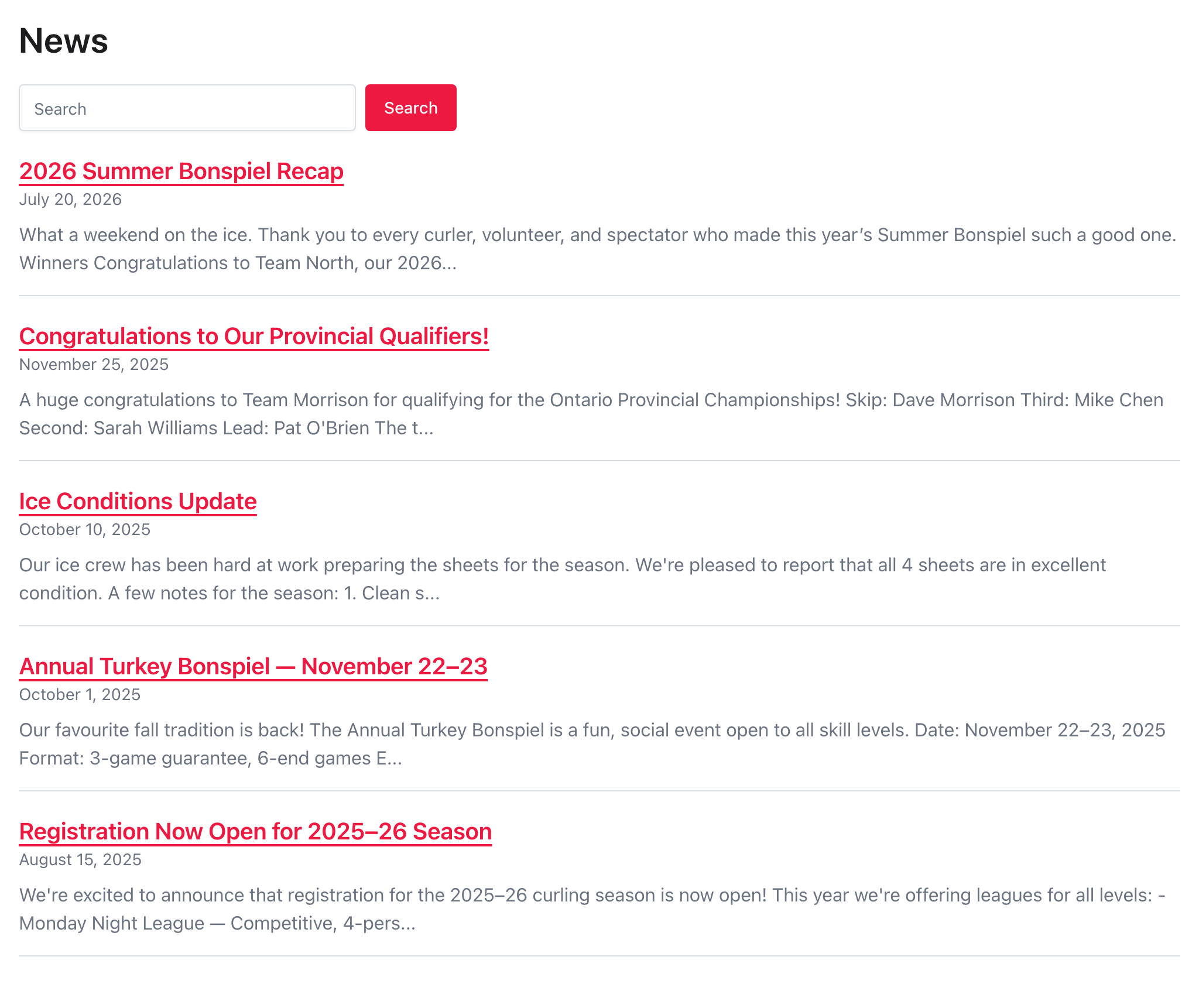
The News page shows published articles by Published on date, newest first. Visitors can use Search to find an article by words in its content.
Selecting an article opens its complete body, gallery, and attachments.
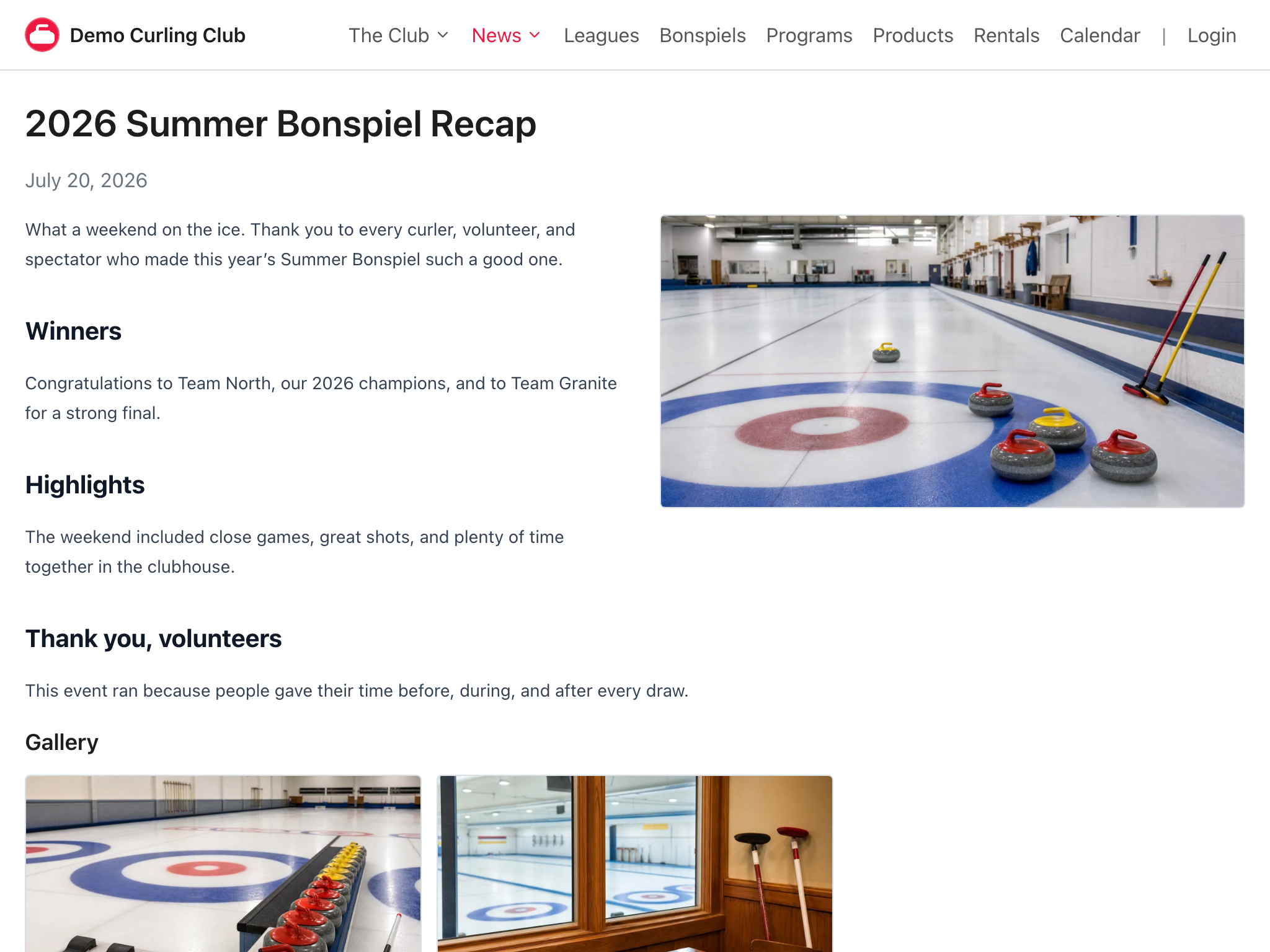
The main article image appears below the published date. On larger screens, the opening body wraps beside it. Gallery images appear after the body, followed by any attachment links.
These screenshots show the default website template and theme. Another template or theme may change the typography, spacing, colours, and image placement. The article content, publication order, visibility rules, gallery, and attachments still work the same way.
Drafts and scheduled articles whose publication date has not arrived do not appear on the News page or in Search.
Troubleshooting
If the article does not appear publicly, check Published on first. A blank date keeps the article as a draft, and a future date keeps it hidden until that date arrives.
If the article does not save, check that each selected upload uses an accepted file type and size.
After saving, the main article image or a gallery image may briefly show as processing. Refresh the article after a moment. A processing error is shown in the editor when Curling IO cannot prepare an image. If the article form reports another error, select the gallery file again before saving because browsers cannot restore a file selection.
If a visitor cannot open the article, check Members only and every entry under Required purchases. When both access controls are configured, the visitor must satisfy both.
If Search does not find an article, confirm that it is already published, then search for a word used in its title or body.