Calendar
Curling IO's calendar brings scheduled activity into one place. Curlers can find games, see when resources are unavailable, and book available rentals. Administrators use the same calendar to add reservations and closures, reschedule purchased bookings, and make quick changes to rental schedules.
The calendar shows activity, but it does not own every activity's setup. Draws come from event schedules, rentals come from rental products, and registration dates come from their products. Use the calendar when you need to understand or adjust how those records share time and resources.
Calendar terms
These terms describe different things on the calendar:
- A Resource is something that can be scheduled, such as a sheet or room.
- A Rental is a product that offers one or more bookable times on one or more resources.
- A Booking is a purchased rental at a specific resource, date, and time.
- A Reservation is time that an administrator holds manually.
- A Closure makes one or more resources unavailable. A closure can be a one-off entry or a repeating series.
Enable and configure the calendar
To make the calendar public:
- Go to Website > Studio and select Edit.
- In Source, choose the calendar in the document picker.
- Set
enabledtotrueto turn it on, orfalseto turn it off. - Select Save, check the preview, then select Publish.
This is the calendar's only Studio setting. You cannot add sections above or below the calendar.
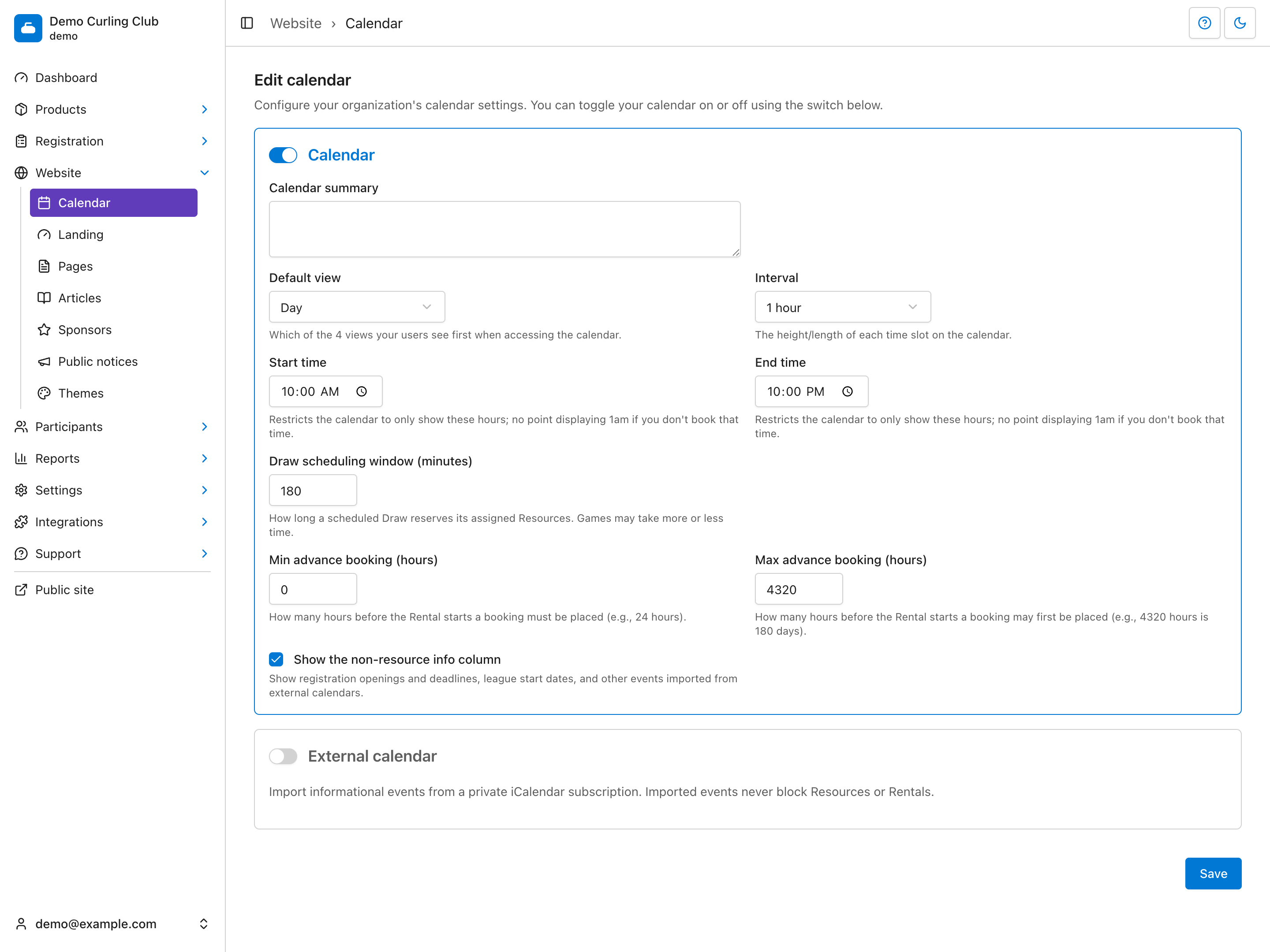
Then go to Website > Calendar to configure the view, time grid, draw window, and booking settings below. These settings do not turn the public page on or off.
Default view
Default view controls which view opens first on a larger screen:
- Day shows resource columns for one date.
- Week shows one column for each day in the selected week.
- Month summarizes activity across a complete month grid.
- List groups scheduled activity into a chronological list.
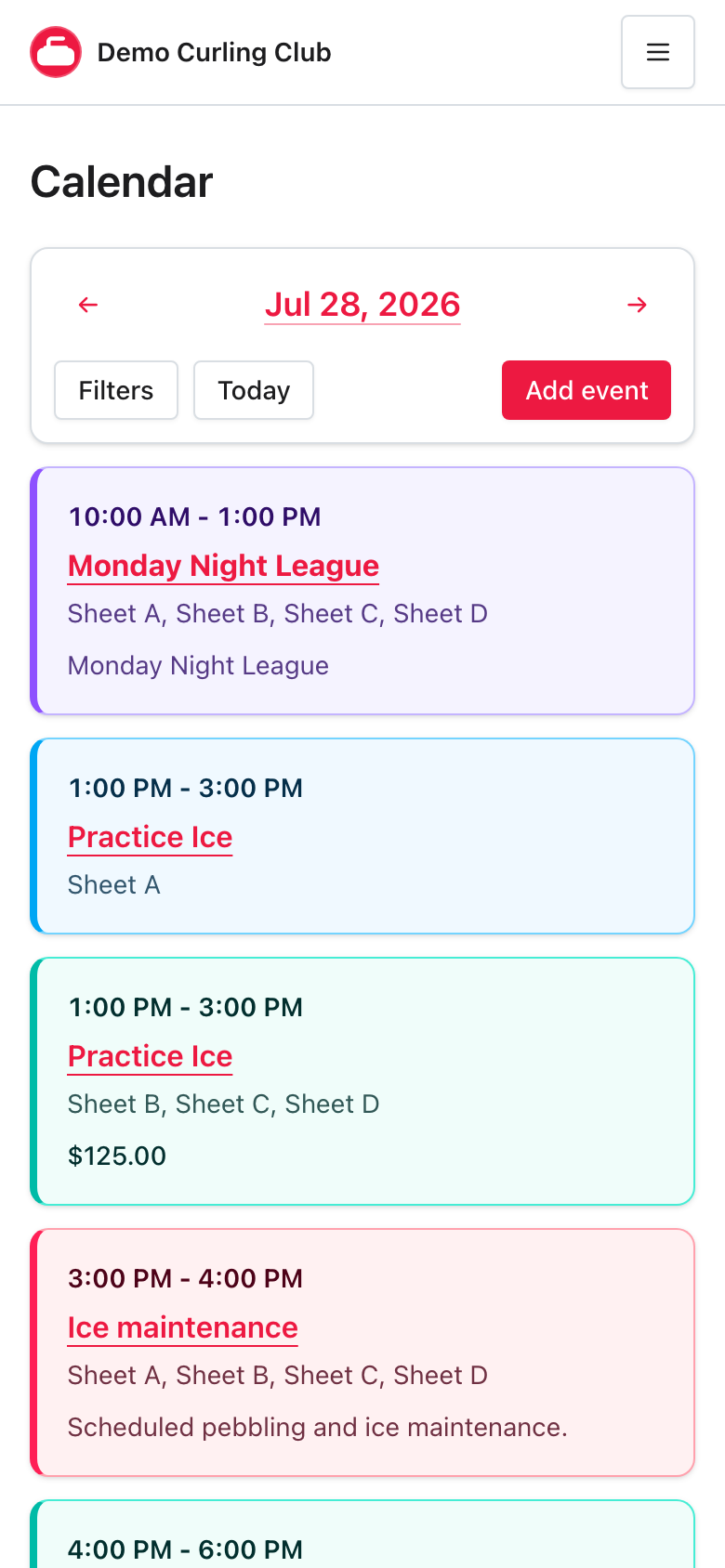
Visitors can switch views without reloading the complete page. On a phone, Curling IO uses the mobile Day view instead. If someone follows a Week, Month, or List link on a phone, they can switch to the supported Day view.
Time grid
Use Interval to choose 15, 30, or 60-minute calendar rows. This changes the calendar grid and the times administrators can select quickly when adding an event. It does not change a rental's configured duration.
Use Start time and End time to limit the hours shown on the calendar. Choose a range that includes the activity your organization normally schedules.
Draw scheduling window
Draw scheduling window (minutes) controls how long each scheduled draw holds its assigned resources. This is a planning window for resource conflicts, not a claim that every game lasts exactly that long.
For example, a 180-minute window makes a resource unavailable for three hours after the draw's scheduled start.
Booking windows
Min advance booking (hours) is the minimum notice required before a rental
starts. A value of 0 allows an immediate booking. A value of 24 requires at
least one day of notice.
Max advance booking (hours) is how far ahead an account holder can book. A
value of 4320 allows bookings up to 180 days ahead. The minimum and maximum
boundaries are both included.
Changing either booking window can make a rental in an unfinished cart unavailable. Curling IO checks the current window again when the cart is reviewed and when checkout begins.
Non-resource information
Check Show the non-resource info column to show scheduled information that does not belong to one resource. This can include product start and end dates, registration opening and closing dates, and imported external calendar events.
Select Save after changing the calendar settings.
Navigate the public calendar
Use Today, Previous, and Next to move through calendar dates. Select the displayed date when you need to open the date picker and jump further ahead.
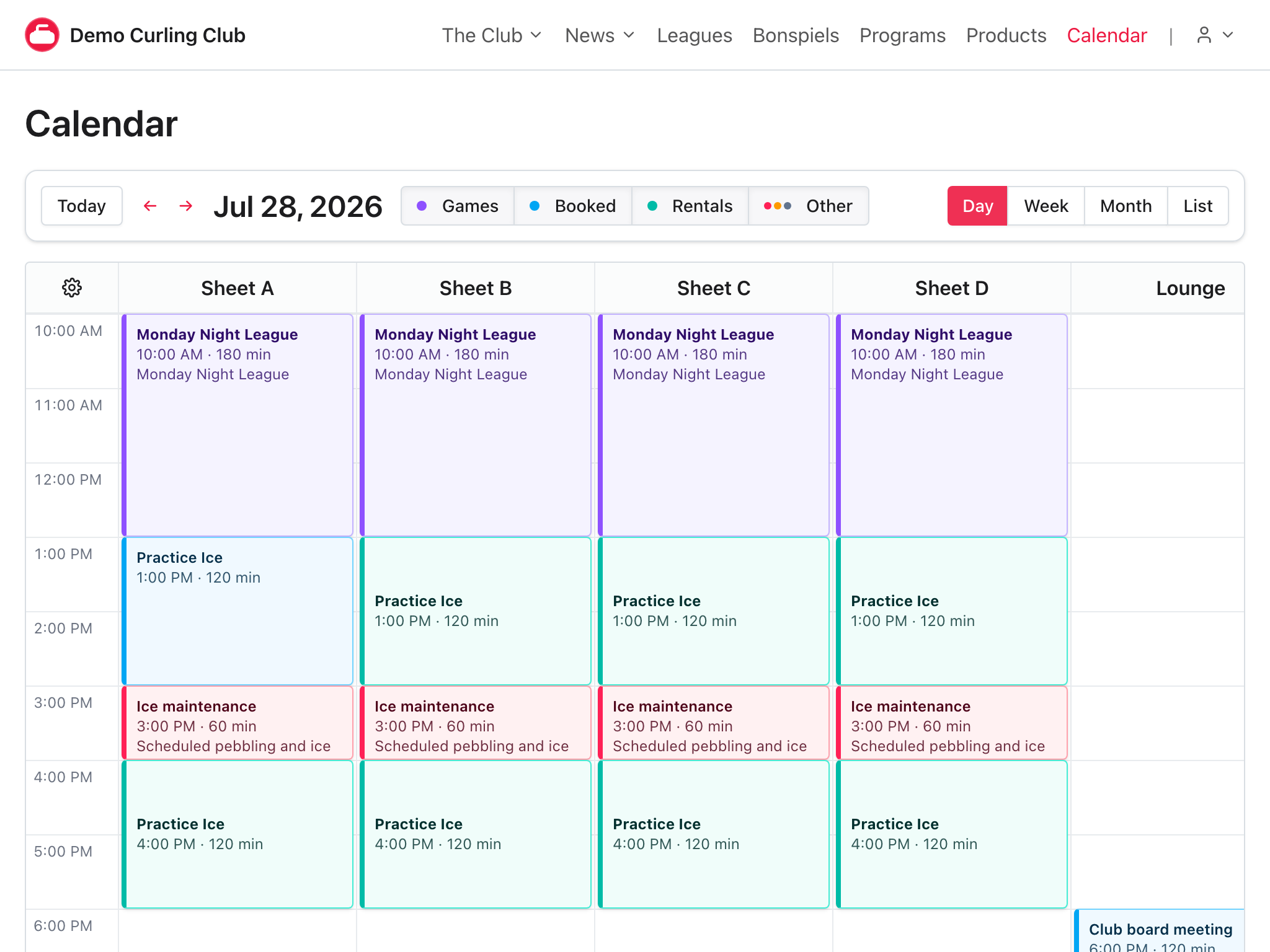
On larger screens, use the view selector to switch between Day, Week, Month, and List. Selecting a date in the Month view opens that date in the Day view.
Filter what is shown
The public calendar has three category filters:
- Games shows scheduled draws.
- Rentals shows available rental occurrences.
- Other includes unavailable periods, closures, registration dates, product dates, and external informational events.
Administrators also have a Booked filter for purchased bookings and manual reservations. Public visitors do not receive a separate Booked filter. They see another account holder's exclusive rental booking or a manual reservation only as Reserved, without customer, product, order, or private-note details. An account holder sees their own exclusive rental booking as Booked with a distinct colour, plus an action to open the order. Closures keep their public summary so curlers can see useful information such as Ice maintenance or Club closed.
The Day view also has resource filters. Uncheck a resource when you want to focus on fewer columns. Category and resource filters change only the current calendar display. They do not change the underlying schedule.
Use the calendar on a phone
The mobile calendar is a chronological Day list. Each card keeps its start and end time, event name, and resource information together.
When the selected date is today, events that have already finished are omitted. Use Previous, Next, Today, or the date picker to choose another date. Open Filters to change categories. Administrators also have an Add event action on mobile.
Book a rental from the calendar
Available rentals use the rental colour and can be selected.
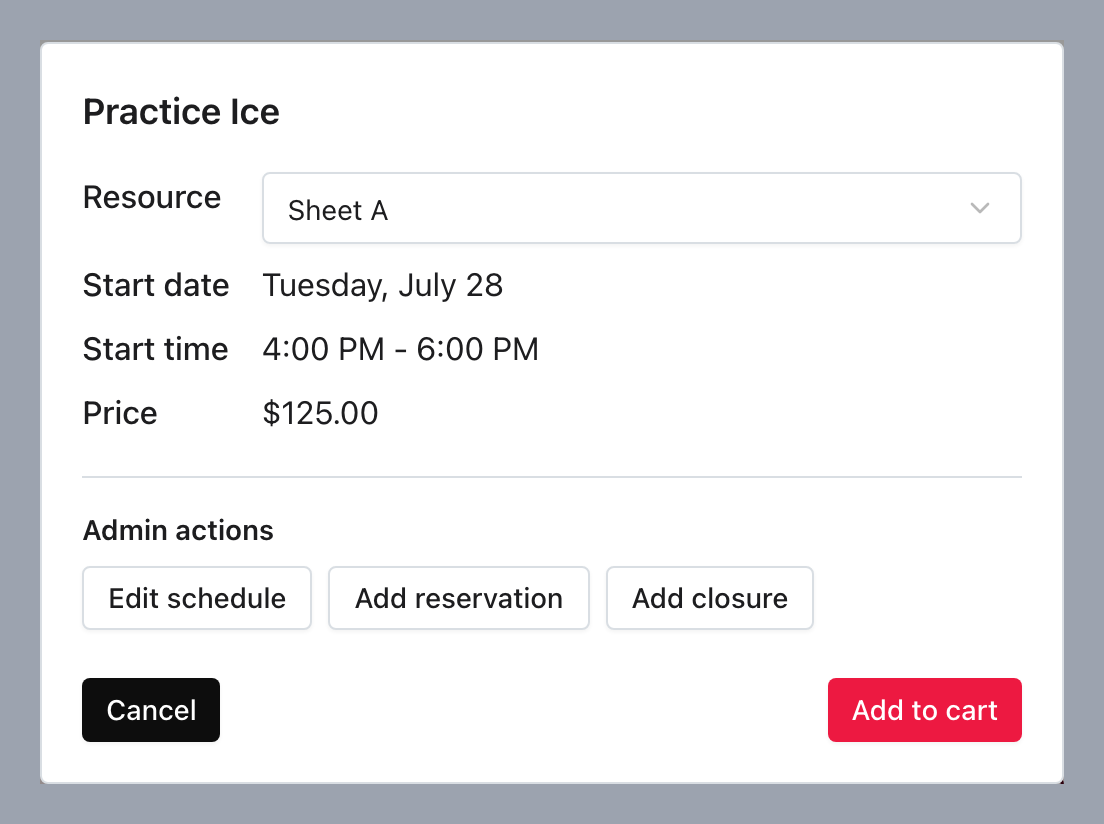
- Select the rental.
- If more than one resource offers the same occurrence, choose the resource.
- Review the date, time, duration, and price.
- Select Add to cart.
The screenshot below shows the administrator view. Account holders do not see the Admin actions row.
Curling IO checks the rental again before adding it and again at checkout. Another account holder may complete checkout first, so seeing a rental does not temporarily hold it.
An exclusive rental disappears as bookable after one capacity-holding booking. A capacity-enabled rental remains bookable until that occurrence reaches its configured capacity. When waitlisting is enabled, a sold-out or otherwise unavailable occurrence can offer Join waitlist.
See rentals for scheduling, capacity, waitlist, and conflict details.
Add a reservation or closure
Administrators can select an empty calendar time or use Add event.
Add a reservation
Use a reservation when you need to hold one resource without creating a rental product or order.
- Select Reservation as the type.
- Enter a Summary.
- Add optional Private notes.
- Choose the start date, start time, duration, and resource.
- Select Create.
A reservation is always one-off and belongs to one resource. Administrators see its summary and private notes. Public visitors see Reserved.
Add a closure
Use a closure for maintenance, holidays, private events, or another period when one or more resources cannot be used.
- Select Closure as the type.
- Enter a Summary and optional description.
- Choose the start date, start time, and duration.
- Choose whether the closure repeats.
- Add a Repeat until date when the series should end.
- Enter any Excluded dates that should remain open.
- Select every affected resource.
- Select Create.
Excluded dates must be actual dates in the repeating series. Enter dates in
YYYY-MM-DD format, separated by commas or new lines.
Edit or remove calendar entries
Select an existing reservation or closure to edit it. For a repeating closure, choose whether the change applies to:
- Whole series
- This occurrence
- This and following
Removing a reservation, closure, occurrence, or series requires confirmation. Deletion cannot be undone.
Work with purchased bookings
Administrators can select a purchased booking's title to open the rescheduling form. Change its resource, date, start time, or duration, then select Reschedule. The booking's product, price, taxes, discounts, payments, and accounting records do not change.
Use View order to open the complete order. Cancelling a paid booking belongs to the order and refund workflow, not the calendar.
A booking that is still being processed remains visible and holds capacity, but it cannot be rescheduled until payment processing finishes.
Work with rentals as an administrator
Select a rental occurrence to review its date, time, resource, and price. The Admin actions section provides three shortcuts:
- Edit schedule changes the rental's resources, start date, start times, duration, recurrence, recurrence end, and excluded dates.
- Add reservation creates a manual reservation using the rental occurrence's time and resource as a starting point.
- Add closure creates a closure using the rental occurrence's time and resource as a starting point.
Use Advanced settings from the schedule editor when you need the complete rental product form. Removing a rental occurrence or schedule requires confirmation.
Share a focused calendar
Add a categories query parameter when you want a link to open with particular
category filters selected.
For example:
https://example.curling.io/calendar?categories=rentals
This opens with only Rentals selected. Multiple category groups can be separated with commas:
https://example.curling.io/calendar?categories=games,rentals
Supported public groups are games, rentals, and other. The booked group
is available only to administrators.
Import an external calendar
Turn on External calendar under Website > Calendar to import informational events from another calendar system.
- Copy the private iCalendar subscription URL from the other calendar.
- Enter it in Subscription URL.
- Optionally enter a Failure notification email.
- Select Save.
Curling IO accepts private HTTP, HTTPS, and webcal subscription URLs and
refreshes the calendar on the server. Do not use a URL with a username or
password embedded in it.
Imported events are informational. They never hold a resource or suppress a rental occurrence.
The settings page shows the current status, last successful refresh, and consecutive failures. If you provide a notification email, Curling IO sends an alert when refreshes fail without sending the same alert for every retry.
Troubleshooting
If the public calendar link or page is missing, check that the calendar is enabled in Website > Studio and that you published the change.
If a rental is missing, check its product status, Premium access, schedule, resource status, advance booking window, and conflicting calendar activity. See rentals for the complete checklist.
If a draw blocks too much or too little time, adjust Draw scheduling window (minutes) rather than changing the game's score or result data.
If an external event is missing, review the External calendar status and confirm that the subscription URL still works in the source calendar system.