Public Notices
Public notices are short, temporary messages that appear above selected pages on your public website. Use them when visitors need to see timely information, such as a registration deadline, facility closure, schedule change, or service interruption.
Use a page for long-lived reference information and an article for a dated update visitors may want to read later. A public notice is better when the message should be prominent now and can disappear after a date or when you disable it.
Creating and publishing public notices requires Premium. Learn about Premium access.
Walkthrough video
The following video shows you how to write and format a public notice, set its expiry and visibility, choose where it appears with each URL matching method, and edit or delete it afterward.
Open public notices
Go to Website > Public notices.
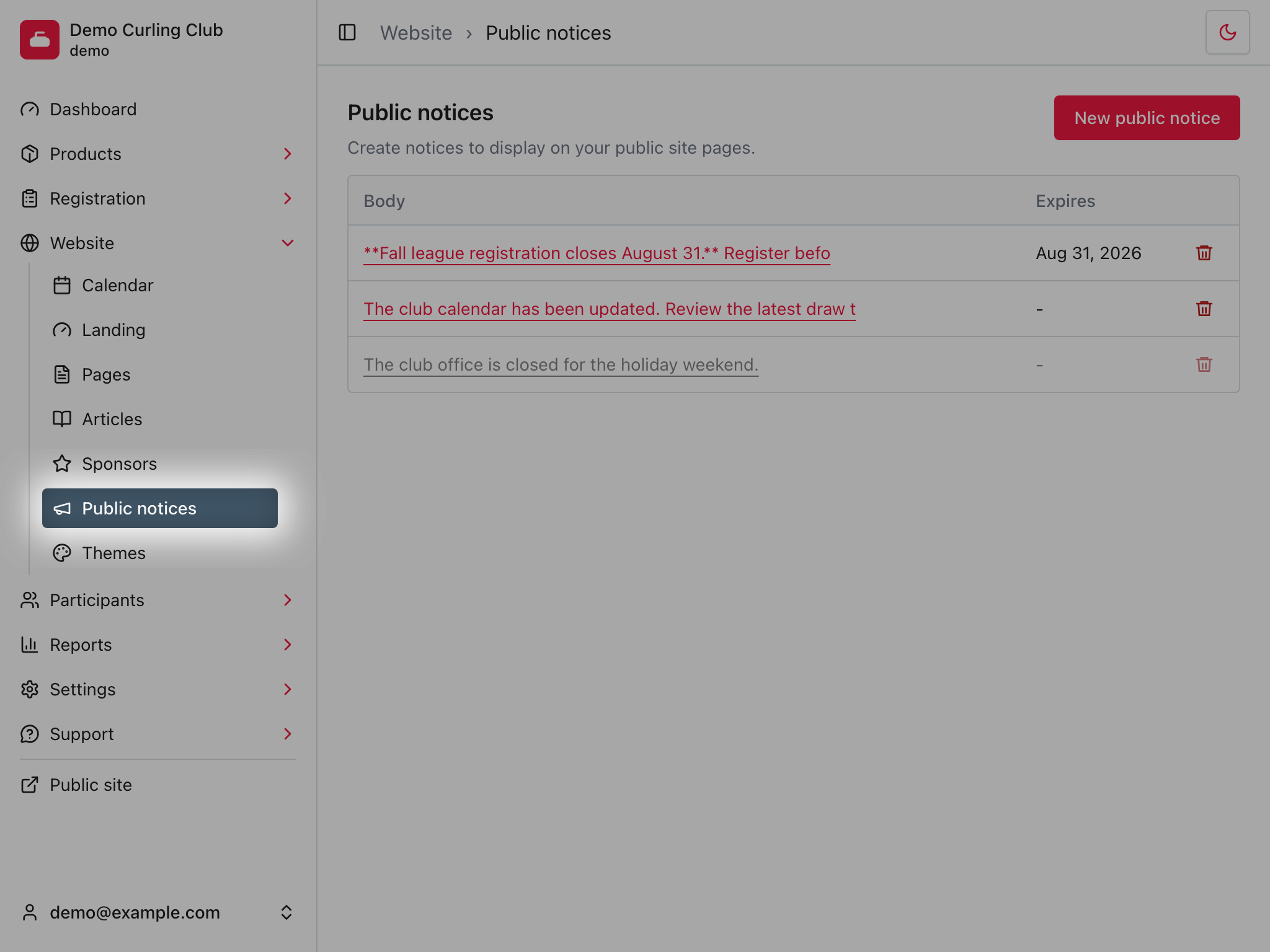
The list is ordered by creation date, newest first. Select a notice's Body preview to edit it. A faded row is disabled and does not appear on your public website.
Create a public notice
Select New public notice, then complete the notice:
- Select Body to write the message in the Markdown editor.
- Set Expires when the notice should stop appearing after a particular date.
- Leave Enabled selected when the notice should be visible as soon as you save it.
- Add one or more locations to choose which public URLs show the notice.
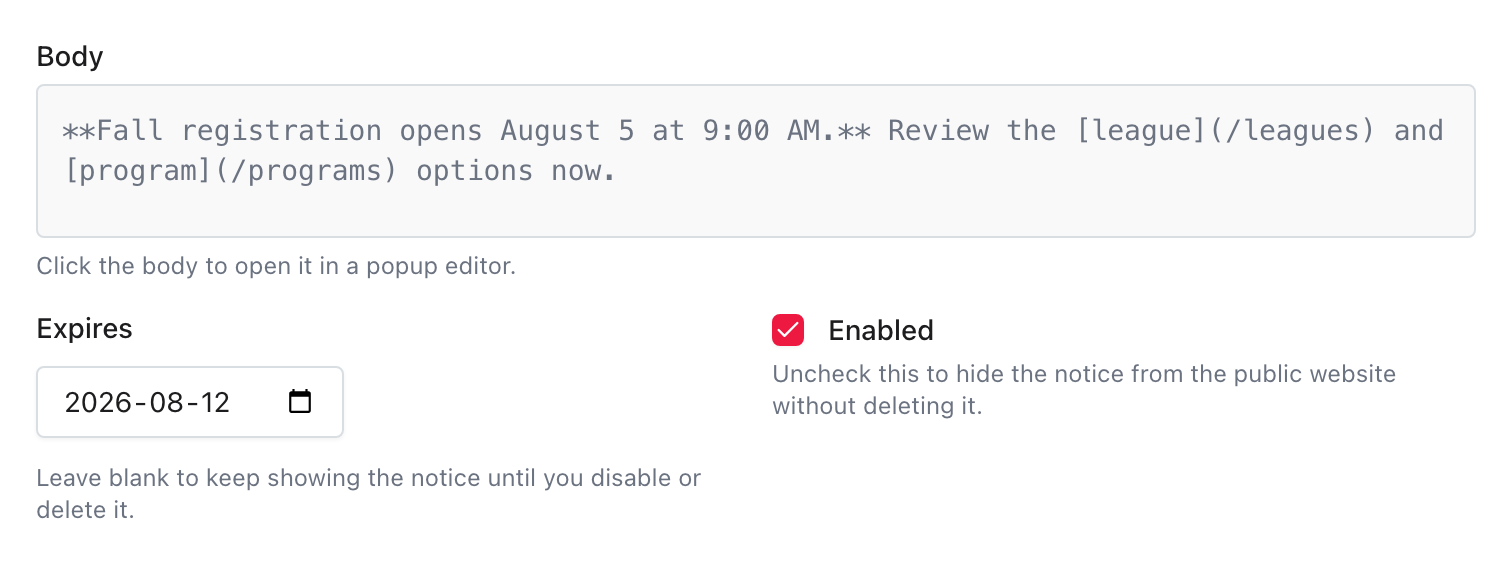
The body supports the same Markdown editor used by pages and articles. You can add bold or italic text, headings, lists, and links. Select Apply in the editor to return the body to the form. Applying the body does not save the notice, so select Save after the rest of the form is ready.
The notice remains visible through the selected Expires date in your organization's time zone. Leave Expires blank when the notice should remain available until you disable or delete it.
Uncheck Enabled to keep a notice without showing it. This is useful when preparing a message in advance or temporarily removing one you may use again.
Choose where the notice appears
Each location compares its URL pattern with the path of the public page.
For example, the path in
https://example.curling.io/en/leagues/1-monday-night is
/leagues/1-monday-night after Curling IO removes the language segment.
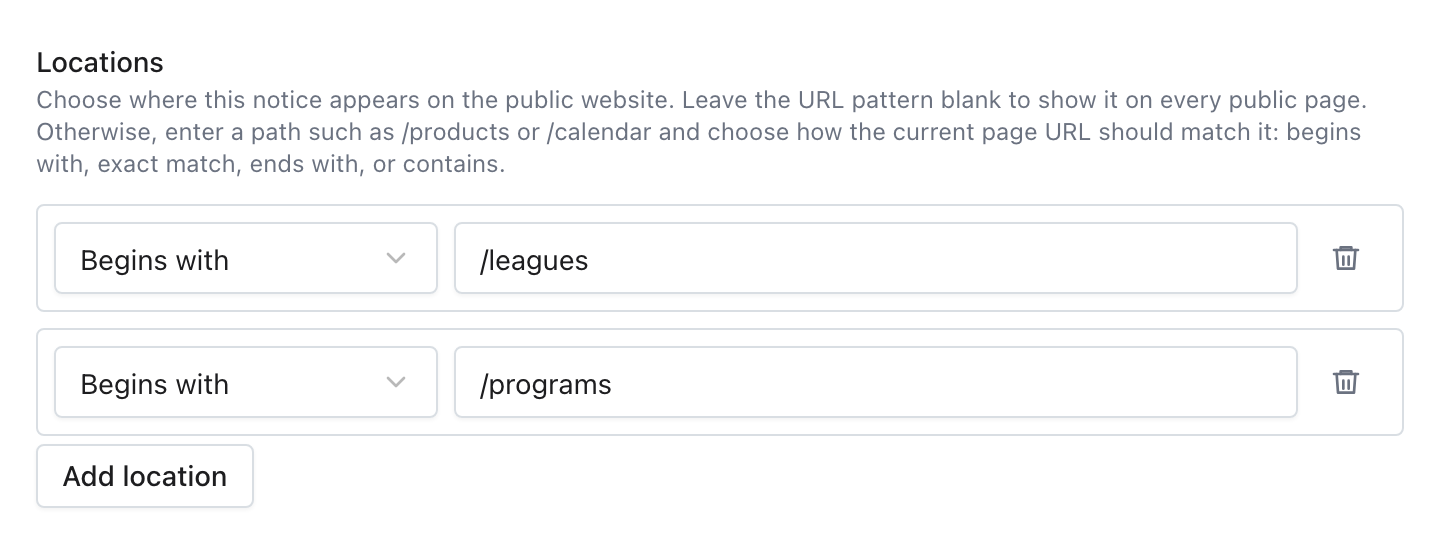
Use the matching method that describes the pages you want:
| Method | Example pattern | Matches | Does not match |
|---|---|---|---|
| Begins with | /leagues | /leagues and /leagues/1-monday-night | /programs |
| Exact match | /calendar | /calendar only | /calendar/bookings |
| Ends with | /calendar | /calendar and /members/calendar | /calendar/bookings |
| Contains | registration | Any path containing registration | Paths without that text |
Begins with is usually the best choice for a whole section because it includes the section page and the detail pages below it. Exact match is safer when only one URL should show the notice. Use Ends with when the beginning of the path may vary, and Contains when a distinctive word may appear anywhere in the path.
These rules apply to every matching method:
- Enter paths without
/enor/fr. Curling IO ignores an initial language segment before it compares the path, so/leaguesworks for both languages. - Select Add location when the notice should cover another path. The notice appears when any one of its locations matches.
- Remove every location when the notice should appear on every public page. A blank URL pattern also means every public page.
- Start a path with
/unless you deliberately use a partial word with Contains.
Save and check the public website
Select Save, then open a public page that should match one of the locations. The notice appears above that page's main content.

Check at least one page that should show the notice and one that should not. This catches a pattern that is too broad or too narrow before visitors rely on the message.
These screenshots use the default website template and the Canuck theme. Another template or theme may change the notice's typography, spacing, and colours. Its matching, expiry, and Enabled setting work the same way.
Edit, disable, or delete a notice
Return to Website > Public notices and select the body preview to edit a notice.
- Uncheck Enabled and save when you want to hide the notice but keep it.
- Change its body, expiry date, or locations and save to update where and how it appears.
- Select the delete button when you no longer need the notice.
Deleting a public notice is permanent. Disable it instead when you may want to reuse it.
Troubleshooting
The notice does not appear
Open the notice and check that Enabled is selected and Expires has not
passed. Then compare the public page's URL path with every saved location.
Remember to leave the initial /en or /fr out of the pattern.
The notice appears on the wrong pages
Use Exact match for one specific path, or make a Begins with or Contains pattern more specific. If the notice appears everywhere, check for an empty location or a blank URL pattern.
Body changes were lost
Select Apply before closing the Markdown editor, then select Save on the public notice form. Both actions are required.