Studio
Studio is where you change how your public website looks and what it says. You describe a change to the built-in assistant, check the result in a private preview, and publish when you are happy. Visitors keep seeing your last published website until you publish again, so you can try things without worrying about the public site.
Studio changes the layout and wording of your website: the homepage sections, the menu, and the extra sections above and below supported pages. It does not change your events, products, registrations, or payments. Sections that show live club information, such as upcoming events or sponsors, keep using your current records.
For direct JSON edits, start with the document overview, then insert a component. The component reference lists every supported kind and field, with worked examples you can copy.
Pages you can change
You can add sections above and below contact information, pages, article lists and individual articles, product lists and individual products, product notes, registrations, teams, spares, results, and rentals. You can also change the homepage sections, theme, and navigation.
Sign-in, cart and checkout, order confirmation, waiver responses, joining a product, waitlists, and club affiliation use your club's theme and shared header and footer. Studio cannot add sections to those workflows.
For the calendar, Studio controls only whether the public calendar is on or off. You cannot add sections above or below it. See Calendar for how to publish it and configure its schedule display.
Walkthrough video
The following video shows how to ask the assistant for a homepage change, add a banner image, tidy up the menu, publish the result, and restore an earlier design.
Open Studio
Go to Website > Studio.
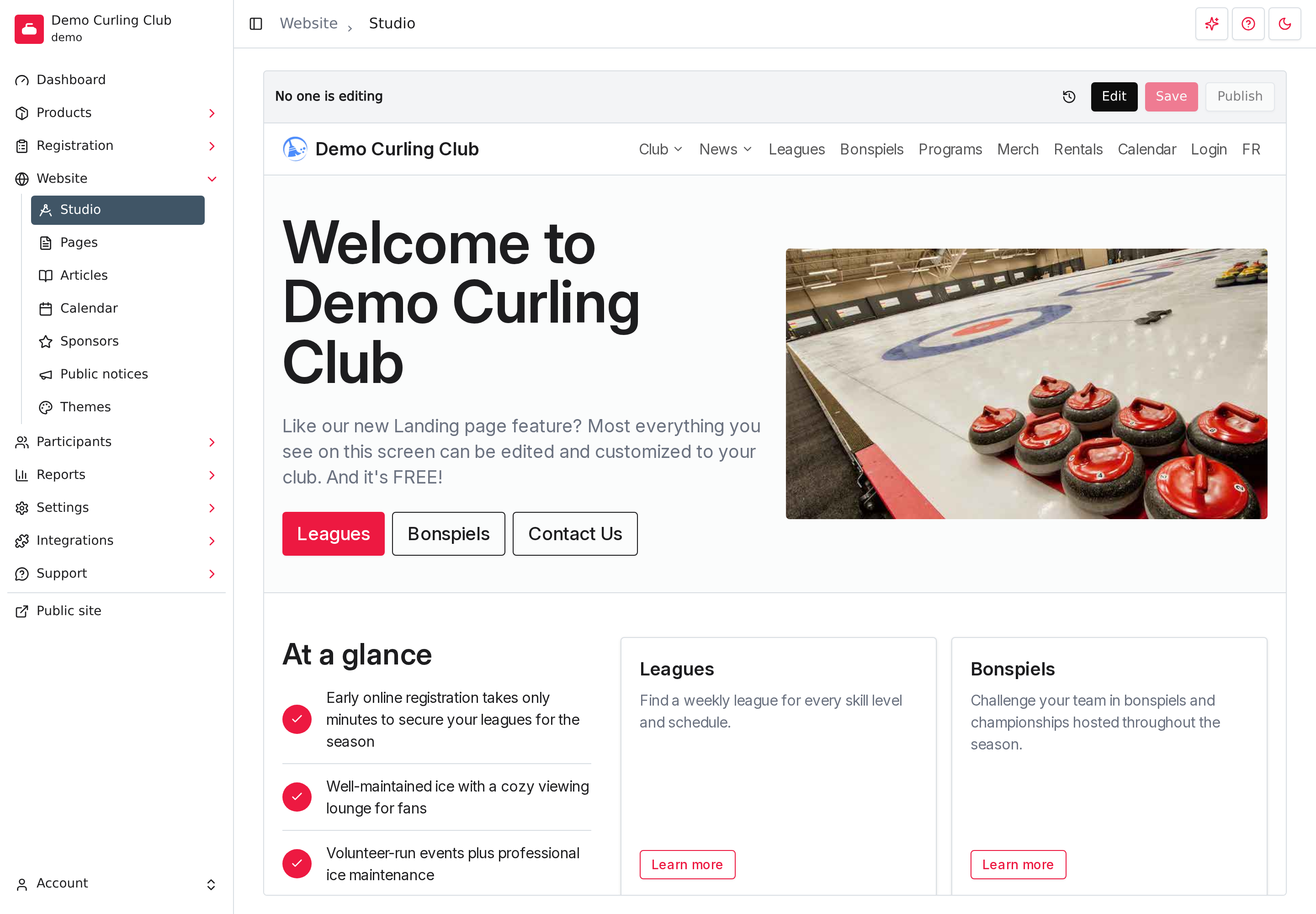
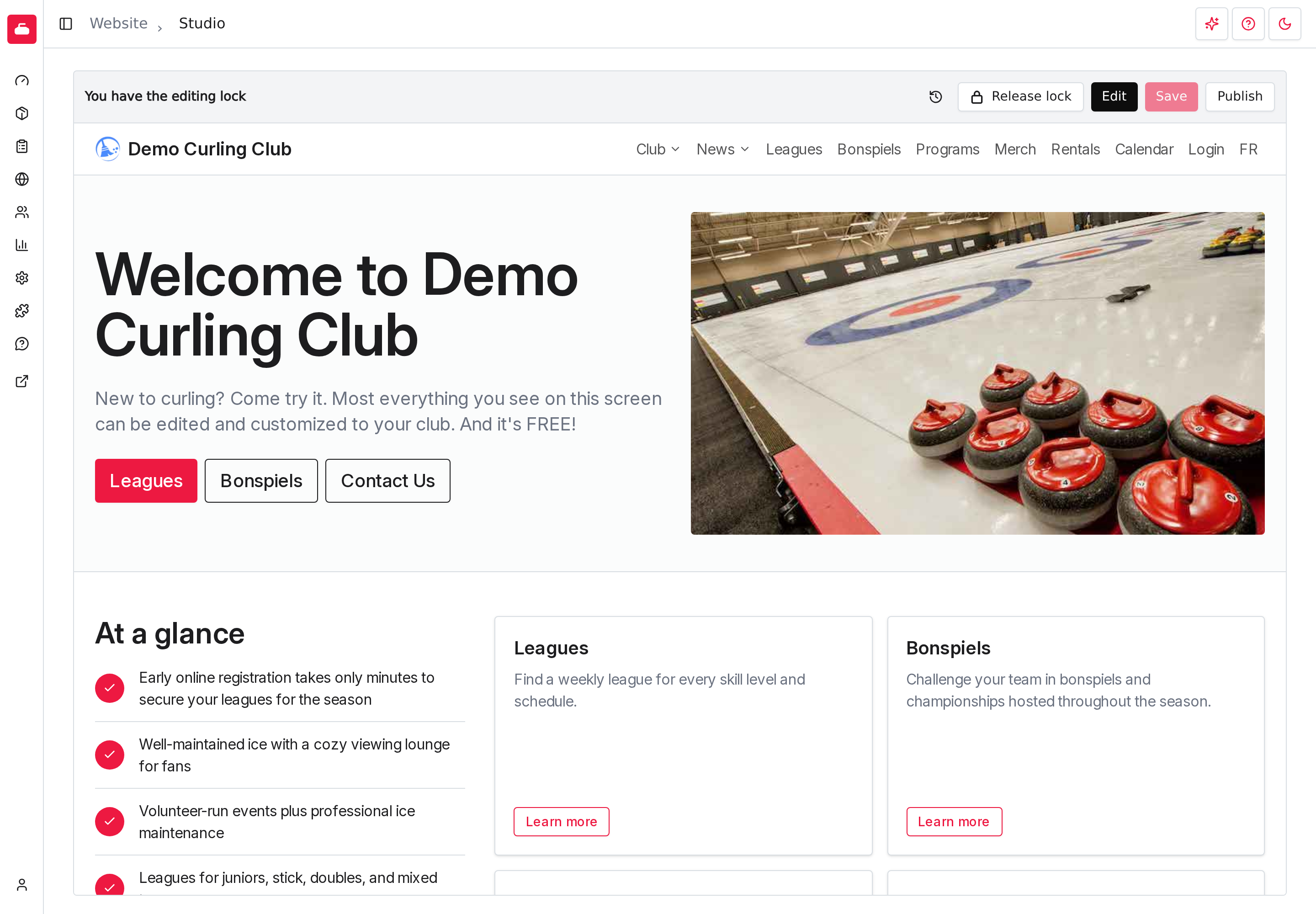
The bar above the preview shows who is editing. Next to it are the controls you will use:
- History of changes (the clock icon) lists the saved checkpoints of your website design.
- Edit lets you start making changes.
- Save saves your changes as a draft.
- Publish makes the latest saved draft public.
The preview below the bar is your website as it will look once your drafts are published. It is private; only managers see it.
Understand drafts, versions, and the editing lock
- Checkpoint. Each time you save, or accept a change from the assistant, Studio keeps a checkpoint. A checkpoint is a draft of your whole website design that you can come back to.
- Version. When you publish, the latest checkpoint becomes the public website and gets a version number. You can save many checkpoints and publish once.
- Editing lock. Only one manager can change the website at a time. The person who has the lock is the person who is editing. This stops two people from overwriting each other's work.
Start editing
- Go to Website > Studio.
- Select Edit.
The status changes to You have the editing lock. If someone else already has the lock, see When someone else is editing.
Select Edit before you ask the assistant for a change. You keep the lock until you release it, so select Release lock when you finish.
Ask the assistant for a change
The assistant is the easiest way to change your website. Tell it what you want in your own words, and it prepares the change in your preview.
- Select the sparkle button at the top right of the page, labelled Ask AI for help with this task.
- Make sure the Assist tab is selected.
- Describe the change in the box labelled Message. For example: "Make our homepage more welcoming to new curlers. Write a short introduction and add an Ask about learning to curl button that links to our contact page."
- Select Send.
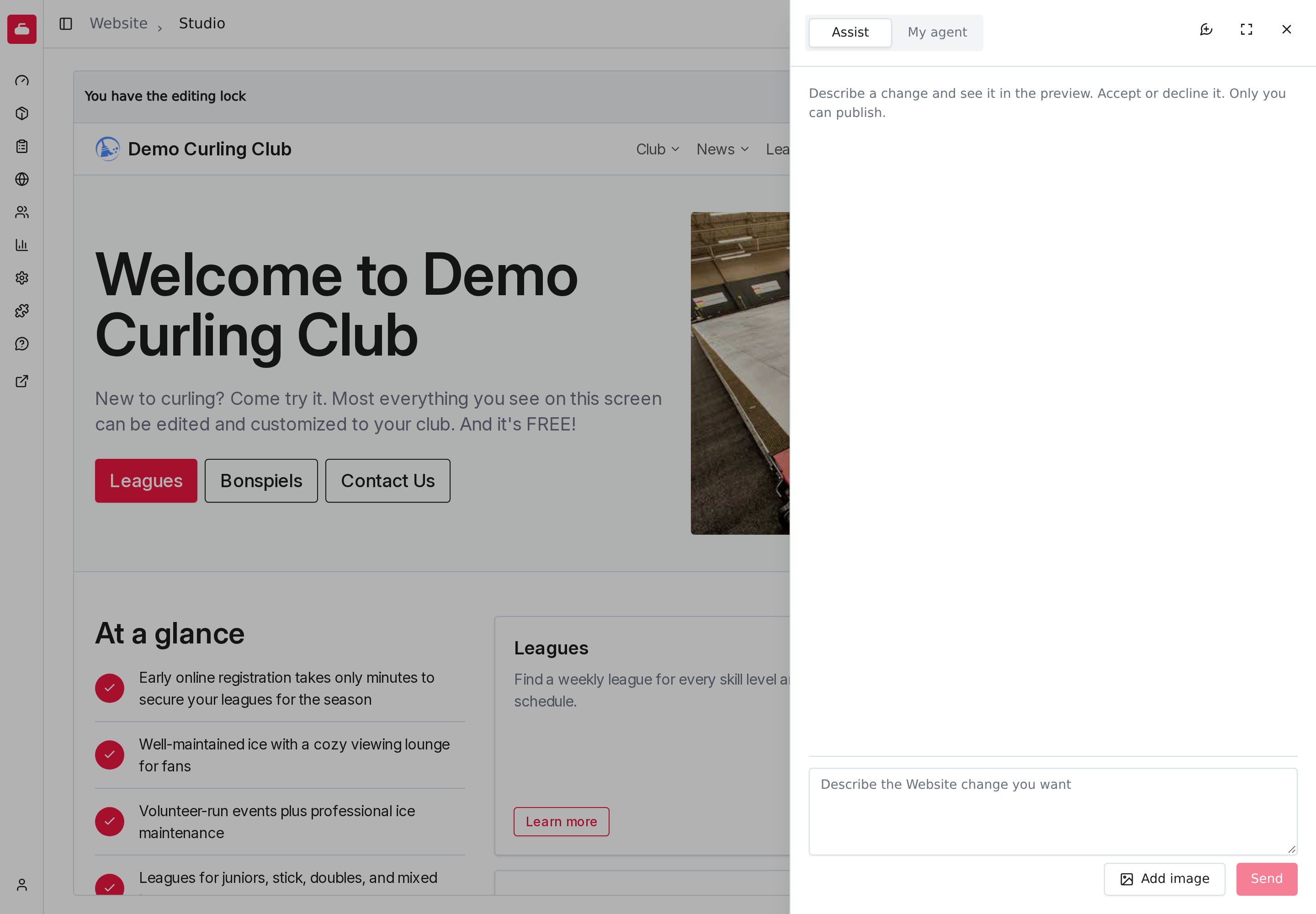
The assistant shows its proposed change in your preview. Read it carefully, especially names, dates, and anything it says about your club. Then choose:
- Accept to save the change as a new checkpoint.
- Decline to throw it away. A declined change is not kept in your history.
While a proposal is waiting, you can't make other changes in Studio. Accept or decline it first. A proposal that you leave alone eventually expires.
Accepting does not publish. Visitors still see your last published website.
Get better results
- Say which page or section to change, and give the facts the assistant needs. If a program starts on a certain date, type the date.
- Tell it what to keep. For example: "Keep the Leagues button."
- Ask for one thing at a time. You can follow up in the same chat, such as "The title is a bit long. Shorten it."
- Select New chat (the speech bubble icon at the top of the panel) when you move to a different task, then select New chat. This clears the conversation. Changes you already accepted stay saved.
- If a link needs a destination, tell the assistant where it should go.
Use the assistant with a picture
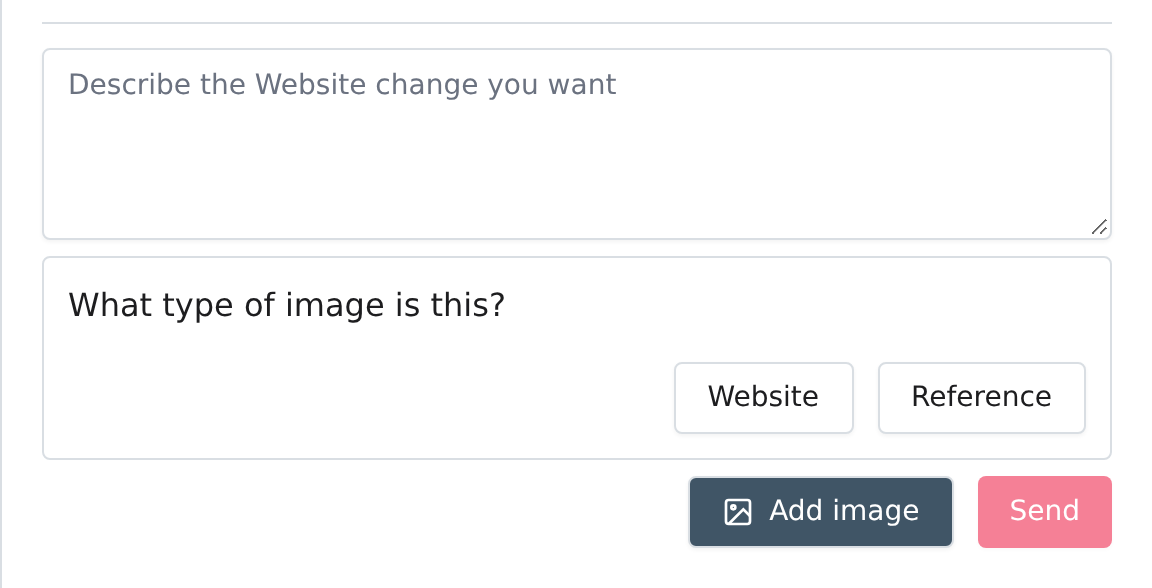
Select Add image under the message box and choose what the picture is for:
- Website puts the picture on your website. Use it for a banner or a photo you want visitors to see.
- Reference shows the assistant a picture to look at, such as an example of the style you like. It does not appear on your website.
Choose a PNG, JPEG, or WebP picture no larger than 2 MB.
The assistant uses Platform Credits
The assistant spends your club's Platform Credits, the same credits used for email broadcasts. If your club doesn't have enough for another message, the assistant shows "Your organization doesn't have enough Platform Credits to send a message. Add credits to continue. Existing work can finish." and the send button stays off until you add credits. Accepting or declining a proposal you already have doesn't need credits.
A long request can pause at a Credit checkpoint. It shows how much the request has used so far and asks whether that is what you expected. Select Continue to let the assistant spend up to another 100 Platform Credits on the request. It doesn't go any further until you do.
The assistant works only with the sections and settings Studio supports. Ask for a concrete change, such as an introduction above a list of programs. It can't add custom code or replace your registration and payment pages.
Change your website yourself
You don't have to use the assistant. Select Edit to open Source, where you can change each part of the website directly. This is an advanced tool. It shows the website's settings as structured text, so a small typing mistake can break a section. Studio won't let you save text that isn't valid, and you can always restore an earlier checkpoint.
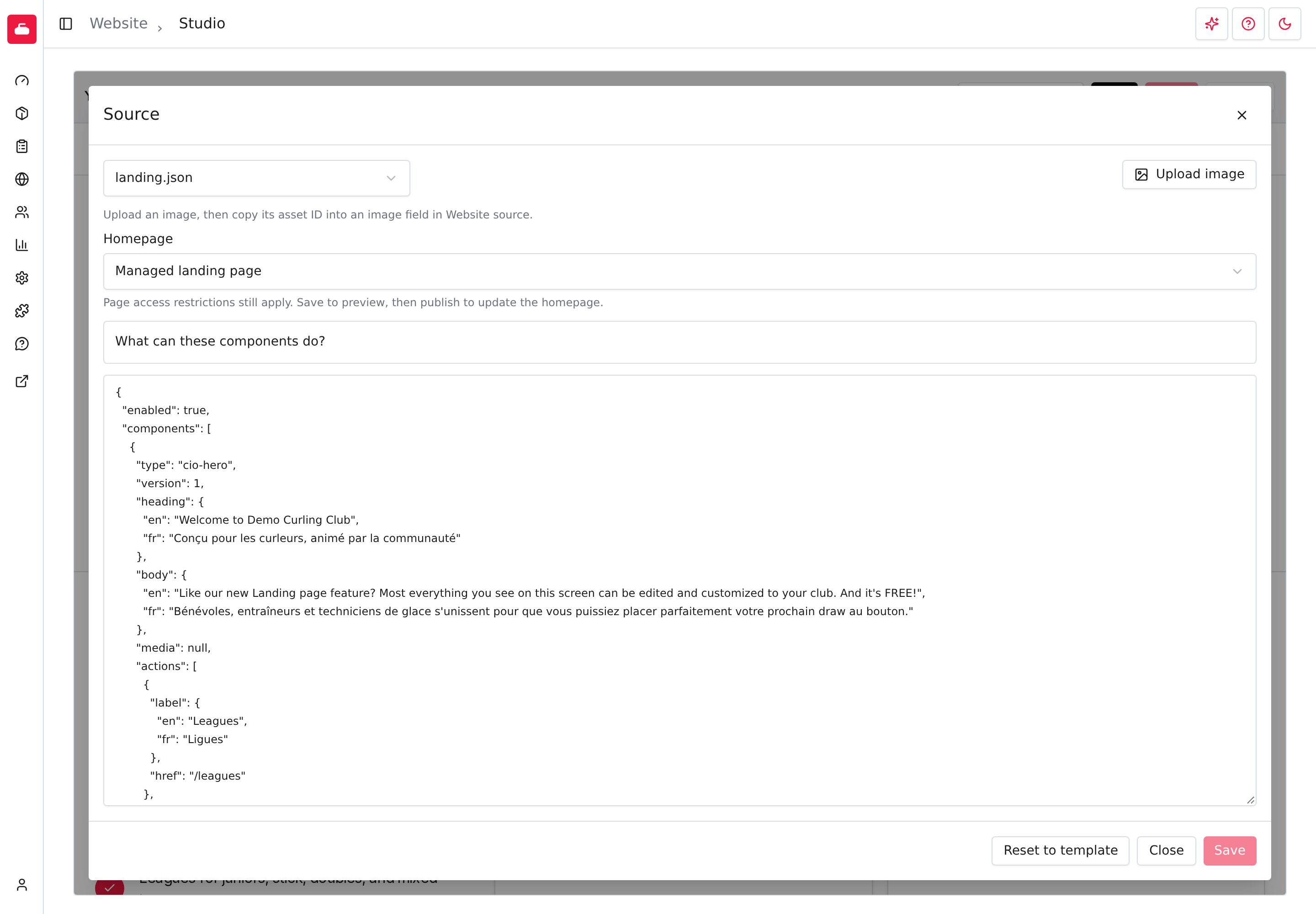
- Use the picker at the top left to choose which part of the website to edit.
- For documents that accept sections, use Upload image to add a picture. Studio shows its Asset ID. Paste that ID into the text where the picture should appear.
- For the homepage, the Homepage choice lets you pick what visitors see first: the automatic first product type, the managed landing page, or one of your published pages. The managed landing page is a ready-made home page that brings in what's happening at your club, such as upcoming registration dates and draws, your latest articles, and your sponsors. You change its wording and images here in Studio.
- For documents that accept sections, expand What can these components do? to see the sections you can use and their limits.
- Reset to template returns the selected part of the website to its starting design and saves it as a new checkpoint. Studio asks you to confirm.
Select Save when you finish.
Set your footer policy links
Go to Settings > Policies to write your club's Terms and Privacy text
in Markdown, or enter an external URL for either policy. Supply the text in your
club's enabled languages. The public footer links use /terms and /privacy;
an external URL overrides the corresponding policy's destination.
Policy settings are saved separately from Studio checkpoints. Restoring a website design does not restore policy text or destinations.
Save a draft and check it
Select Save to keep your changes as a draft. Accepting a change from the assistant saves one automatically. Look over the preview, then make another change or save again.
Visitors don't see a draft. The public website still shows your last published version until you publish.
If your website uses English and French, check both languages before you publish. A change that reads well in one language still needs a review in the other.
Publish
When the preview looks right, select Publish. Visitors see the new design straight away, and Studio gives it the next version number.
Publish is available only when you hold the editing lock, you have no unsaved changes, and your latest checkpoint isn't already published. You can save several checkpoints while you work and publish once at the end.
See your history and compare changes
Select History of changes to see your checkpoints, newest first. Studio always keeps the version that is currently public, but very old drafts may eventually be removed. Each one shows who made it, when, and a short description. Published checkpoints also show their Version number, and the newest one is marked Latest.
Select Compare to latest beside an older checkpoint to see what is different from the latest one. Removed text is red and added text is green. The comparison is a technical list of settings, so it is most useful for finding which part of the website changed. Select Load more to see older entries.
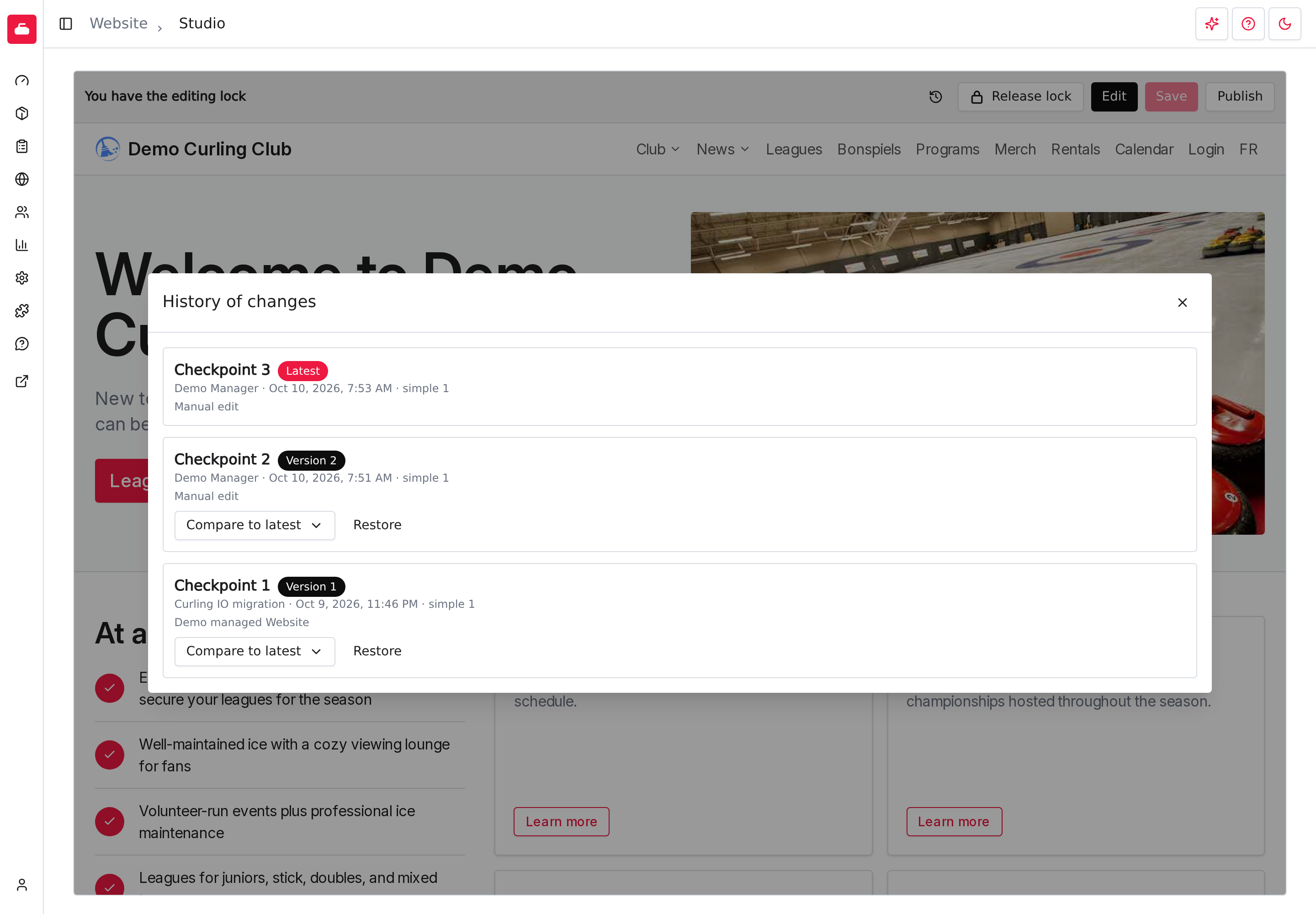
Restore an earlier design
- Select History of changes.
- Find the design you want and select Restore beside it.
- Check the preview.
- Select Publish when you want visitors to see it.
Restoring saves the older design as a new checkpoint, so your other checkpoints stay available. It does not change the public website until you publish. You need the editing lock to restore.
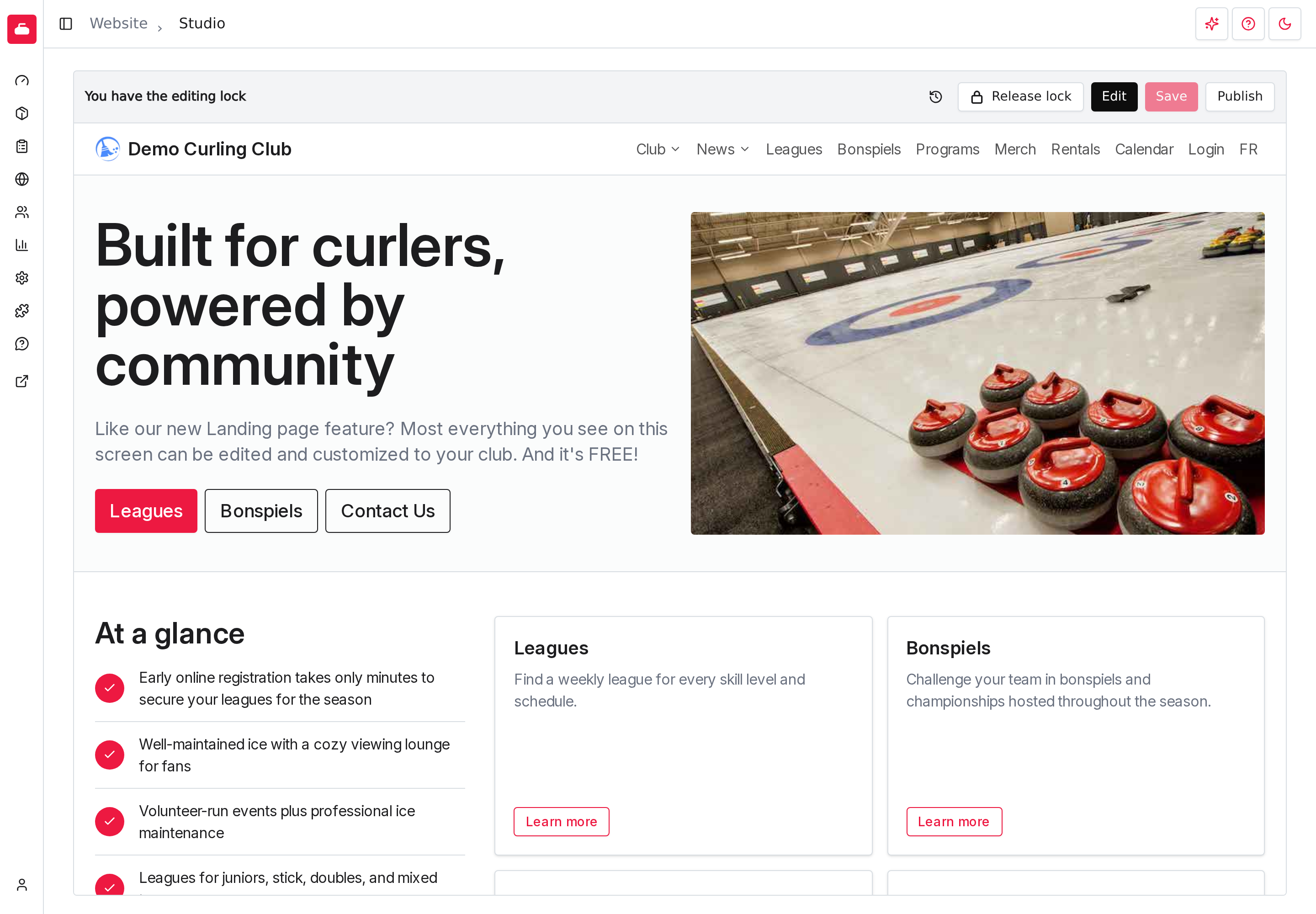
Restore is for the website design only. It does not undo registrations, payments, or changes to your events, products, or articles. Live sections keep showing current club information.
When someone else is editing
If another manager has the editing lock, Studio shows their name and you can still look at the preview and the history, but you can't save or publish.
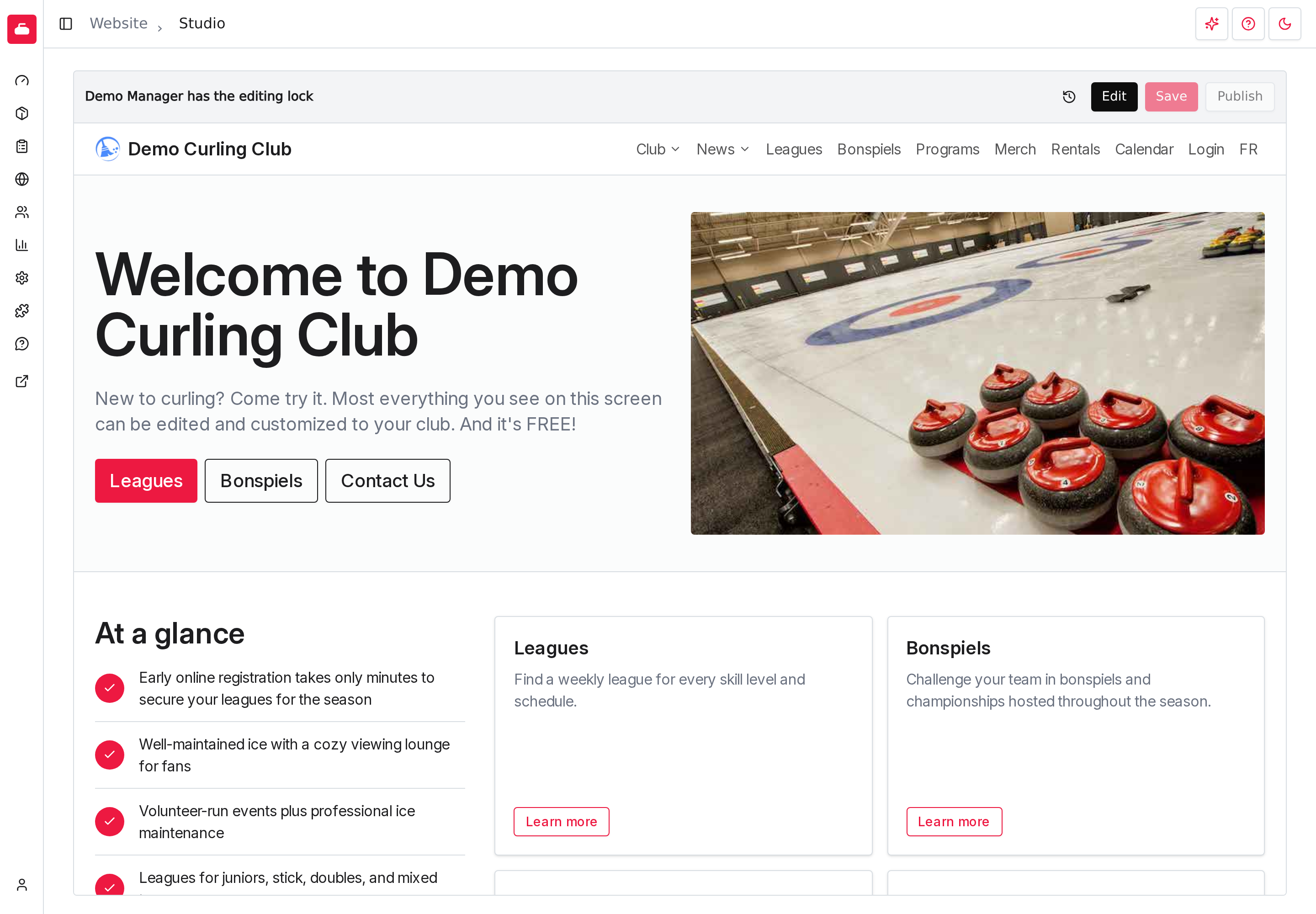
Ask them to finish and select Release lock. If they have left and you need to continue, select Edit, then Take lock. The confirmation shows who holds the lock, when they took it, and when the last checkpoint was saved.
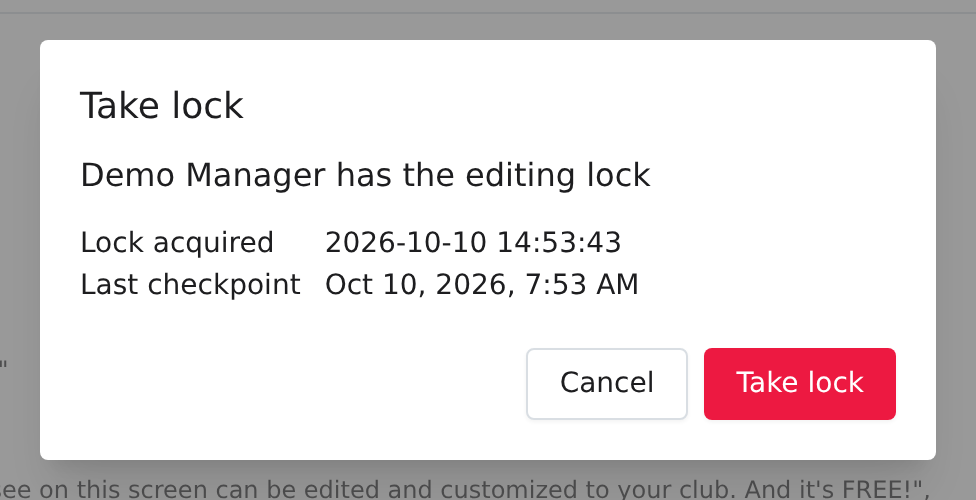
Taking the lock removes it from the other person right away, and any changes they hadn't saved are discarded. Checkpoints they already saved are kept. Only take the lock when you are sure they are done.
A lock that nobody has used for seven days is released automatically.
Release your lock when you finish
Select Release lock when you are done so another manager can take over. If you try to leave Studio while you hold the lock, Studio asks what to do:
- Stay keeps you on the page.
- Leave with lock leaves and keeps the lock for you.
- Release lock and leave leaves and lets others edit.
Use your own AI assistant
If you prefer a different AI assistant, open the sparkle button and select the My agent tab. It gives you instructions to copy. See Bring your own agent for what is needed and what to expect.
Related pages
- Themes change your colours.
- Pages hold long-lived information such as rules and a handbook.
- Articles hold news and updates.
- Calendar controls what your public calendar shows.
- Sponsors supply the sponsor sections on your website.
If something doesn't work
- Save or Publish is greyed out. Save needs unsaved changes and the editing lock. Publish needs the lock, no unsaved changes, and a draft that isn't already published. Select Edit if you don't have the lock.
- "The editing lock is no longer yours." Another manager took the lock. Your unsaved changes were discarded. Ask them to finish, then take the lock again.
- "A newer checkpoint exists." Someone saved while you were editing. Your unsaved changes were discarded. Reload Studio and make the change again.
- "Nothing has changed since the current checkpoint." Your edit matches the latest draft, so there is nothing new to save.
- "The result of this change is unknown." The connection dropped before Studio could confirm your change. Select Reload Studio and check the history before you try again.
- The assistant says your organization doesn't have enough Platform Credits. Add Platform Credits, then send your message again. You can also make the change yourself in Source.
- The assistant says it is not available on this server. The assistant isn't switched on for this site. Make the change yourself in Source, or contact support.