Themes
Themes control the colours used throughout your Curling IO administration area and public website. Use one of the included themes for a quick, consistent design, or create a custom theme when you want the interface to better match your organization's brand.
Every theme supports light and dark mode. You can preview both before applying a theme, so you can check its buttons, forms, tables, alerts, and text contrast without changing what visitors currently see.
Walkthrough video
The following video shows you how to preview the included themes, create or import a custom colour palette, edit its light and dark colours, apply it to your website, and copy or manage saved themes.
Open Themes
Go to Website > Themes.
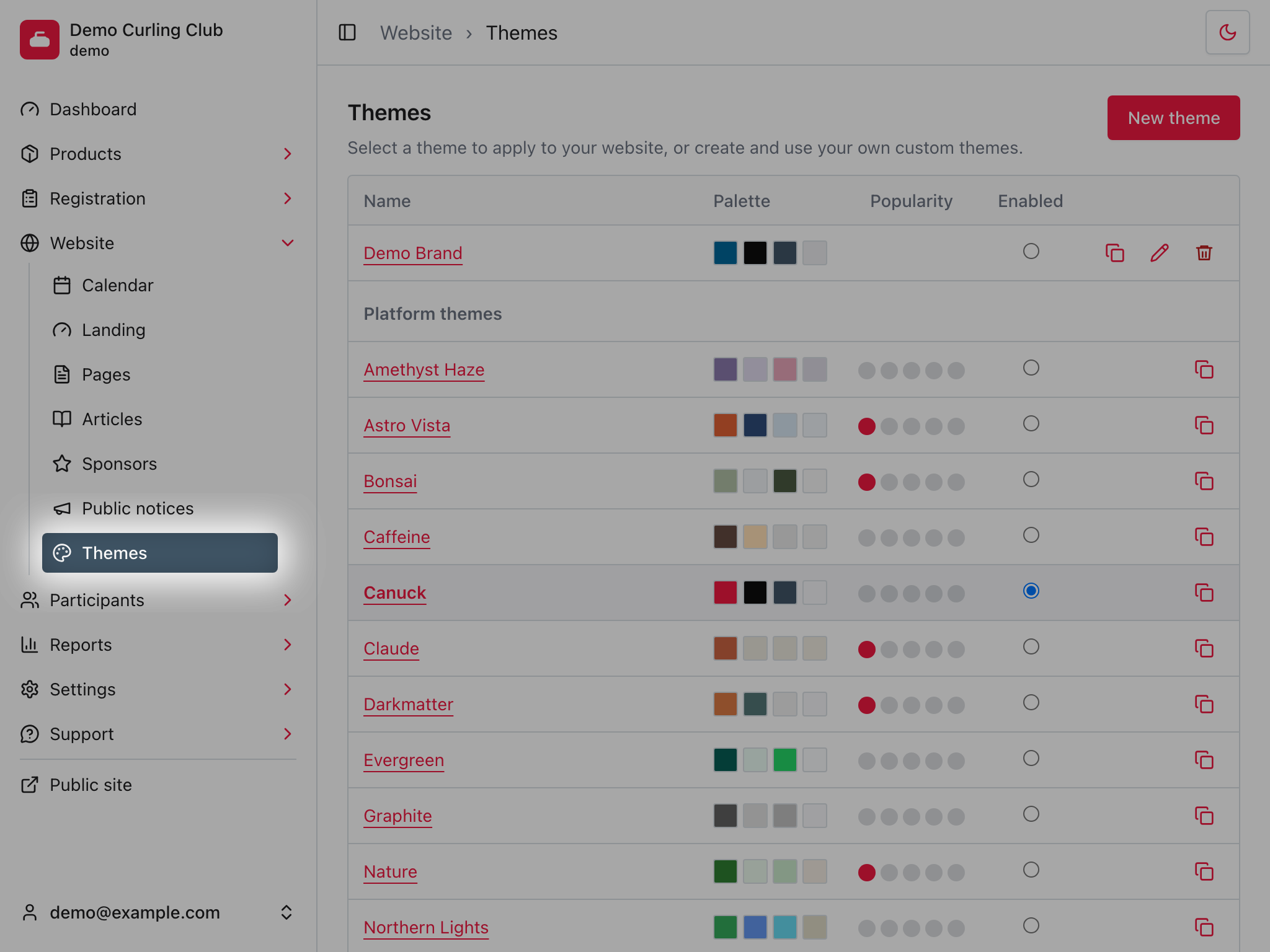
Your custom themes appear first, followed by the included platform themes. The table shows each theme's colour palette, its relative popularity across Curling IO, and which theme is currently selected.
Select a theme's name to preview it. Selecting the radio button under Enabled applies that theme immediately to your administration area and public website.
Preview a theme
The preview shows the theme in light and dark mode without applying it. It includes common colour pairings and examples of the interface components that use them.
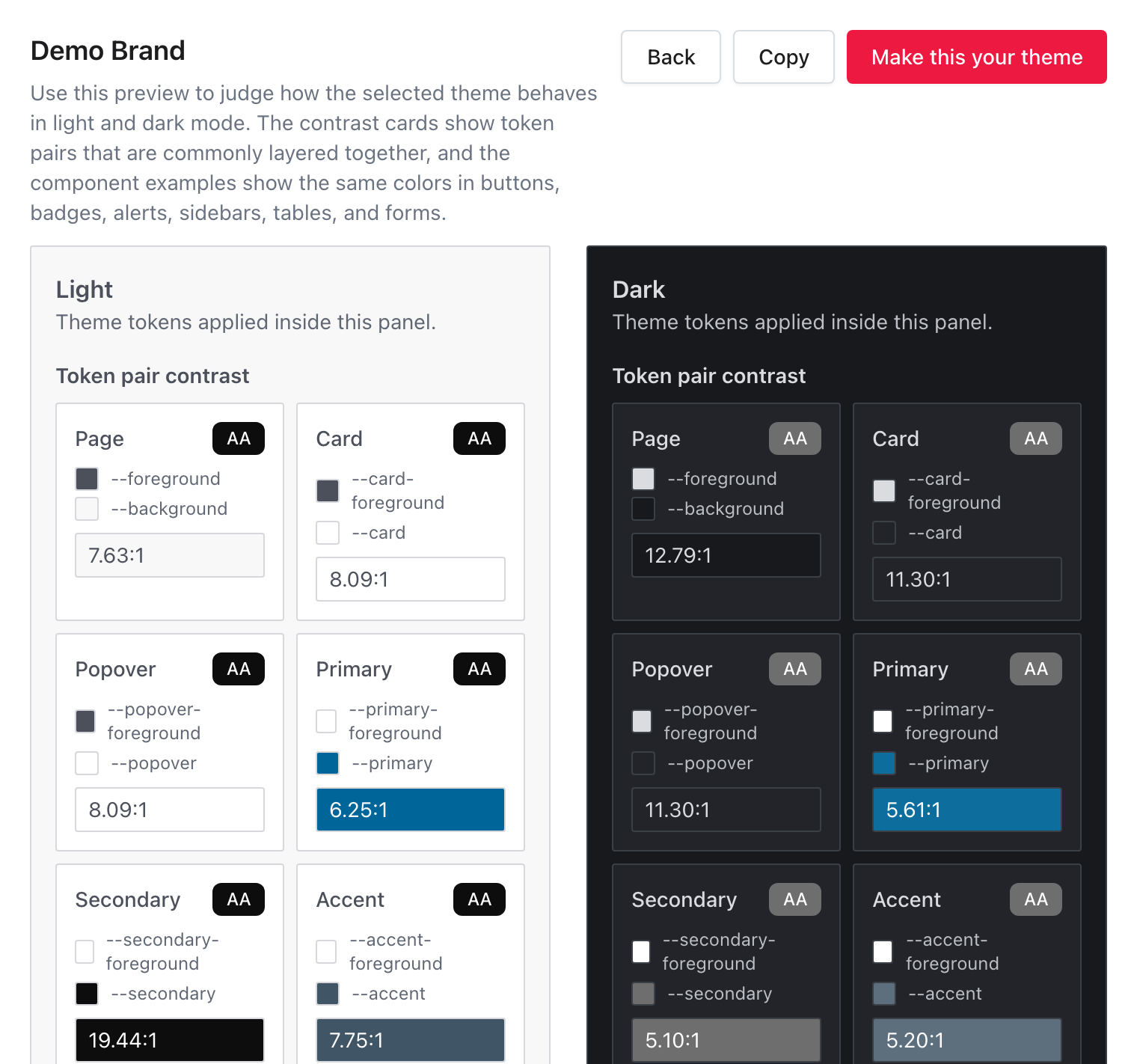
Each contrast card shows the foreground and background colours being tested, their contrast ratio, and the result:
- AA is suitable for normal text.
- Large should only be used for larger text.
- Fail does not provide enough contrast.
Check the Primary, Secondary, Accent, Muted, and Sidebar pairs carefully. A colour can look good by itself and still make text difficult to read when the two are combined.
Select Make this your theme when the preview looks right. Select Back to return without changing the current theme.
Create a custom theme
Select New theme when you want to use your organization's own colours. The editor starts with the colours from your currently selected theme, giving you a complete and readable palette to customize.
- Enter a Theme name.
- Select Light or Dark to choose which colour mode you are editing.
- Open a colour group.
- Choose a colour with its colour picker or enter a six-digit hex value, such
as
#006699. - Check the live preview as you make changes. On larger screens, it appears beside the colour fields.
- Repeat the changes you need in the other colour mode.
- Select Save.
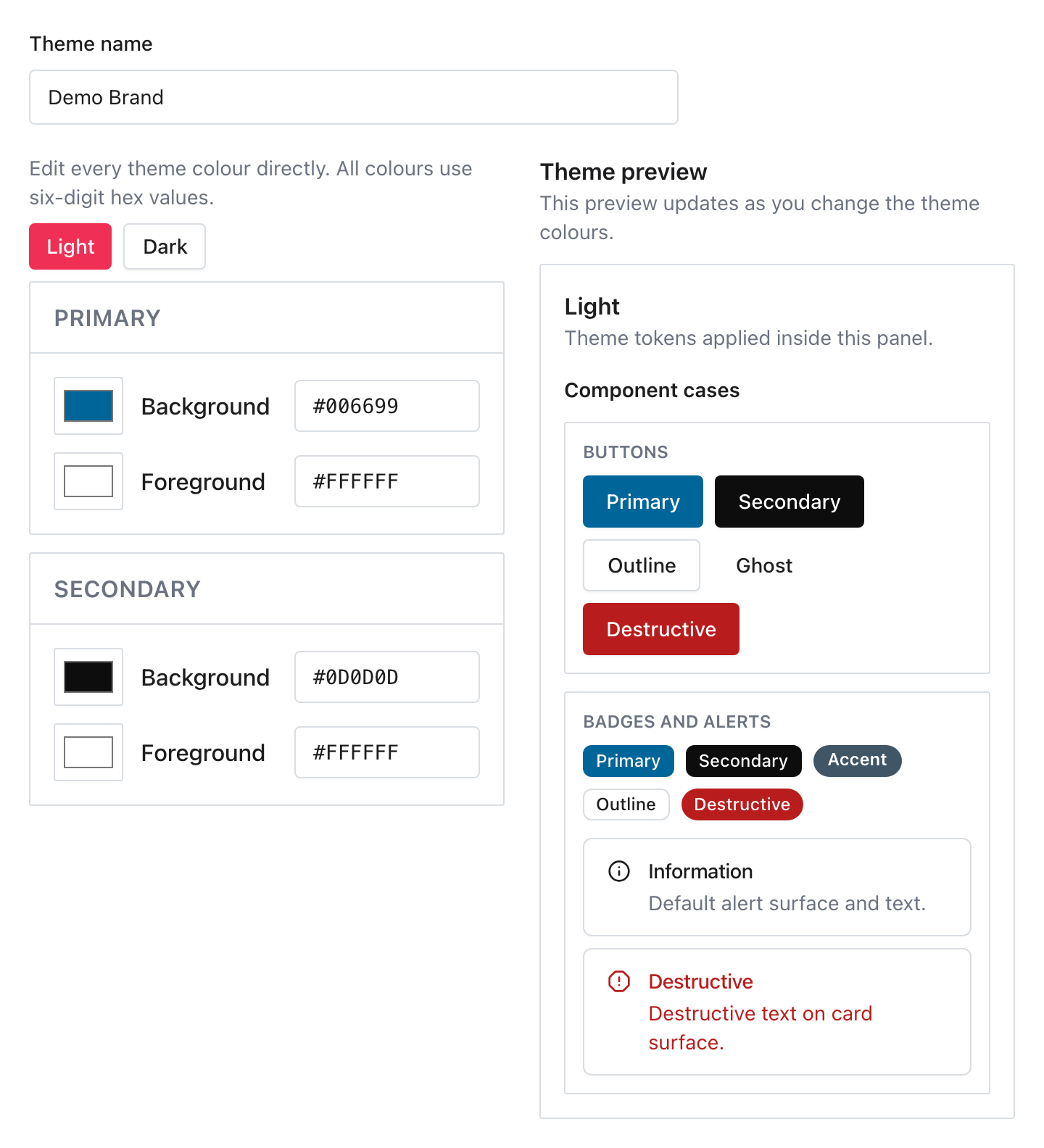
Primary and Secondary are open by default because they control the most recognizable brand colours. The other groups stay collapsed until you need them. Each paired group has a Background colour and a Foreground colour. The foreground is used for text and icons displayed on that background.
Saving creates the custom theme but does not apply it. Return to the Themes list and select it under Enabled, or open its preview and select Make this your theme.
Import colours from tweakcn or an LLM
Use Import colour theme when you already have a palette expressed as CSS variables. Importing fills the regular Light and Dark colour fields so you can review and change them before saving.
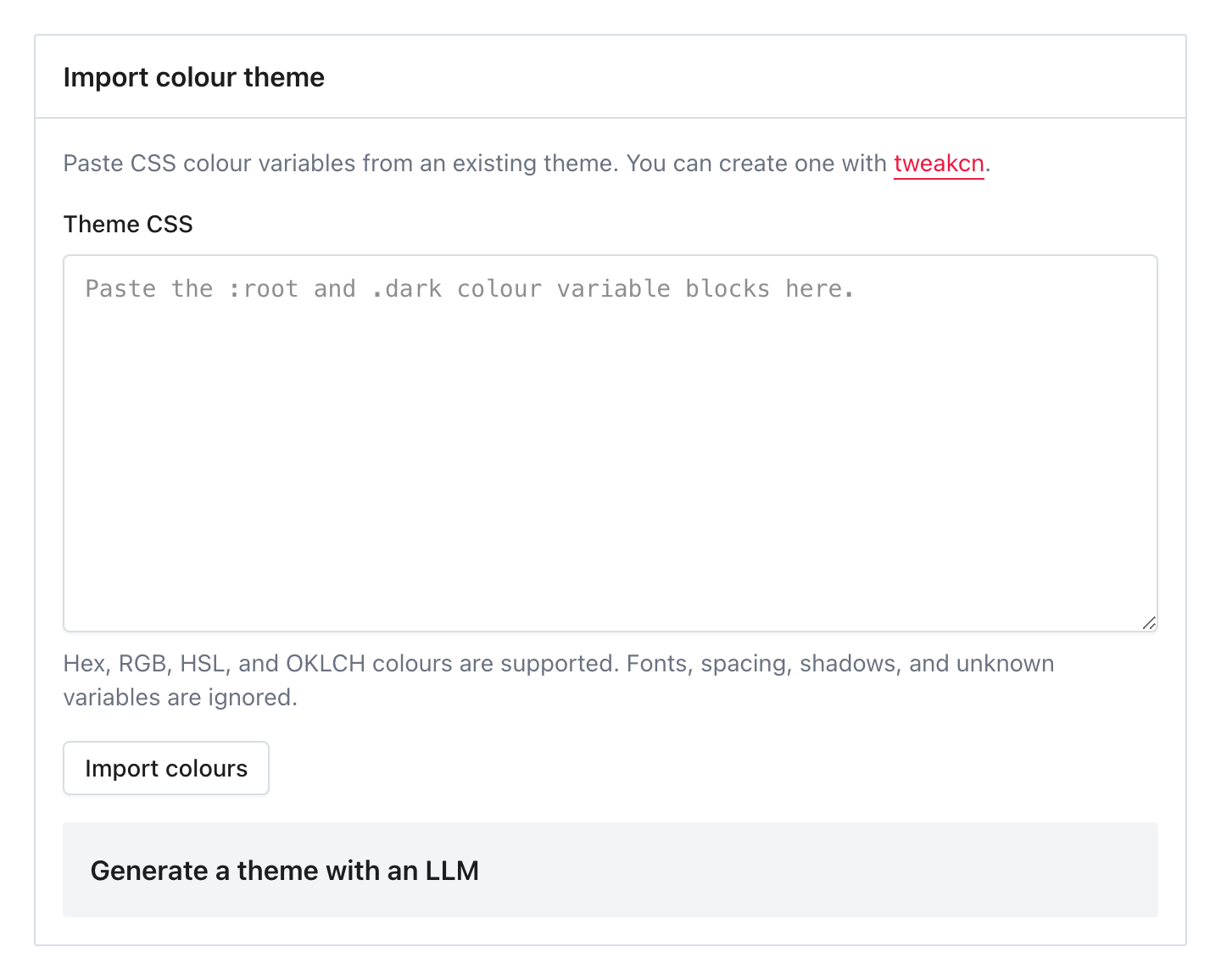
To import from tweakcn:
- Create or select a theme in tweakcn.
- Copy its CSS variable export.
- Open Import colour theme in Curling IO.
- Paste the CSS into Theme CSS.
- Select Import colours.
You can also expand Generate a theme with an LLM and select Copy LLM instructions. Paste those instructions into an LLM, describe your organization's brand colours and preferred style when asked, then paste the returned CSS into Theme CSS.
The importer supports hex, RGB, HSL, and OKLCH colours. It reads recognized
colour variables from :root as Light mode and .dark as Dark mode. Fonts,
spacing, shadows, imports, and unknown variables are ignored. Missing colours
keep their existing values.
Importing does not save or apply the theme. Check the populated fields and live preview, then select Save when the result is ready.
Understand the colour groups
You usually only need to change the groups that are important to your brand. Leave the others at their inherited values unless the preview shows a reason to change them.
| Group | Common uses |
|---|---|
| Primary | Main buttons, links, focus rings, and selected navigation |
| Secondary | Secondary buttons and supporting chart colours |
| Accent | Highlighted interface states, badges, and hover states |
| Base | Main page background and text |
| Card | Cards, panels, and their text |
| Popover | Menus, dropdowns, and their text |
| Muted | Subtle surfaces and supporting text |
| Destructive | Delete actions, errors, and warnings |
| Border & Input | Borders, form controls, and focus rings |
| Chart | Data visualization colours |
| Sidebar | Administration navigation colours |
Light and dark mode use separate values. A colour that is readable in light mode may not work against a dark background, so check both modes before saving. Selecting Light or Dark changes both the fields and the live preview. The preview updates immediately and shows common buttons, alerts, navigation, tables, and form controls.
Copy, edit, or delete themes
Every theme has a copy action. Select it to open an unsaved custom theme with the source theme's Light and Dark colours already populated. Give the copy a name, make any changes you need, then select Save. Copying does not change the source theme.
Custom themes also have edit and delete actions on the Themes list. Select the edit action to change a custom theme's name or colours. If the theme is currently selected, saving the edit updates the active theme immediately. Included platform themes cannot be changed or deleted.
You can create up to five custom themes. Delete one you no longer need before creating another. Deleting the currently selected custom theme switches your organization to the included Tile theme.