Waiver Templates for Membership Associations
Waiver templates let a membership association (MA) provide standard waiver text to its affiliated clubs. Clubs can use a template when creating a waiver, compare an existing waiver with a matching template, and replace their version when they are ready.
Templates are only available to MAs. They do not automatically change club waivers. Each club decides when to create or update its own waiver.
Plan your template set
Create one active template for each distinct group of curlers or type of consent. Most Canadian MAs should start with this pair:
| Template name | Minimum age | Maximum age | Acceptance | Optional |
|---|---|---|---|---|
| Adult Waiver | Age of majority | Blank | I agree | No |
| Youth Waiver | Blank | One year below the age of majority | We agree | No |
Use Adult Waiver and Youth Waiver as the English names. Use the equivalent names in every other language your MA supports. These names are clear to club administrators and remain useful from one season to the next.
The name does not control template matching. Curling IO matches an existing waiver by its minimum age, maximum age, and whether acceptance is optional or required. The name is still important because administrators see it when selecting, comparing, and reporting on waivers.
Do not put a season or year in a reusable template name. If the legal text changes each season, update the body while keeping the name stable.
You can also create templates for other agreements, such as Photo Consent or Code of Conduct. Give each one age limits and an optional or required setting that distinguish it from your other active templates.
Do not create two active templates with the same minimum age, maximum age, and optional or required setting. When more than one template matches, Curling IO uses the first match from the closest parent association. The club is not asked to choose on the comparison page.
Create a waiver template
Sign in to your MA and go to Club > Waivers. The Waiver Templates section appears below your MA's own waivers.
- Select New template.
- Enter a short English and French name, where applicable.
- Set the inclusive Minimum age and Maximum age. Leave either field blank when there is no limit in that direction.
- Leave Active selected when the template is ready for clubs to use.
- Choose whether acceptance is optional.
- For a required waiver, enter the exact acceptance text the curler must type, such as I agree or We agree.
- Enter the waiver body in every language used by your affiliated clubs.
- Save the template.
Required waivers block registration until the curler enters the acceptance text. Optional waivers show Accept and Reject buttons and allow registration to continue with either response. See the club waiver guide for details about age limits, optional acceptance, Markdown, and the member experience.
Use merge variables
Templates support these merge variables in the body and acceptance text:
%{club_name}inserts the affiliated club's name.%{province_state}inserts the club's province or state.%{association_name}inserts the club's direct parent association.
For example:
I acknowledge the risks of participating at %{club_name},
an affiliated club of %{association_name} in %{province_state}.
Curling IO replaces these variables with the club's information when a club creates or applies the template. A club never sees another club's resolved text.
Select a template's name from the Waiver Templates list to preview it. The preview resolves merge variables using one of your affiliated clubs when possible.
Publish a complete set
When a club creates a new waiver, Curling IO shows active templates from the closest parent association that has any active templates. A provincial template set replaces the national template set in this selection flow.
This means an MA should publish a complete set. If you activate only an Adult template, affiliated clubs will not also see the national Youth template when creating a waiver. Publish both Adult Waiver and Youth Waiver together when clubs need both.
Deactivating a template removes it from new template selections and comparisons. It does not remove or change waivers that clubs already created from it.
Create a new club waiver from a template
An affiliated club creates a waiver from your template as follows:
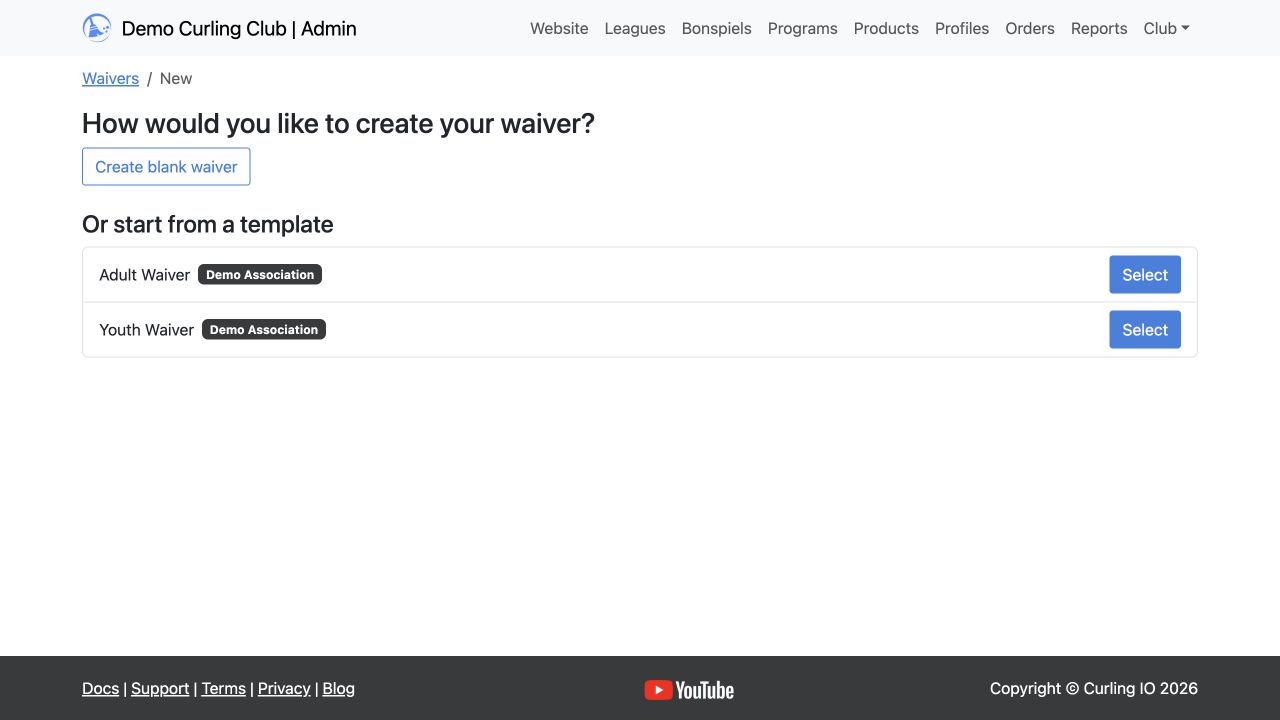
- Go to Club > Waivers.
- Select New waiver.
- Find the template, identified by its name and the MA that provided it.
- Select Select beside the template.
- Review the copied values and save the waiver.
Curling IO copies the template's names, age limits, acceptance settings, acceptance text, and resolved body text into a new club waiver. The club can edit this copy before saving it.
The new waiver is independent of the template. Editing the MA template later does not silently change the club's waiver. The club must compare and apply the newer template when it wants the update.
Compare an existing club waiver with a template
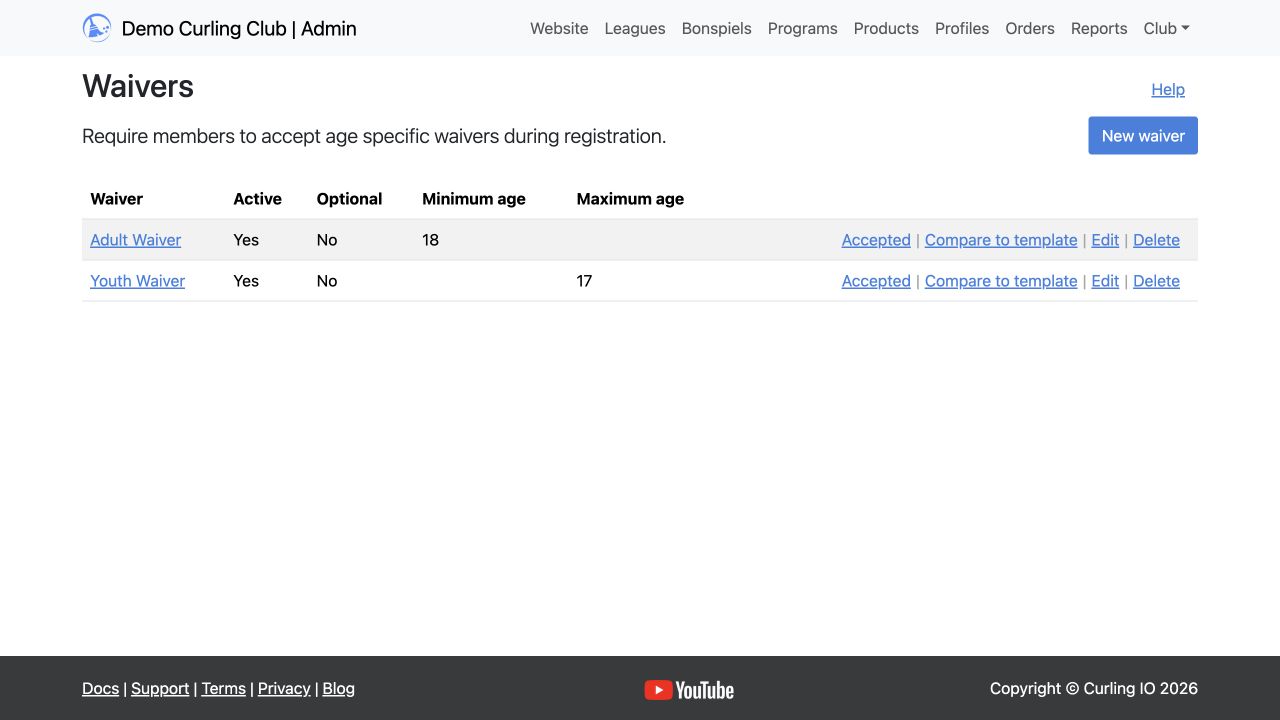
The Compare to template link appears beside a club waiver when Curling IO finds a matching active parent template.
Matching starts with the club's direct parent and then moves up the affiliation chain. A match must have the same:
- Minimum age
- Maximum age
- Optional or required acceptance setting
This lets a provincial template take priority over a national template while still allowing a club to fall back to a matching national template when the province does not provide one.
To compare a waiver:
- Go to Club > Waivers.
- Select Compare to template beside the waiver.
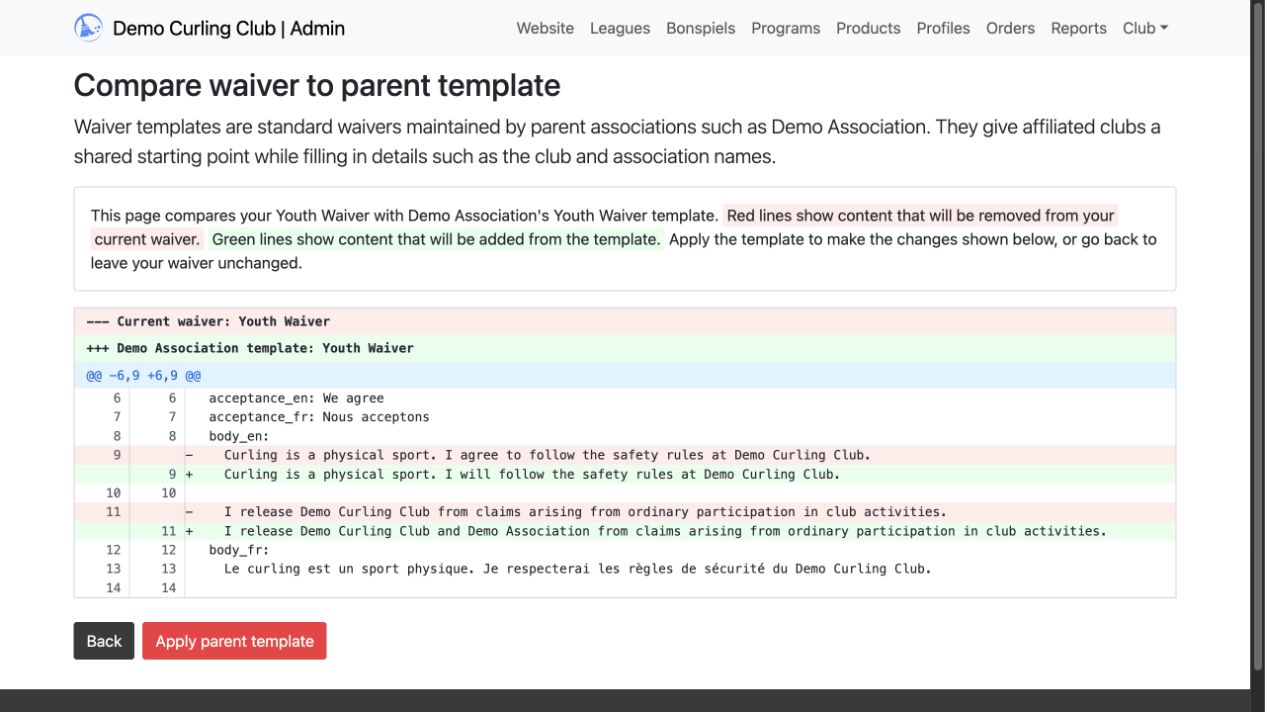
- Review the template source and the highlighted differences.
Red lines show content that will be removed from the club's current waiver. Green lines show content that will be added from the template. The comparison includes:
- English and French names
- Minimum and maximum ages
- Optional or required acceptance
- English and French acceptance text
- English and French waiver bodies
If the waiver already matches, Curling IO hides the diff and confirms that there is nothing more to do.
Apply a template to an existing waiver
From the comparison page, select Apply parent template and confirm the replacement. Curling IO removes the red lines, adds the green lines, and resolves all merge variables for the club. There is no merge editor and no option to keep individual custom changes.
Select Back if the club is not ready to replace its waiver.
Applying a template keeps the existing waiver record and its active setting. Existing acceptance records and snapshots remain attached to that waiver.
Members who already responded to the waiver during the current season will not be asked to respond again just because a club applied a template.
If a legal change requires every member to accept again, create a new waiver from the template and deactivate the old waiver instead of applying the template to the existing record. The old acceptance records will remain available for reporting.
Update templates safely
Use this process when your MA publishes revised waiver text:
- Have the new wording reviewed by the appropriate legal or policy owner.
- Edit the existing Adult Waiver and Youth Waiver templates rather than creating duplicate active templates with the same requirements.
- Fill in every supported language. A blank language in the template will remove that language from a club waiver when it is applied.
- Preview the resolved template and check the club, association, and province substitutions.
- Tell affiliated clubs that an update is available.
- Ask clubs to use Compare to template and review the exact changes before applying them.
- Tell clubs explicitly whether the update requires members to accept a new waiver.
Curling IO provides the publishing, comparison, and record-keeping tools. It does not review or approve the legal wording of a template.
Troubleshooting
A club cannot see a template when creating a waiver
Confirm that the template is active and belongs to the closest parent association publishing templates. Remember that the closest active template set replaces higher-level sets in the new-waiver selection flow.
Compare to template does not appear
Confirm that an active parent template has the same minimum age, maximum age, and optional or required setting as the club waiver.
The wrong template is selected for comparison
Look for duplicate active templates with the same age limits and optional or required setting. Deactivate the obsolete duplicate. Curling IO checks the closest parent first and uses the first matching template.
A merge variable is still visible
Check the spelling and braces. Supported variables must be entered exactly as %{club_name}, %{province_state}, or %{association_name}.